AI Background Remover: The Complete Guide to Instant, Professional Background Removal
If you've ever spent twenty minutes wrestling with a lasso tool in Photoshop just to cut a product out of its background, you already know why an AI background remover has become one of the most useful tools in modern photo editing. What used to require pixel-by-pixel patience now happens in seconds, with results that often look cleaner than manual work.
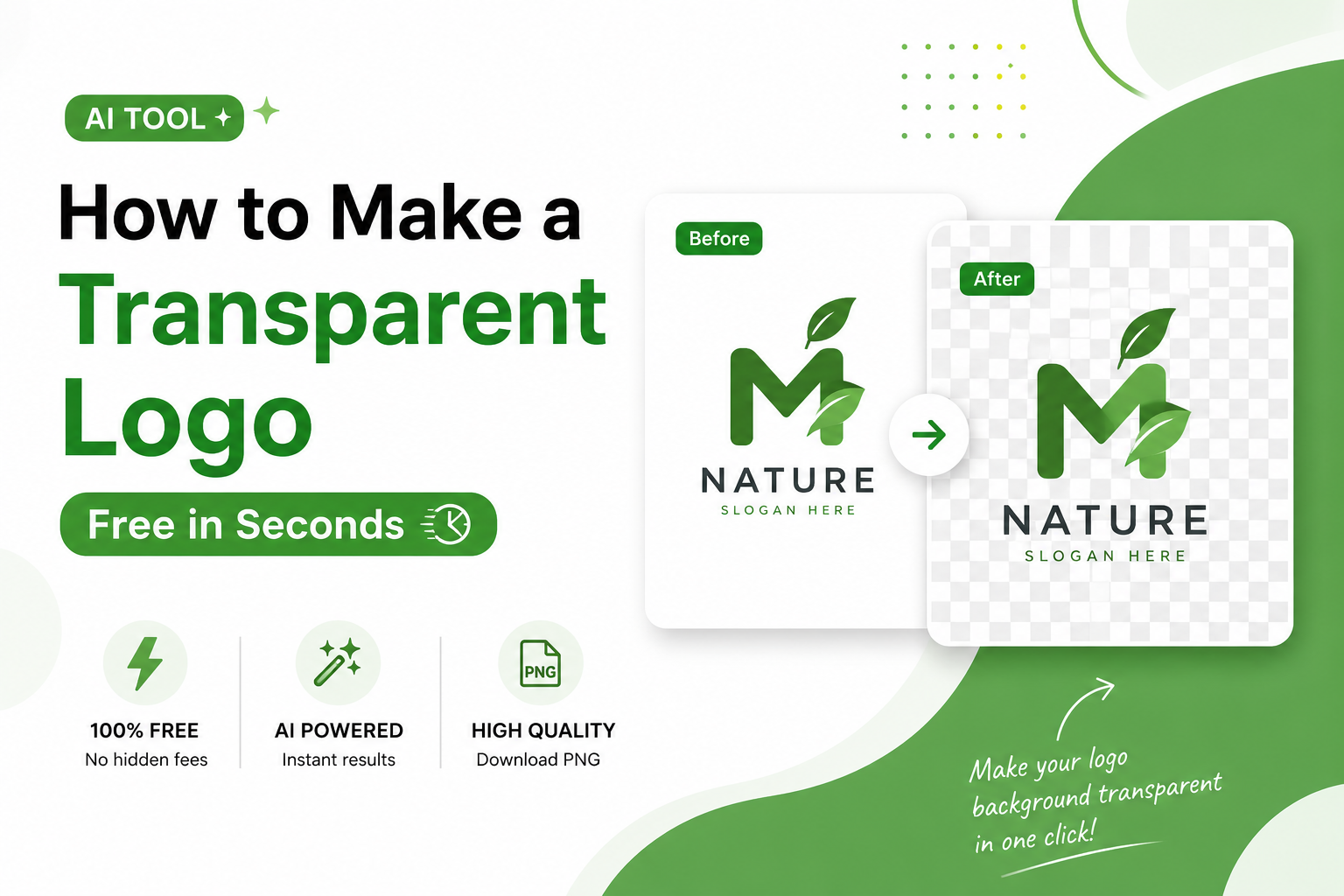
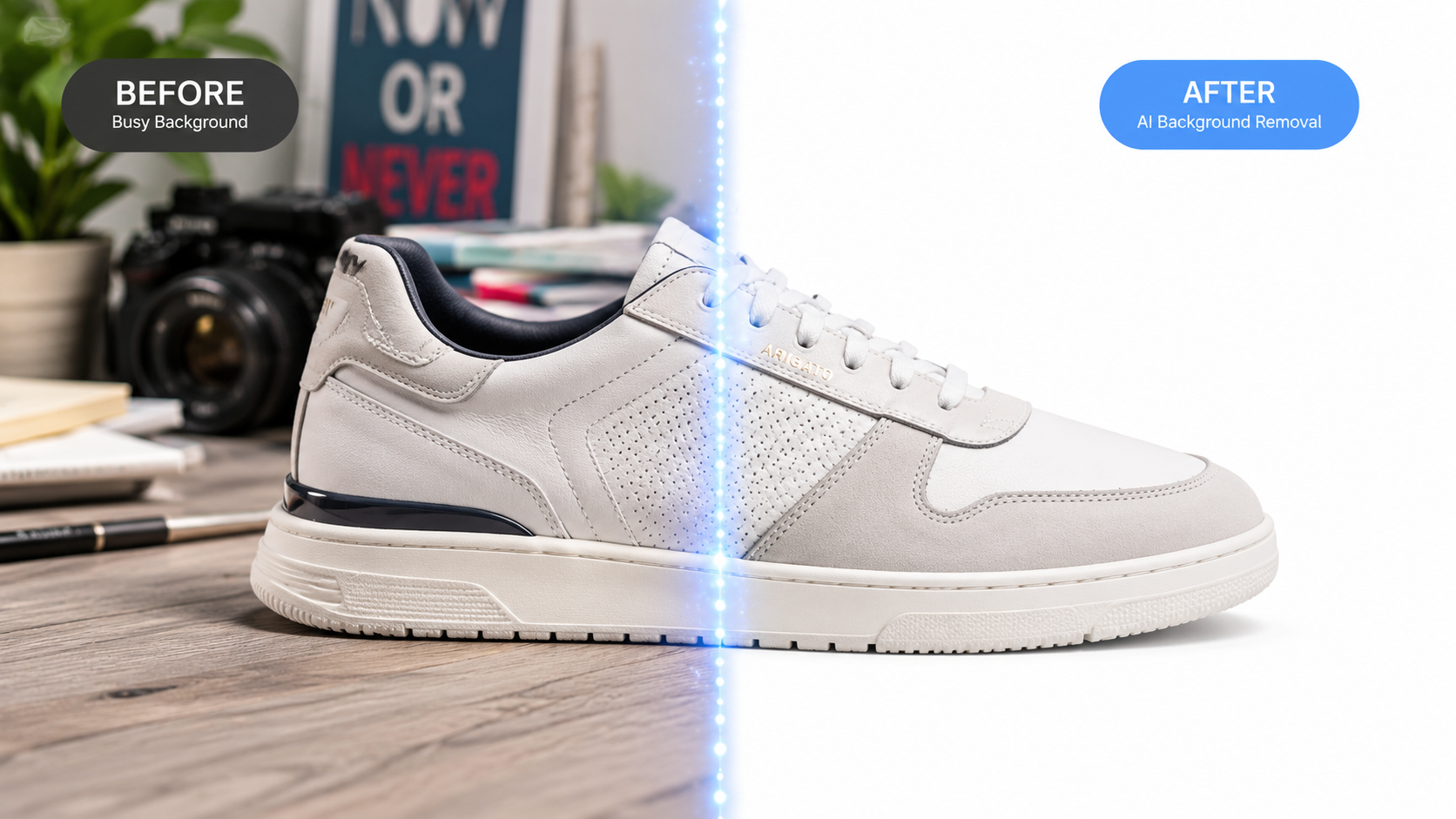
An AI background remover uses computer vision and deep learning to automatically detect the subject in a photo and separate it from its background, producing a transparent PNG in one click. Tools like Free Background Remover AI apply this technology so anyone — not just trained designers — can produce studio-quality cutouts instantly.
This guide breaks down exactly how AI background removal works, why it's replacing manual editing for most everyday use cases, and how to get the best results whether you're prepping product photos for Shopify, cleaning up a LinkedIn headshot, or batch-processing hundreds of images for an online store. We'll also cover where AI still falls short, so you know when manual touch-ups are worth the extra time.
What Is an AI Background Remover?
An AI background remover is software that uses machine learning to automatically identify the main subject of a photo and remove everything else, leaving a transparent or replaceable background. Unlike traditional editing, which requires manually tracing or masking a subject, AI background removal analyzes the image, recognizes object boundaries, and isolates the subject in seconds.
The core idea is simple: the AI has been trained on millions of images to recognize what counts as a "subject" — a person, a product, an animal, a logo — versus what counts as "background." Once it identifies that boundary, it generates a precise mask and exports the subject on a transparent canvas, typically as a PNG file.
This is different from older "magic wand" or color-based selection tools, which rely on color contrast and often fail on complex images. AI-based tools instead understand shapes and context, which is why they handle tricky details like hair, fur, glass, and shadows far better than older selection methods.
People use AI background removers for a wide range of reasons:
E-commerce sellers need clean white or transparent product shots
Designers need fast cutouts for mockups and composites
Marketers need consistent visuals across campaigns
Everyday users just want a cleaner profile photo or meme
Because the process is now fully automated, what once required Photoshop expertise is accessible to literally anyone with a browser and an image to upload.
How AI Background Removal Works
AI background removal works by combining computer vision, semantic segmentation, and deep neural networks to detect a subject's exact edges and separate it from the background pixel by pixel. The process happens in milliseconds to seconds, depending on image complexity and resolution.
Here's a beginner-friendly breakdown of the technology actually doing the work behind the scenes.
Machine Learning and Deep Learning
At the foundation, these tools rely on machine learning — systems that learn patterns from data rather than following hard-coded rules. Specifically, they use deep learning, which relies on neural networks with many layers to recognize increasingly complex patterns: first edges and textures, then shapes, then full objects.
These models are trained on enormous datasets of labeled images, where humans have marked exactly which pixels belong to "subject" and which belong to "background." Over millions of examples, the model learns to generalize this skill to brand-new images it has never seen.
Computer Vision and Object Detection
Computer vision is the broader field that allows software to interpret visual information the way a human eye and brain might. Within that field, object detection is the specific task of locating where an object exists within an image — drawing, essentially, an invisible box around it.
Object detection answers the question "where is the subject?" before the system moves on to the harder question: "exactly which pixels make up that subject?"
Semantic Segmentation
This is where the real precision happens. Semantic segmentation is the process of classifying every single pixel in an image as belonging to a particular category — in this case, "foreground subject" or "background." Unlike object detection, which draws a rough box, segmentation produces a precise, pixel-level map.
Modern background removal tools use a type of segmentation model often built on convolutional neural networks (CNNs) or transformer-based architectures, trained specifically to separate foreground from background with high accuracy, even around difficult areas like flyaway hair or semi-transparent fabric.
Edge Detection and Refinement
Once the rough subject area is identified, edge detection algorithms fine-tune the boundary. This step matters enormously for image quality — a poorly refined edge leaves harsh outlines, color fringing, or stray background pixels (sometimes called "halos") around the subject.
Good AI tools apply edge-refinement passes specifically to smooth and feather these boundaries, especially around hair strands, fur, and curved surfaces.
Neural Networks Tying It Together
All of the above runs through neural networks — layered systems of artificial "neurons" that pass information forward, adjusting their understanding at each layer. For background removal, the network typically outputs a grayscale "mask" image, where white represents the subject, black represents the background, and gray represents semi-transparent edges (like hair or glass).
That mask is then applied to the original photo, and everything outside the white area is made transparent — resulting in a clean PNG cutout.
In short: the AI doesn't "erase" backgrounds the way a person would with an eraser tool. It predicts, pixel by pixel, what is and isn't the subject, then builds a transparency map from that prediction.
Key Features of a Quality AI Background Remover
The best AI background removers combine automatic detection, high-accuracy edge refinement, fast processing, and flexible export options — all without requiring any manual selection work from the user. Here's what to look for.
Automatic Detection
The tool should identify the subject without you drawing a single line. Upload the photo, and the AI handles boundary detection on its own.
One-Click Removal
True AI background removal means one action — upload, click, download. No brushes, no manual masking, no layers.
High Accuracy
Accuracy is measured by how clean the edges are, especially around complex details: hair, fingers, jewelry, fabric texture, and semi-transparent objects like glass or veils.
Transparent PNG Export
The output should be a PNG with a true alpha (transparency) channel, ready to drop onto any background, slide, or design.
HD Quality Output
Resolution matters. A good tool preserves the original image resolution rather than compressing or downsampling the result.
Fast Processing
Most modern tools, including Free Background Remover AI, process a standard image in just a few seconds — a task that would take a skilled editor several minutes by hand.
Batch Processing
For e-commerce sellers managing hundreds of product photos, batch processing — uploading and processing multiple images at once — is a major time-saver.
Edge Refinement
As covered above, this is what separates a mediocre cutout from a professional one. Look for tools that specifically advertise refined edge handling.
Hair Detection
Hair is historically one of the hardest things to mask. Specialized hair-detection logic within the segmentation model dramatically improves portrait cutouts.
AI Object Isolation
Beyond people, good tools isolate products, animals, vehicles, and other complex shapes with the same precision.
Background Replacement
Many tools don't just remove the background — they let you swap it for a solid color, gradient, custom image, or contextually generated scene.
Benefits of Using an AI Background Remover
An AI background remover saves time, reduces editing costs, and produces consistent, professional results across every photo — without requiring design skills. The benefits look slightly different depending on who's using the tool.
For Businesses
Consistent product imagery builds trust. Customers are more likely to purchase from listings with clean, uniform photos rather than mismatched backgrounds and lighting.
For Designers
AI handles the repetitive cutout work so designers can spend their time on composition, branding, and creative decisions instead of manual masking.
For Students
Students working on presentations, reports, or design assignments can quickly create clean visuals without needing access to expensive software or advanced editing skills.
For Photographers
Photographers can speed up client delivery times, especially for portrait sessions, product shoots, or composite work that requires isolated subjects.
For Content Creators
Thumbnail creators, YouTubers, and social media creators rely on quick subject isolation to build eye-catching, professional-looking graphics.
For Ecommerce Sellers
Marketplaces like Amazon and eBay often require pure white backgrounds for product listings. AI tools make compliance fast and effortless.
For Marketing Teams
Marketing materials — banners, ads, email graphics — often need the same product or person on multiple backgrounds. AI cutouts make this repeatable at scale.
For Social Media
Profile pictures, story graphics, and promotional posts all benefit from clean, distraction-free subject isolation.
Step-by-Step Guide: How to Remove a Background Using AI
To remove a background with AI, upload your image, let the tool automatically detect the subject, then download the transparent PNG — the entire process typically takes under 30 seconds. Here's the full step-by-step process using a tool like Free Background Remover AI:
Upload your image. Drag and drop or select a JPG, PNG, or WEBP file from your device.
Let the AI process the image. The model analyzes the photo using semantic segmentation to detect the subject's boundaries.
Review the result. Check edges closely, especially around hair, fingers, or fine details.
Refine if needed. Some tools offer manual touch-up brushes for fixing small errors the AI missed.
Choose your background. Keep it transparent, or replace it with a solid color, gradient, or custom image.
Export in HD. Download the final PNG at full resolution for use anywhere — websites, listings, social posts, or print.
Reuse across platforms. The same transparent cutout can be repurposed across multiple backgrounds without re-editing the subject each time.
Pro tip: Always start with a well-lit, high-resolution original photo. AI models can only work with the detail that exists in the source image — no tool can recover detail that was never captured.
Best Use Cases for AI Background Removal
AI background removal is most valuable anywhere a clean, consistent subject image is required quickly — from e-commerce listings to social media graphics to professional headshots. Common use cases include:
Product Photography — Clean, isolated product shots for catalogs and websites
Amazon Listings — Meeting strict white-background requirements for main images
Shopify Stores — Creating a consistent visual style across an entire product catalog
eBay — Improving listing quality and buyer trust with cleaner photos
Etsy — Highlighting handmade or unique products without distracting backgrounds
Social Media Graphics — Isolating subjects for posts, stories, and ads
LinkedIn Photos — Producing a clean, professional headshot background
Passport and ID Photos — Meeting strict government background requirements
Graphic Design — Speeding up composite and mockup creation
Presentations — Adding clean subject images to slides without distracting clutter
Marketing Materials — Reusing the same subject across multiple campaign designs
YouTube Thumbnails — Isolating a face or object for high-contrast, clickable thumbnails
Real Estate — Removing or replacing backgrounds in property and agent photos
Fashion — Isolating clothing and models for catalog and lookbook shots
Print Design — Preparing clean cutouts for brochures, flyers, and packaging
Tips for Better AI Background Removal Results
The quality of an AI-removed background depends heavily on the original photo — good lighting, clear subject separation, and high resolution all lead to cleaner results. Keep these tips in mind:
Use even, natural lighting. Harsh shadows can confuse edge detection around the subject.
Avoid backgrounds that match the subject's color. Low contrast between subject and background makes segmentation harder.
Shoot at the highest resolution available. More detail gives the AI more information to work with.
Keep the subject in focus. Blurry edges are inherently harder for any segmentation model to resolve cleanly.
Check fine details after processing. Hair, fingers, and transparent objects are the most likely spots for small errors.
Use manual touch-up tools when available. Even a 95%-accurate AI result can be perfected with a 10-second manual fix.
Export at full resolution. Don't downscale your source image before uploading if you need a high-quality final result.
Common Mistakes to Avoid
The most common mistakes when using an AI background remover involve poor source image quality, ignoring edge details, and choosing the wrong file format for the final use case. Watch out for these:
Uploading low-resolution images and expecting crisp, high-quality output.
Ignoring edge artifacts around hair or fine details before publishing the final image.
Exporting as JPG instead of PNG, which discards transparency entirely.
Using heavily compressed source photos, which introduces noise that confuses segmentation.
Not checking for color fringing around the subject's edges, especially with bright or contrasting backgrounds.
Assuming every AI tool produces identical results — quality varies significantly between providers.
Skipping a quick manual review on images intended for professional or commercial use.
Who Should Use an AI Background Remover?
Anyone who regularly works with photos — sellers, designers, marketers, students, or casual users — benefits from an AI background remover, since it removes the single most time-consuming part of photo editing. You'll get the most value from this tool if you:
Run an online store and need consistent product photography
Manage social media accounts and need quick, polished graphics
Work in design or marketing and need fast subject isolation
Want a clean professional headshot without hiring a photographer
Create content regularly and need thumbnails, overlays, or composites
Simply want to clean up personal photos without learning Photoshop
For context, tools like Adobe Photoshop have long offered background removal through selection tools and, more recently, AI-assisted object selection. Canva and Remove.bg popularized fast, browser-based background removal for non-designers. Microsoft has integrated similar AI image tools into its productivity suite, and the underlying computer vision research draws heavily from open-source work like Google AI's image segmentation models and the OpenCV library, which has long served as a foundation for object detection research. Free Background Remover AI builds on this same body of computer vision research to offer a fast, accessible, browser-based experience.
Final Thoughts
AI background removal has moved from a "nice-to-have" novelty to a genuine productivity tool for anyone who works with images. What once required Photoshop expertise and real time investment can now happen in seconds, with results that hold up for e-commerce, social media, marketing, and personal use alike.
That said, no tool is perfect. Complex edges, unusual lighting, and highly artistic compositions can still benefit from a manual touch-up pass. The smartest workflow combines AI speed with a quick human review — letting the AI do 95% of the work instantly, while you handle the final 5% of polish.
If you haven't tried it yet, upload a photo to Free Background Remover AI and see the difference for yourself — it only takes a few seconds. For more practical guides like this one, check out the Free Background Remover AI blog, or head back to the homepage to explore everything the tool can do. And if this guide helped clear things up, consider bookmarking it or sharing it with someone who still edits backgrounds the hard way.
Key Takeaways
An AI background remover uses machine learning, computer vision, and semantic segmentation to automatically detect and isolate a subject from its background.
The process relies on neural networks generating a pixel-level transparency mask, refined further through edge-detection algorithms.
AI tools are faster, cheaper, and easier to use than manual editing for the vast majority of everyday use cases.
Manual editing still has a narrow edge for highly complex, artistic, or ambiguous compositions.
Good source images — well-lit, high-resolution, in focus — produce dramatically better AI results.
Common use cases span e-commerce, social media, marketing, real estate, fashion, and personal photo editing.
Always do a quick manual review of fine edges (hair, fingers, transparent objects) before using AI-cut images commercially.
Frequently Asked Questions
1. What is an AI background remover? An AI background remover is a tool that uses machine learning and computer vision to automatically detect a photo's main subject and remove the background, producing a transparent PNG without manual selection or masking.
2. Is AI background removal free? Many tools, including Free Background Remover AI, offer free background removal for standard use, often with optional paid tiers for batch processing, higher resolution exports, or commercial licensing.
3. How accurate is AI background removal? Modern AI background removers achieve high accuracy on most photos, including tricky details like hair and fur, though extremely complex images may still need a small manual touch-up for perfect results.
4. What file format should I use for transparent backgrounds? PNG is the standard format for transparent backgrounds, since it supports an alpha (transparency) channel. JPG does not support transparency and will fill the background with a solid color instead.
5. Can AI background removers handle hair and fur? Yes — modern tools use specialized edge-refinement and segmentation techniques specifically trained to handle fine details like hair strands and fur, which were historically difficult for older selection-based tools.
6. Do I need design skills to use an AI background remover? No. The entire appeal of AI background removal is that it requires no design skills — you upload an image and the AI handles detection and isolation automatically.
7. How long does AI background removal take? Most AI background removers process a standard photo in just a few seconds, compared to several minutes or longer for manual editing in software like Photoshop.
8. Can I remove backgrounds from multiple images at once? Yes, many AI tools support batch processing, allowing users to upload and process dozens or hundreds of images in one session — especially useful for e-commerce sellers.
9. What's the difference between background removal and background replacement? Background removal isolates the subject on a transparent canvas, while background replacement goes a step further by adding a new background — a solid color, gradient, or custom image — behind that isolated subject.
10. Is AI background removal good enough for professional product photos? Yes, for the vast majority of product photography, AI background removal meets or exceeds the quality needed for e-commerce listings, especially on platforms requiring plain white backgrounds.
11. Why does my AI-removed background still have a faint outline? This usually happens when the original photo has low contrast between the subject and background, poor lighting, or low resolution, all of which make precise edge detection harder for the AI model.
12. Can AI background removal work on transparent or reflective objects like glass? Partially. Glass, reflective surfaces, and semi-transparent materials remain among the harder cases for any segmentation model, since the AI must estimate partial transparency rather than a hard edge.
13. What resolution should my source image be? Higher resolution generally produces better results, since the AI has more pixel-level detail to analyze. Aim for the highest resolution available from your original camera or source file.
14. Is AI background removal suitable for passport or ID photos? Yes, many AI tools are specifically capable of producing the plain, compliant backgrounds required for passport and ID photos, though you should always confirm against your country's exact specifications.
15. Do AI background removers work on mobile devices? Most modern AI background removal tools, including browser-based platforms, work directly on mobile devices without requiring a separate app, since the processing happens on the server rather than the device itself.
16. Can I undo or adjust an AI background removal result? Many tools include manual touch-up brushes that let you restore or erase specific areas after the automatic removal, giving you control over any imperfect edges.
17. Is it legal to use AI-removed product photos commercially? Generally yes — removing or replacing a background does not raise copyright issues for your own original photos. Always check a specific tool's terms of service for any restrictions on commercial use of free-tier exports.
18. How does AI background removal compare to Photoshop's selection tools? Photoshop's tools (including its own AI-assisted object selection) can achieve excellent results but require more manual input and editing skill. Dedicated AI background removers automate the entire process for faster, more consistent results with zero learning curve.
Share this guide with your team