How to Make an Image Background Transparent Online for Free with AI
A transparent background can turn an ordinary photo into a flexible design asset that works across websites, online stores, social media posts, advertisements, presentations, and marketing materials.
Instead of keeping your subject inside a white, colored, or cluttered background, you can remove everything behind it and save the result as a transparent PNG. The subject can then be placed over almost any new background without a visible box around it.
In the past, making an image background transparent often meant using Photoshop, selecting objects manually, learning masking tools, and carefully tracing complicated edges. For beginners and small businesses, that process could take a lot of time.
Today, AI background removal makes the process much easier.
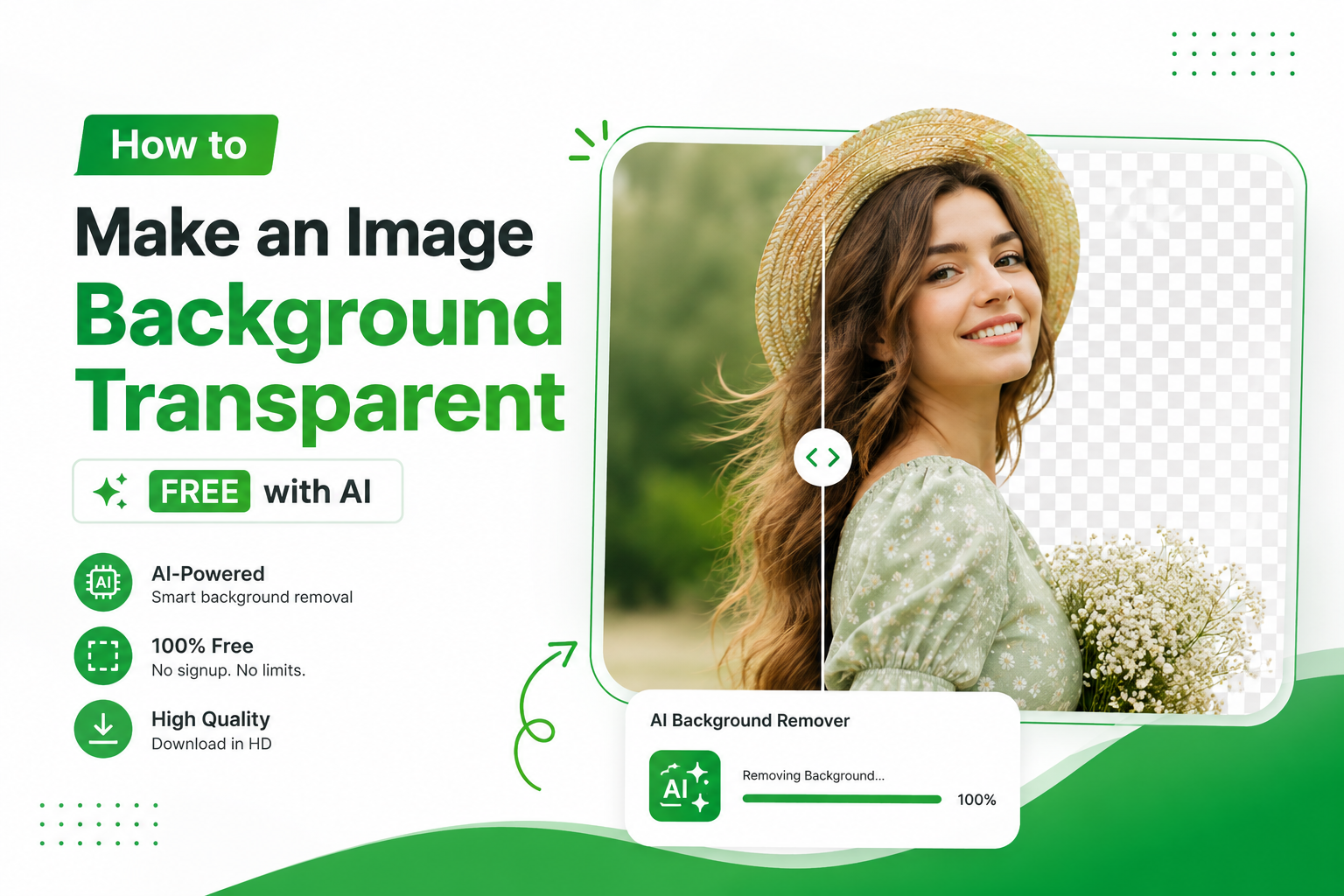
With a free online AI background remover, you can upload an image, let AI identify the main subject, remove the unwanted background, and download a transparent PNG in seconds—without installing Photoshop or learning complicated editing software.
In this guide, you'll learn how to make an image background transparent online for free, what a transparent background actually means, which image formats support transparency, how AI background removal works, and how to get better results.
Quick answer: To make an image background transparent online for free, upload your photo to an AI background remover such as Free Background Remover AI, allow the AI to detect and remove the background, then download the finished image as a PNG. No Photoshop or advanced editing skills are required.
What Is a Transparent Background?
A transparent background means that the area behind the main subject contains no visible color or solid background.
Instead of displaying white, black, blue, or another color, those pixels become transparent. When you place the image over another design, the background underneath becomes visible through the transparent areas.
For example, imagine you have a picture of a shoe photographed on a white background.
With the original image, the white area remains visible around the shoe.
After background removal, only the shoe remains. You can then place it over:
A colored website section
A product banner
A promotional graphic
A social media design
A presentation
Another photograph
A custom eCommerce background
This is why transparent images are so useful for modern digital design.
Transparent Background vs. White Background
These terms are often confused, but they are not the same.
Transparent background:
The background contains no visible color, allowing whatever is behind the image to show through.
White background:
The image contains actual white pixels behind the subject.
Colored background:
The image contains a solid color behind the subject.
A white background may look transparent when viewed on a white webpage, but it isn't. Once you place the image on a dark or colored design, the white rectangle becomes obvious.
A true transparent PNG doesn't have this problem.
Which File Format Supports a Transparent Background?
The most common format for transparent images is PNG.
PNG supports an alpha channel, which stores transparency information for individual pixels. This allows some areas of an image to be completely transparent while other areas remain fully visible.
For example:
PNG: Supports transparency
JPEG/JPG: Does not support transparency
WebP: Can support transparency
GIF: Can support limited transparency
For most background-removal projects, PNG is a simple and widely supported choice.
If you remove the background from a product photo, logo, portrait, or other subject and want to preserve transparency, downloading the result as a PNG is usually the safest option.
Why Make an Image Background Transparent?
Transparent images are useful in many different situations.
1. eCommerce Product Photos
Online stores often need clean product images that can be displayed consistently across product pages, banners, catalogs, and advertisements.
Removing a distracting background allows the product to become the main focus.
You can use transparent product images for:
Clothing
Shoes
Furniture
Electronics
Jewelry
Beauty products
Accessories
Home décor
Food products
2. Shopify Stores
Shopify store owners can use background-free product images in product pages, promotional banners, collection graphics, and custom landing pages.
A transparent product image can also be reused across different sections of a store without creating an unwanted white rectangle.
3. Amazon Product Images
Background removal can be useful for preparing product images, but sellers should always follow Amazon's current image requirements for the specific listing type. In particular, removing a background does not automatically mean the resulting transparent PNG should be used as the main Amazon product image.
Transparent product images are still valuable for other Amazon graphics, marketing materials, and design workflows where transparency is appropriate.
4. Etsy Product Photos
Etsy sellers can use background-free images for product graphics, promotional designs, mockups, and social media content.
5. Daraz Product Images
For sellers using Daraz and other marketplaces, consistent product presentation can make product catalogs look cleaner and more professional.
6. Logos
A transparent logo is one of the most common reasons people remove an image background.
A logo saved with a white rectangle behind it may look fine on a white website but can look unprofessional on a dark header, colored packaging, merchandise, or promotional graphic.
A transparent PNG allows the logo to work across different backgrounds.
7. Social Media Graphics
Content creators can remove backgrounds from people, products, objects, and other elements and then place them into custom designs.
This is particularly useful for:
YouTube thumbnails
Instagram posts
Facebook graphics
Pinterest designs
Promotional posts
Advertisements
8. Presentations
A transparent portrait, product, icon, or object can be placed naturally into PowerPoint, Google Slides, or other presentation designs.
9. Marketing Materials
Transparent images work well in:
Flyers
Posters
Digital advertisements
Website banners
Email campaigns
Brochures
Promotional graphics
The biggest advantage is flexibility. You can reuse one transparent image across multiple designs without having to remove the background again.
How to Make an Image Background Transparent Online for Free
The easiest method is to use an AI-powered online background remover.
With Free Background Remover AI, you can remove an image background directly from your browser without installing traditional photo-editing software.
Step 1: Open Free Background Remover AI
Visit Free Background Remover AI using your desktop, laptop, tablet, or smartphone.
You don't need Photoshop or another professional editing program.
Step 2: Upload Your Image
Open the AI background remover and upload the image you want to edit.
Choose a clear image containing the person, product, object, animal, logo, or other subject you want to keep.
Step 3: Let AI Detect the Subject
After uploading the image, the AI analyzes the photo and identifies the foreground subject.
The system attempts to distinguish the subject from the surrounding background automatically.
This means you don't need to manually draw around the object with a selection tool.
Step 4: Remove the Background Automatically
The AI processes the image and removes the detected background.
The remaining subject is placed on a transparent canvas.
Depending on the image, this can take only a few seconds.
Step 5: Check the Edges
Before downloading, inspect the result carefully.
Pay particular attention to:
Hair
Fur
Fingers
Clothing edges
Jewelry
Thin objects
Small product details
Shadows
Complex edges can be more difficult for any automated background-removal system, so checking the result is always a good idea.
Step 6: Download the Transparent PNG
Once you're happy with the result, download the image as a PNG.
Your transparent PNG can now be used in your website, online store, marketing design, social media post, presentation, or other project.
That's it.
What once required manual Photoshop work can now be completed through a browser in just a few steps.
Benefits of Using a Transparent PNG
A transparent PNG can make your design workflow significantly more flexible.
Cleaner Product Presentation
Removing distracting backgrounds keeps attention on the product itself.
More Flexible Designs
You can place the same image over different colors, photographs, gradients, and layouts.
Better Branding
Transparent logos and brand assets can be used across websites, packaging, social media, advertisements, and printed materials.
Faster Content Creation
Instead of creating a separate cutout for every design, you can create one transparent asset and reuse it.
Easier Marketing
Transparent products and people can be placed into promotional banners and advertisements without manually removing the background every time.
Professional-Looking Graphics
Background-free images can help designs look cleaner and more intentional, especially when combined with consistent typography, spacing, and colors.
What Images Can You Make Transparent?
AI background removal works with many different types of images.
Popular examples include:
Product photos
Portraits
Headshots
Clothing
Shoes
Furniture
Cars
Motorcycles
Pets
Animals
Food
Jewelry
Electronics
Bags
Accessories
Logos
Icons
Toys
Home décor
If there is a clear subject that you want to separate from its surroundings, AI background removal can often help.
How to Get Better Transparent Background Results
The quality of your original image can have a major impact on the final cutout.
Use a High-Resolution Image
Higher-resolution photos generally contain more useful edge information.
Avoid heavily compressed images whenever possible.
Use Good Lighting
A well-lit subject is easier to distinguish from its background than a dark or poorly exposed subject.
Keep the Subject Clearly Visible
If the subject blends into the background, automatic detection can become more difficult.
For example, a black shirt against a very dark background may have less obvious edges than the same shirt photographed against a contrasting background.
Avoid Excessive Blur
Motion blur and strong artificial blur can make the boundaries between the subject and background difficult to identify.
Avoid Extremely Busy Backgrounds
AI can handle many complex backgrounds, but a simple and clearly separated subject generally produces an easier cutout.
Review Fine Details
Always check areas such as hair, fur, fingers, thin straps, and small objects before using the final image commercially.
Common Mistakes When Making Backgrounds Transparent
Several simple mistakes can cause confusion or reduce the quality of your final image.
Mistake 1: Saving the Image as JPG
JPEG does not support transparent pixels.
If transparency is important, use a format such as PNG.
Mistake 2: Confusing White With Transparency
A white background is not transparent.
If the image contains white pixels behind the subject, those pixels will remain visible when placed over a different background.
Mistake 3: Uploading a Low-Quality Screenshot
Screenshots can contain compression, scaling, or other quality problems.
Whenever possible, upload the original image.
Mistake 4: Using a Very Blurry Photo
When the subject's edges are unclear, background removal can become more difficult.
Mistake 5: Not Checking the Final Cutout
AI can automate most of the process, but you should still inspect important images before publishing them.
How Does AI Background Removal Work?
AI background removal is based on computer vision techniques that allow software to identify the important elements within an image.
When you upload a photograph, an AI model analyzes visual information such as shapes, edges, colors, textures, and object patterns.
The system then estimates which areas belong to the foreground subject and which areas belong to the background.
This process is commonly associated with image segmentation.
The result is a mask that separates the subject from the background.
The background can then be made transparent while the subject remains visible.
What Happens Around Hair and Fine Details?
Fine details are among the most difficult parts of background removal.
Human hair, animal fur, transparent objects, thin straps, and soft fabric edges may contain partially visible pixels that don't fit neatly into a simple foreground/background boundary.
High-quality AI background-removal systems attempt to preserve these details by creating smoother transitions around complicated edges rather than simply cutting the subject with a hard outline.
This is one reason a good original image is important.
A sharp photo gives the AI more information to work with.
Transparent Backgrounds for Different Industries
Transparent images are useful across many industries.
Online Retail
eCommerce businesses can create consistent product assets for stores, catalogs, advertisements, and social media.
Fashion
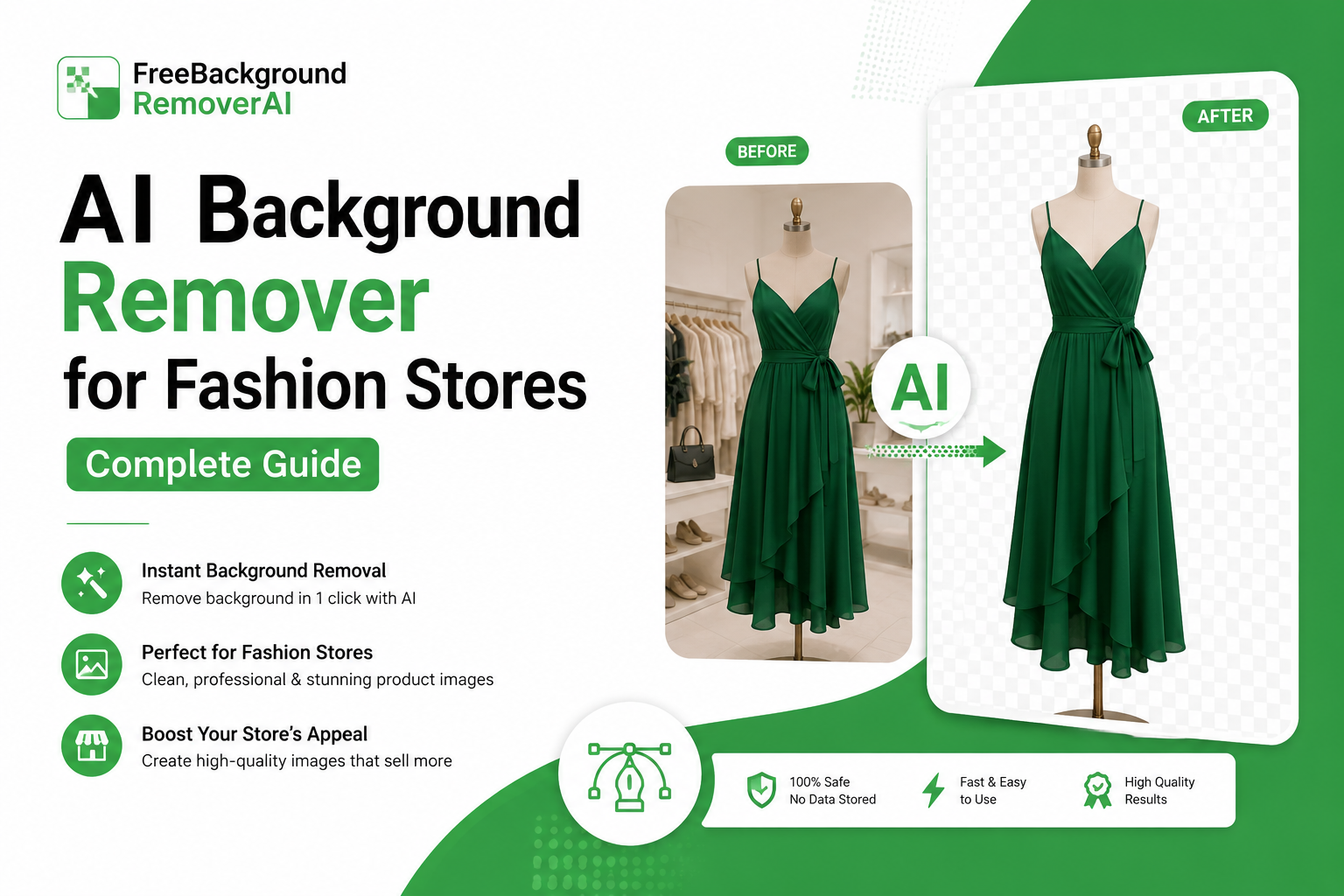
Clothing brands can remove backgrounds from models, shoes, bags, and accessories for promotional graphics.
Furniture
Furniture sellers can create clean product cutouts for websites, catalogs, marketplaces, and advertisements.
If you're working with furniture photography, you can also use the dedicated AI furniture background remover workflow.
Graphic Design
Designers regularly combine multiple transparent assets into one composition.
Real Estate
Agents and marketers can isolate objects or people for promotional graphics and presentations.
Content Creation
YouTubers, bloggers, and social media creators can create custom thumbnails and promotional designs using background-free images.
Small Businesses
Businesses without professional design teams can quickly prepare product and marketing images without purchasing expensive editing software.
Can You Make a Logo Background Transparent?
Yes.
Logo background removal is one of the most useful applications of transparent PNGs.
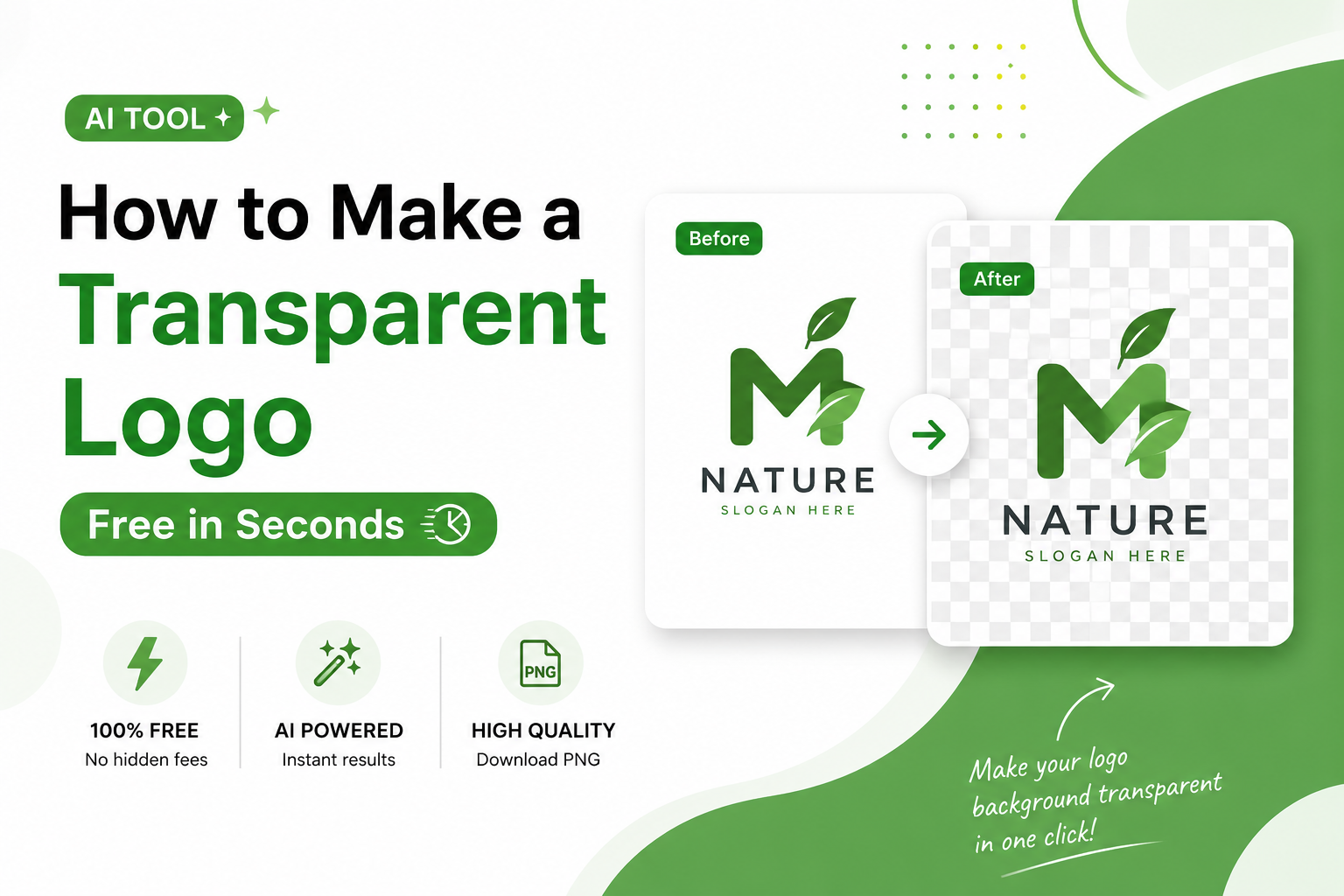
For example, if your logo has a white background, you can remove that background and save the logo as a transparent PNG.
You can then place the logo on:
Website headers
Dark backgrounds
Business cards
Social media graphics
Product packaging
Merchandise
Presentations
Advertisements
This makes the logo much more versatile.
Can You Make a White Background Transparent?
Yes.
An AI background remover can often remove white backgrounds from photographs, product images, logos, and other graphics.
However, images containing white objects on white backgrounds can be more challenging because the subject and background may have similar colors.
For the best result, make sure the subject has clearly defined edges and enough contrast from the background.
Can You Remove Backgrounds From Product Photos?
Yes.
Product photography is one of the most common applications for AI background removal.
You can remove backgrounds from:
Shoes
Shirts
Furniture
Watches
Phones
Bags
Cosmetics
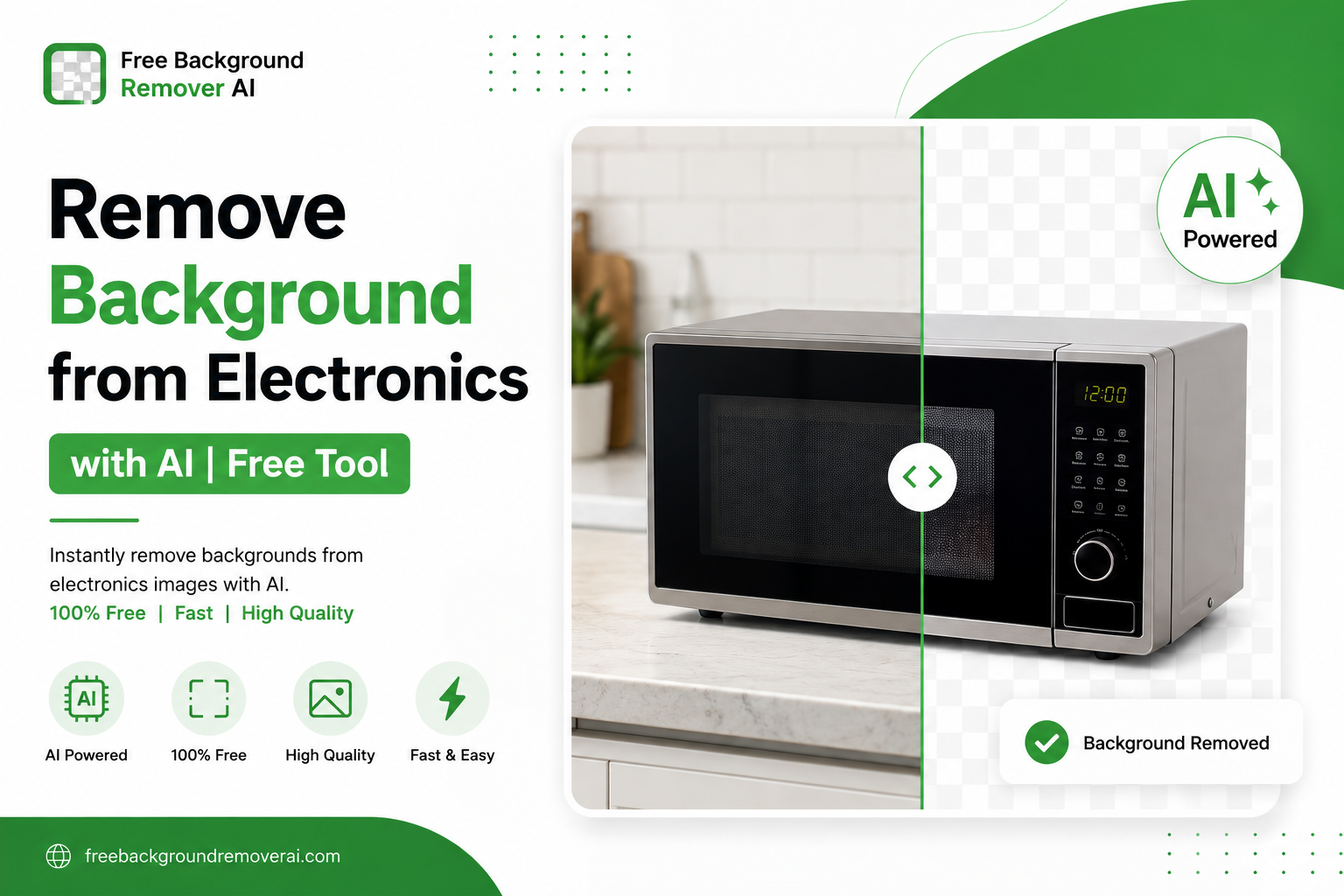
Electronics
Jewelry
Accessories
After removing the background, you can place the product into your own branded design or use it where a transparent asset is appropriate.
Transparent PNG vs. White Background: Which Is Better?
Neither option is universally better.
The right choice depends on where you plan to use the image.
Choose a transparent PNG when:
You need to place the subject over different backgrounds
You're creating marketing graphics
You're designing a logo
You're building social media content
You're creating product mockups
You're designing presentations
You need flexible reusable assets
Choose a white background when:
A platform specifically requires or recommends it
You need a standardized product image
Your design requires a clean white canvas
You don't need the subject to blend into other backgrounds
The important thing is understanding the difference between a white background and actual transparency.
Frequently Asked Questions
How can I make an image background transparent online?
Upload your image to an AI background remover such as Free Background Remover AI. The AI detects the subject, removes the background, and lets you download the result as a transparent PNG.
What is the easiest way to make a background transparent?
Using an online AI background remover is one of the easiest methods because the software automatically detects the subject instead of requiring manual selection.
Is there a free tool to make an image background transparent?
Yes. Free Background Remover AI provides an online way to remove image backgrounds and create transparent images.
Can I make a JPG background transparent?
You can remove the background from a JPG, but JPG itself does not support transparent pixels. Save the finished image in a format that supports transparency, such as PNG.
Is PNG better for transparent backgrounds?
PNG is one of the most common formats for transparent images because it supports an alpha channel and preserves image quality through lossless compression.
Can I remove a white background from an image?
Yes. AI background-removal tools can remove many white backgrounds. Results can vary when the subject itself contains white areas that closely match the background.
Can I make a logo background transparent?
Yes. Removing the background from a logo and saving it as a transparent PNG makes it easier to use the logo on different colors and designs.
Can I make a product photo transparent?
Yes. Product photos are a common use case for background removal. You can remove the surrounding background and keep the product as the main subject.
Do I need Photoshop to make an image transparent?
No. An online AI background remover can automate the process without requiring Photoshop or advanced photo-editing skills.
Can I remove an image background on my phone?
Yes. A browser-based background remover can be used from many smartphones and tablets without installing desktop editing software.
Does removing a background reduce image quality?
Background removal itself does not necessarily reduce the quality of the remaining subject. The final result depends on the original image, processing method, output format, and resolution.
How accurate is AI background removal?
Modern AI background-removal systems can produce highly accurate results for many common subjects. However, very complicated images involving hair, fur, transparent objects, shadows, or low contrast may require closer inspection.
Can I use transparent PNGs for online stores?
Yes. Transparent PNGs are useful for many eCommerce design tasks, including product graphics, banners, promotional materials, and other assets. Always check the specific image requirements of the marketplace where you plan to publish the image.
Can I remove backgrounds from furniture photos?
Yes. Furniture such as sofas, chairs, tables, beds, cabinets, and other large products can be processed with AI background removal. You can use the furniture background removal tool for this type of image.
Can I remove backgrounds from multiple images?
You can process images individually through an online background-removal workflow. For large batches, check the tool's current limits and available processing options.
Final Thoughts
Making an image background transparent used to require specialized photo-editing knowledge and considerable manual work.
Today, AI makes the process much simpler.
Whether you're preparing a product image for an online store, creating a transparent logo, designing a social media graphic, preparing marketing materials, or simply removing an unwanted background from a personal photo, an AI background remover can save significant time.
The basic process is simple:
Upload your image → Let AI remove the background → Check the result → Download a transparent PNG.
If you want to make an image background transparent without Photoshop, try Free Background Remover AI. It lets you remove backgrounds online and create clean, reusable image assets directly from your browser.
Share this guide with your team