How to Remove Background from a Signature Online for Free (2026 Guide)
A handwritten signature can look great on paper but messy when you try to use a scanned image on a digital document. The usual problem is the background: instead of seeing only your signature, you also get a white piece of paper, gray shadows, or uneven lighting around it.
The solution is to remove the background from your signature and save it as a transparent PNG. Once the background is transparent, you can place your signature on contracts, invoices, certificates, letters, PDFs, Word documents, presentations, and other digital files without the unwanted white rectangle.
The good news is that you don't need Photoshop or advanced photo-editing skills. An online background removal tool can separate the handwritten ink from the paper and create a transparent signature in just a few steps.
In this guide, you'll learn how to make a signature background transparent, how to prepare a better signature image, which file format to use, and how to avoid common problems.
Why Make a Signature Background Transparent?
A signature image normally contains two parts: the actual ink and the paper behind it. When you scan or photograph your signature, both parts become part of the image.
If you insert that image into another document, the paper background can become visible.
A transparent signature removes that unnecessary background while keeping the handwritten strokes.
This is useful for:
Signing digital documents
Adding signatures to PDF files
Microsoft Word documents
Business letters and proposals
Invoices and receipts
Certificates
Employment documents
Email signature designs
Canva projects
PowerPoint presentations
Online forms
Personal and business stationery
For example, if your document has a light gray, blue, or colored background, a normal signature image may appear inside an obvious white rectangle. A transparent PNG allows the document background to remain visible around the signature.
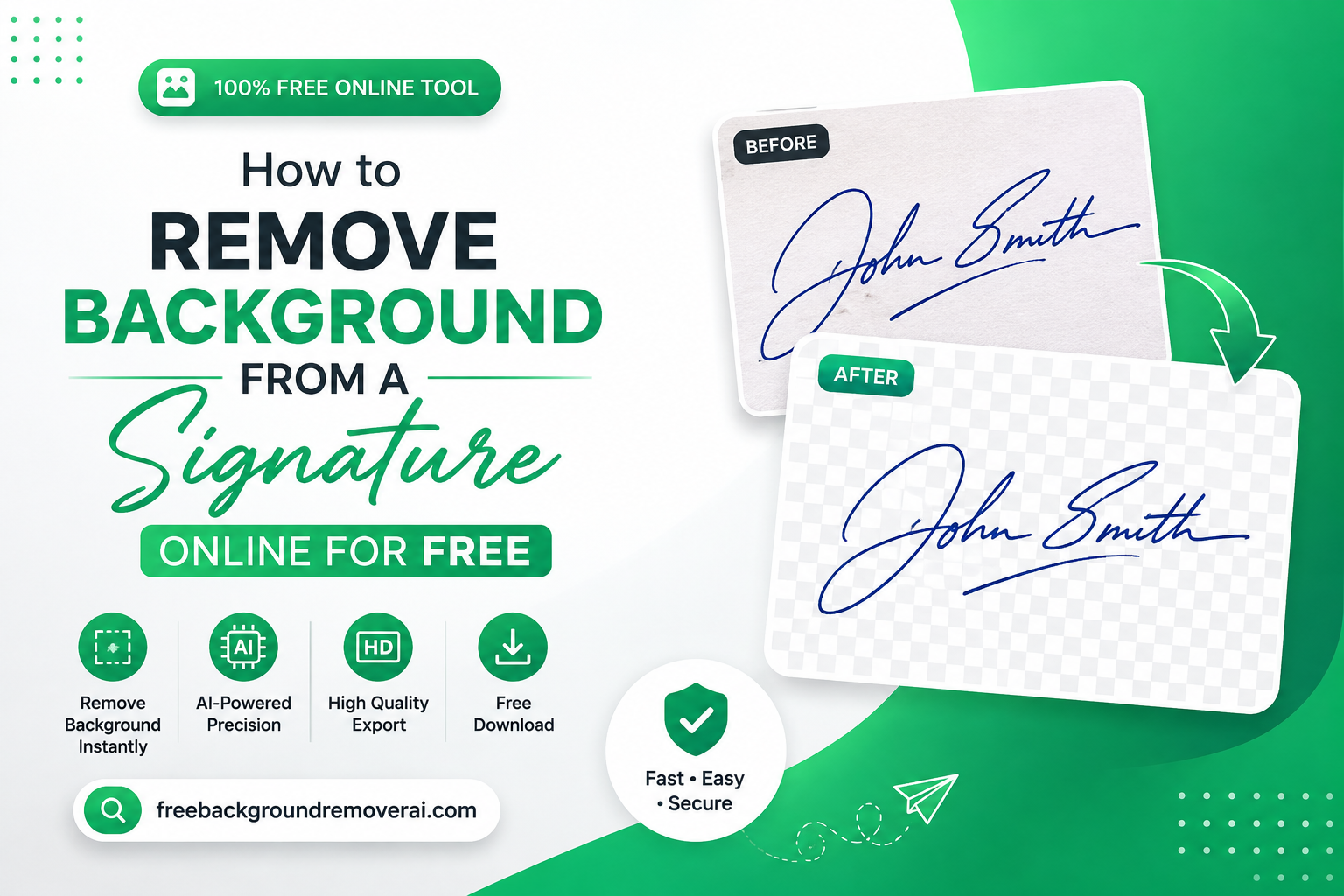
What Does a Transparent Signature Look Like?
A transparent signature contains the handwritten ink without the original paper behind it.
The transparent areas of a PNG don't contain a solid color. This means you can place the signature over different backgrounds without bringing the original piece of paper with it.
For example:
Original image:
Handwritten signature + white paper
After background removal:
Handwritten signature + transparent background
Final file:
Transparent PNG ready for digital documents
This is why PNG is usually the preferred format when you need a signature without a background.
How to Remove Background from a Signature Online
You can remove a signature background without manually selecting every part of the image.
Step 1: Prepare Your Signature
Write your signature on clean white paper using a dark pen. Black or dark blue ink usually provides strong contrast against the paper.
Try to keep the paper flat and make sure the signature is completely visible.
If you're taking a photo with your phone, use good lighting and avoid placing your hand or phone where it creates a shadow across the signature.
Step 2: Upload the Signature
Open the signature background remover and upload your scanned signature or photo.
A clear image generally produces a better result because the ink is easier to distinguish from the background.
Step 3: Let the Background Be Removed
The tool processes the image and identifies the main subject—the handwritten signature—while separating it from the surrounding paper.
This removes the unwanted white, gray, or lightly colored background.
Step 4: Check the Result
Before downloading, look closely at the signature.
Pay particular attention to:
Thin pen strokes
Small loops
Letters with fine lines
Dots and accents
The edges of the signature
Areas where the ink is light
If the original image was clear, the resulting cutout should retain the important details of the handwriting.
Step 5: Download the Transparent PNG
Save the finished signature as a PNG.
PNG is important because it supports transparency. If you save a transparent signature as a format that doesn't preserve transparency, you may end up with a solid background again.
Your signature is now ready to use in other documents and designs.
How to Get a Cleaner Signature Cutout
The background remover can only work with the information contained in your original image. A good source image therefore makes a significant difference.
Use Plain White Paper
Avoid lined notebooks, patterned paper, colored paper, and paper containing printed text.
Plain white paper creates a clear contrast between the signature and its background.
Use Dark Ink
Black and dark blue pens are generally easier to separate from white paper than very light-colored pens.
If your signature is extremely faint, the tool may have difficulty distinguishing some strokes from the background.
Avoid Shadows
Shadows can create gray areas around your signature and make the background less uniform.
When photographing the signature, use even lighting and keep the phone positioned directly above the paper.
Keep the Camera Steady
A blurry photograph can make thin signature strokes look soft.
Hold your phone steady and make sure the camera has focused on the handwriting before taking the picture.
Use a Higher-Quality Original
A high-resolution scan contains more detail around the edges of the handwriting.
If you're scanning the signature specifically for digital use, a resolution around 300 DPI can be a useful starting point.
Can You Remove a White Background from a Signature?
Yes. Removing a white background is one of the most common reasons people create transparent signature images.
Suppose you have a signature saved as a JPG. The image may look perfectly fine by itself because the white paper matches the screen.
But when you place it over a colored document, the rectangular white area becomes obvious.
Removing the white background leaves the handwritten portion while making the surrounding area transparent.
This makes the same signature much easier to reuse across different designs and documents.
Why PNG Is Better Than JPG for a Signature
Choosing the right file format matters when working with transparent images.
PNG
PNG supports transparent backgrounds, making it suitable for:
Digital signatures
Logos
Cutout images
Certificates
Documents
Website graphics
Email signatures
JPG
JPG is useful for regular photographs, but it does not preserve transparency.
If you save your transparent signature as JPG, the transparent area must be replaced with a solid background.
For this reason, PNG is usually the better choice for a signature with a transparent background.
Where Can You Use a Transparent Signature?
Once your signature has been converted into a transparent PNG, you can reuse the file in many places.
Microsoft Word
Insert the PNG into a Word document and position it above the signature line. Because the background is transparent, the white rectangle won't cover the surrounding document.
PDF Documents
A transparent signature can be added to many PDF files using compatible PDF editors and document-signing software.
Google Docs
You can insert a transparent PNG into a Google Docs document and resize it to fit the signature area.
Canva
Transparent signatures work particularly well in Canva because you can place them over certificates, business designs, letters, and other graphics.
Invoices
Businesses and freelancers can place a clean signature near the approval or authorization section of an invoice.
Certificates
Certificates often contain colored borders and decorative elements. A transparent signature can be positioned over the design without introducing an unwanted white box.
Business Proposals
A transparent signature can be added to the final page of a proposal next to the signer's name, position, and company information.
Email Signatures
A transparent PNG can also be used as part of an HTML email signature where supported.
Common Problems When Removing a Signature Background
Not every signature image produces a perfect result on the first attempt. The original image can have a major effect on the final cutout.
Faint Ink
If the pen strokes are very light, some parts of the signature may be difficult to separate from the paper.
Solution: Use a darker pen when creating a new signature image.
Shadows Around the Signature
A phone flash or uneven room lighting can create shadows across the paper.
Solution: Photograph the signature under even lighting.
Dirty or Wrinkled Paper
Dust, folds, stains, and marks can sometimes be interpreted as part of the image.
Solution: Use clean, flat paper whenever possible.
Low-Quality Photos
A small or blurry image contains less information around the signature edges.
Solution: Take a clear, focused photograph or use a higher-resolution scan.
Over-Cropping
If you crop too close to the signature before processing, you could accidentally remove part of a letter or stroke.
Solution: Leave a small amount of space around the handwriting.
JPEG Compression
Repeatedly saving and editing a signature as JPG can introduce compression artifacts around thin lines.
Solution: Keep the original high-quality image and use PNG for the final transparent version.
How to Make a Signature Transparent Without Photoshop
Photoshop can certainly be used to remove a background manually, but it isn't necessary for a simple signature cutout.
With an online background removal tool, the process is much simpler:
Create or scan your handwritten signature.
Upload the image.
Remove the paper background.
Check the signature edges.
Download the transparent PNG.
Insert it into your document.
This approach is especially convenient if you don't regularly use photo-editing software.
How to Add Your Transparent Signature to Word
After removing the background, adding the signature to Microsoft Word is straightforward.
Open your document and choose Insert → Pictures, then select the transparent PNG signature.
You can resize the image and move it into the appropriate signature area.
Because the PNG has a transparent background, only the handwritten signature appears instead of a rectangular piece of paper.
The exact menu names can vary slightly between Word versions, but the general process remains the same.
How to Add a Transparent Signature to a PDF
The process depends on which PDF software you're using.
Generally, you need to:
Open the PDF.
Select the option for adding an image or signature.
Choose your transparent PNG.
Resize the signature.
Position it on the appropriate line.
Save the document.
If your PDF editor has a dedicated e-signature feature, you may also be able to import or create a reusable signature.
Is a Transparent Signature the Same as an Electronic Signature?
Not necessarily.
A transparent signature image is simply a digital image containing your handwritten signature.
An electronic signature can refer to a broader range of methods used to indicate agreement to a document, depending on the platform and legal context.
A PNG signature can be useful for document design and certain digital workflows, but whether an image-based signature is legally sufficient depends on the document, jurisdiction, and signing method being used.
For contracts and other important documents, follow the requirements of the relevant organization or electronic-signature service.
Is It Safe to Upload a Signature Online?
A signature is personal information, so you should think carefully before uploading one to any online service.
Before using an online background remover, consider:
Whether the website uses a secure connection
What happens to uploaded files
Whether files are stored after processing
Whether the service requires an account
Whether sensitive documents should be uploaded at all
Whether the website provides information about its privacy practices
For highly sensitive legal or financial documents, avoid uploading the entire document when you only need to process the signature. A cropped signature image can minimize the amount of information you share.
Free Background Remover AI for Signature Images
If you want a straightforward way to create a transparent signature, you can use Free Background Remover AI.
The dedicated signature background removal tool is designed for images where the main subject is handwritten or drawn content.
You can use the resulting transparent image for documents, designs, invoices, certificates, and other projects where a clean signature is needed.
The website also provides other image editing tools if you need to work on additional images, such as image upscaling, background editing, and other image cleanup tasks.
Frequently Asked Questions
How do I remove the white background from my signature?
Upload your scanned or photographed signature to a background removal tool. The unwanted paper background can then be removed, leaving the signature on a transparent background. Download the result as a PNG to preserve the transparency.
How can I make my signature transparent?
The easiest method is to upload a clear signature image to an online background remover and download the processed image as a transparent PNG.
Can I remove a signature background without Photoshop?
Yes. An online background remover can handle the background separation without requiring Photoshop or other professional editing software.
What is the best format for a transparent signature?
PNG is generally the best format because it supports transparent backgrounds. JPG does not preserve transparency.
Can I use a transparent signature in Microsoft Word?
Yes. A transparent PNG can be inserted into Microsoft Word and positioned over a signature line or another part of the document.
Can I add a transparent signature to a PDF?
Yes, provided your PDF editor supports adding images or signatures. You can import the transparent PNG and position it where needed.
Why does my signature still have a white background?
The image may have been saved in a format that doesn't support transparency, or the background removal may not have completely separated the paper from the handwriting. Make sure the final file is a PNG with actual transparency.
Why does my signature look blurry after background removal?
The original image may have been low resolution, out of focus, or heavily compressed. Start with a sharp scan or clear photograph for better results.
Can I remove the background from a blue-ink signature?
Yes. Dark blue ink can work well against a white background as long as there is enough contrast between the handwriting and the paper.
Can I use a transparent signature on a colored background?
Yes. This is one of the main advantages of removing the background. A transparent PNG can be placed over many different colors and designs without showing the original paper.
Final Thoughts
A scanned signature doesn't have to remain trapped inside a white rectangle. By removing the paper background and saving the handwriting as a transparent PNG, you can create a cleaner file that's much easier to reuse.
Whether you're preparing an invoice, signing a Word document, creating a certificate, adding your name to a proposal, or designing business stationery, a transparent signature gives you much more flexibility.
The process is simple: start with a clear signature image, remove the background, check the edges, and download the result as PNG.
If you want to do it online without Photoshop, try the Free Background Remover AI signature tool and turn your scanned handwriting into a clean transparent signature.
Share this guide with your team