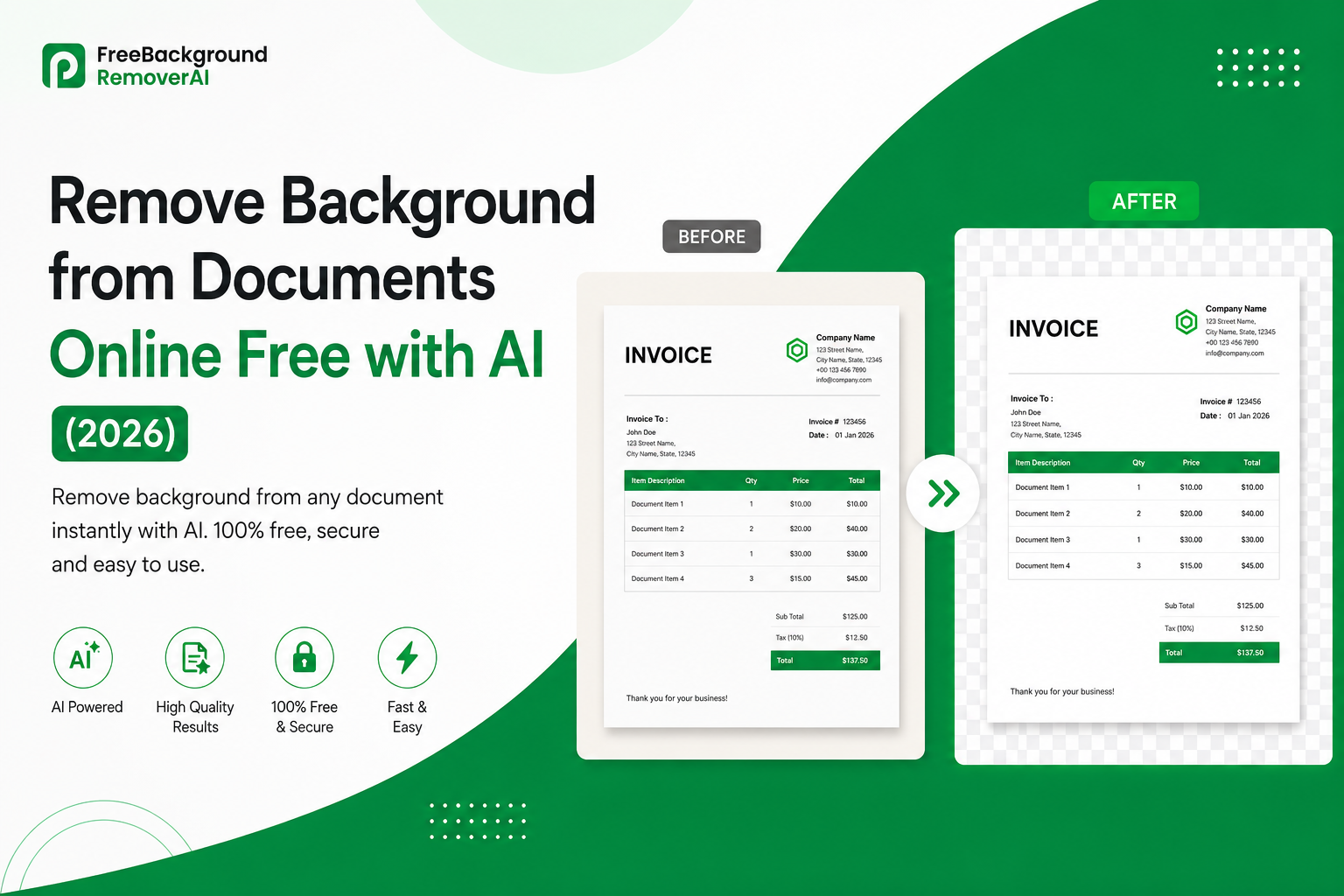
Remove Background from Documents Online with AI Free Guide (2026)
If you've ever taken a photo of a passport, certificate, receipt, contract, ID card, invoice, or other important document, you may have noticed that the background does not always look clean. Gray scanner marks, shadows, desk surfaces, yellow paper, glare, and uneven lighting can make an otherwise clear document look messy.
Fortunately, you can now remove background from documents online with AI without spending time manually editing every corner of the image.
AI background removal can detect the document and separate its important content from unwanted background elements. This makes it easier to create cleaner scans for online applications, printing, sharing, archiving, OCR, and professional use.
With Free Background Remover AI, you can remove unwanted backgrounds from images directly in your browser and create cleaner, more professional-looking files.
What Does It Mean to Remove a Background from a Document?
Removing a background from a document means cleaning away unwanted visual elements surrounding or behind the document while preserving the important information.
For example, a photographed document may contain:
A desk or table behind the paper
Gray scanner shadows
Uneven lighting
Yellow or aged paper tones
Fold shadows
Camera shadows
Glare from lights
Notebook or fabric textures
Colored surfaces
Smudges and visual noise
The goal is to make the document cleaner and easier to read without damaging the text, lines, stamps, signatures, or other important information.
For many documents, a clean white background is the most useful result because it creates a simple, professional appearance.
Why Remove Background from Documents?
A messy document background can affect both appearance and usability.
Here are some of the main reasons people remove backgrounds from document images:
1. Create cleaner official documents
Government forms, applications, certificates, IDs, and other paperwork can look more professional when unnecessary shadows and background clutter are removed.
2. Improve readability
A gray or uneven background can reduce the contrast between the paper and the text. Cleaning the background can make the document easier to read.
3. Prepare images for OCR
Optical Character Recognition (OCR) software works by analyzing text inside an image. Unwanted shadows, stains, and background noise can make text recognition more difficult.
Cleaning a document before OCR can create a more consistent image for text extraction.
4. Make scanned documents look professional
Old scans often contain gray borders, scanner shadows, and uneven lighting. Background removal can help create a cleaner appearance.
5. Prepare documents for online submission
Many websites and application systems have specific requirements for uploaded documents. A clean background can make a scanned document easier to review.
6. Improve printed results
Background noise can become more noticeable when an image is printed. A cleaner background can help the actual document content stand out.
Common Document Background Problems
Document images can have many different types of unwanted backgrounds.
Gray scanner background
Older scanners or poor scanning conditions can create a gray or dull appearance around the paper.
Shadows around the edges
When a document is photographed with a phone, shadows can appear around the edges or near the binding of a book or passport.
Desk or table background
Taking a document photo on a desk can leave a visible table surface around the page.
Yellow or aged paper
Old documents may have a yellow, brown, or gray appearance because of their age, paper condition, or lighting.
Uneven lighting
One side of a document may appear brighter while another side is darker.
Creases and folds
Folded documents can contain shadows and lines that make the image look less clean.
Glare
Glossy documents and laminated cards can reflect light from the camera flash or surrounding lights.
Background color
Documents photographed on colored surfaces can inherit unwanted colors around the page.
AI-based image processing can help reduce many of these visual problems and create a cleaner final image.
How AI Removes Background from Documents
AI background removal works by analyzing the pixels in an uploaded image and identifying the important subject separately from the surrounding background.
A simplified process looks like this:
Image analysis — AI examines the uploaded document image.
Document detection — The system identifies the document or important visual area.
Background separation — Unwanted background pixels are separated from the document.
Background cleanup — Shadows, colors, and surrounding visual clutter can be reduced.
Result generation — The cleaned image is prepared for download.
Unlike a basic brightness or contrast filter, AI-based processing can analyze the structure of the image instead of applying exactly the same adjustment to every pixel.
This is particularly useful when a document has an uneven background.
Remove Background from a Document Online
You do not need Photoshop or complicated editing software to clean a document image.
With Free Background Remover AI, you can upload an image and use AI-powered background removal directly from your browser.
How to remove a document background online
Step 1: Prepare your document
Take a clear photo or scan of your document. Try to keep the entire document visible.
Step 2: Upload the image
Open the Free PNG Background Remover and upload your document image.
Step 3: Let AI process the image
The AI analyzes the image and removes the unwanted background.
Step 4: Check the result
Look carefully at the document edges, text, signatures, stamps, and other important areas.
Step 5: Download the result
Once the result looks correct, download the cleaned image for your application, website, printing, sharing, or archive.
For images that are blurry or low-resolution, you can also use the AI Image Enhancer to improve image quality.
What Types of Documents Can You Clean?
AI background removal can be useful for many types of document images.
Passport and ID scans
Passport pages and ID documents are often photographed with shadows around the edges. Cleaning the surrounding background can make the image easier to view.
Important: Always follow the exact image requirements of the government, embassy, institution, or application portal you are submitting to. Background removal does not guarantee that an image meets an official requirement.
Certificates and diplomas
Certificates can be photographed against tables, walls, floors, or other surfaces. Removing the surrounding background can create a cleaner digital copy.
Contracts and agreements
Businesses often scan contracts for storage and sharing. A consistent background can make archived documents easier to organize.
Receipts
Receipts are frequently photographed on desks or counters. Removing unnecessary background can make the receipt easier to isolate and process.
Invoices
Businesses can clean invoice images before adding them to digital records or sharing them with accounting teams.
Tax documents
Tax forms and financial paperwork often contain important numbers and text that benefit from a clean, high-contrast image.
School and university documents
Students can clean photographed assignments, certificates, forms, and other paperwork before uploading them to online portals.
Legal documents
Legal paperwork should always be preserved accurately. Background cleanup should only remove unwanted visual noise and should never alter important content.
Can Background Removal Improve OCR?
It can help in situations where background noise interferes with text recognition.
OCR software attempts to identify letters, numbers, and other characters from an image. If the document has strong shadows, uneven lighting, stains, or a distracting background, the software may have more difficulty identifying the actual characters.
For example, a dark shadow beside a line of text can sometimes be interpreted as part of the character.
Cleaning the image first can create stronger separation between the document content and unwanted background elements.
For the best OCR workflow:
Capture the document clearly.
Remove unnecessary background.
Improve image quality if needed.
Check that small text remains readable.
Run the cleaned image through your OCR software.
If the original image is low resolution, try the AI Image Upscaler before using OCR.
PNG vs JPG for Cleaned Documents
Choosing the correct image format depends on what you plan to do with the document.
PNG
PNG is useful when you want high-quality image output and need transparency.
It is particularly useful for graphics, isolated objects, and workflows where preserving image details is important.
JPG
JPG is useful for smaller file sizes and everyday sharing.
It can be convenient when uploading images to websites that have strict file-size limits.
PDF is usually more practical for multi-page documents, formal submissions, and long-term document storage.
Before submitting a document, always check the website's required file format and maximum file size.
AI Background Removal vs Manual Editing
Traditionally, cleaning a document image could involve Photoshop or another image editor.
Manual editing may require:
Selecting the document
Creating a mask
Removing unwanted areas
Adjusting brightness
Fixing shadows
Cleaning edges
Exporting the final image
This can be time-consuming, especially when you have many documents.
AI automation simplifies much of this process.
Instead of manually selecting every area, an AI tool can analyze the image and automatically identify the background.
AI background removal
Faster workflow
Beginner friendly
No advanced editing skills
Browser based
Useful for repeated tasks
Less manual selection
Manual editing
More control over individual pixels
Useful for complicated images
Requires editing experience
Can take considerably longer
For simple document-cleaning tasks, AI can be a much faster starting point.
How to Get Better Background Removal Results
The quality of the original image still matters.
Follow these tips before uploading your document:
Use good lighting
Try to photograph the document in bright, even lighting.
Keep the document flat
Place the document on a flat surface to reduce folds and shadows.
Avoid direct flash
Flash can create bright reflections, especially on glossy or laminated documents.
Capture the complete document
Make sure none of the important corners or edges are cut off.
Keep the camera straight
Take the photo from directly above whenever possible.
Use a high-resolution image
A sharper original gives AI more information to work with.
Check the final image
Always zoom in after processing and verify that important text, signatures, stamps, numbers, and edges remain intact.
Common Mistakes to Avoid
Even with AI, there are several mistakes you should avoid.
Uploading a blurry photo
AI cannot fully recover information that was never captured clearly.
Cutting off the document
Do not crop too tightly before processing.
Using extremely dark images
Very dark photos may make document details difficult to distinguish.
Ignoring shadows
Strong shadows can overlap text and make the document harder to process.
Not checking the result
Never assume the result is perfect. Review important documents carefully before submitting them.
Reducing the resolution after processing
Do not unnecessarily save a cleaned image at a much lower resolution.
Using the wrong file format
Check the destination website before choosing PNG, JPG, or PDF.
Privacy and Security When Cleaning Documents
Documents can contain sensitive information, including names, addresses, identification numbers, financial information, signatures, and other personal data.
Before uploading an important document to any online service, review the service's privacy and file-handling policies.
You should also:
Avoid uploading sensitive documents to unknown websites.
Use secure websites.
Remove unnecessary sensitive information when possible.
Download files only to trusted devices.
Delete temporary copies when they are no longer required.
Check official submission requirements before modifying documents.
Most importantly, background removal should never be used to hide, alter, or manipulate important information on an official document.
Frequently Asked Questions
Can I remove the background from a scanned document?
Yes. AI image tools can help remove unwanted backgrounds from scanned document images, including gray areas, shadows, and surrounding surfaces.
How do I make a document background white?
Upload the document image to an AI background-removal tool and process the image. After removing the unwanted background, you can create a cleaner document image with a white or transparent background depending on the tool and workflow.
Can AI remove shadows from document photos?
AI processing can help reduce or remove unwanted background areas and shadows, although very strong shadows that overlap important text may still require additional editing.
Can I remove the background from a passport scan?
Yes, an AI background remover can process a passport image. However, always follow the exact requirements of the government, embassy, visa service, or application portal because official requirements can vary.
Can I remove a background from a JPG document?
Yes. JPG images can be uploaded to many AI background-removal tools and processed like other supported image formats.
Can I remove a background from a PNG?
Yes. PNG images are commonly supported by background-removal tools. You can use the PNG Background Remover to process supported PNG images online.
Does removing a background improve OCR?
It can. Removing distracting background elements can improve the contrast between document content and the surrounding area, which may help OCR software recognize text more reliably.
Can AI clean old documents?
AI can help clean many old or photographed documents by reducing unwanted background elements. However, if the original text is extremely faded or damaged, additional image enhancement may be necessary.
Can I remove the background from handwritten documents?
Yes. AI background removal can be useful for handwritten pages, notes, forms, and other documents. Always check the final image to ensure light handwriting has not been lost.
Can I use an online background remover without Photoshop?
Yes. Online AI tools allow users to process images through a web browser without needing professional image-editing software.
Is Free Background Remover AI free?
Free Background Remover AI provides free AI-powered image background removal, allowing users to process supported images online without traditional desktop editing software.
What should I do if my document is blurry?
If the original document is blurry or low resolution, consider improving it with an AI Image Enhancer or AI Image Upscaler before using it for OCR, printing, or online submission.
Final Thoughts
Removing unwanted backgrounds from document images can make scanned and photographed paperwork cleaner, easier to read, and more professional.
Whether you're working with a passport scan, certificate, receipt, invoice, contract, school document, or business paperwork, AI can simplify a task that previously required manual image-editing software.
The best workflow is simple capture the document clearly, remove the unwanted background, enhance the image when necessary, check the final result, and then save it in the format required by your destination.
Ready to clean your document image?
Use the Free PNG Background Remover to remove unwanted backgrounds online with AI and create a cleaner image in just a few steps.
Share this guide with your team