How to Remove Background from a Passport Photo Online for Free
A passport photo may look simple, but the background can make a big difference. A colored wall, visible furniture, uneven lighting, or a dark shadow behind your head can make a photo unsuitable for some passport, visa, or ID applications.
The good news is that you don't always need Photoshop or an expensive photo studio to clean up the background. An online background remover can separate you from the original background and let you place your photo on a plain white or light-colored background in just a few steps.
In this guide, you'll learn how to remove the background from a passport photo, how to replace it with white, what to check before submitting the photo, and which mistakes you should avoid.
Why Does the Background Matter in a Passport Photo?
Passport and visa photos are used for identity verification, so authorities generally want a clear view of your face against a simple background.
Depending on the country and application, the background may need to be plain white, off-white, light grey, or another approved color.
Problems can occur when your original photo has:
A colorful wall
Wallpaper or patterns
Furniture behind you
Other people or objects in the background
Strong shadows
Uneven lighting
A textured wall
Dark areas around your head and shoulders
A clean background makes the subject easier to see and can help your photo look closer to the required format.
However, the background is only one part of a passport photo. Size, facial expression, head position, lighting, image quality, and other requirements may also matter.
Can You Remove a Passport Photo Background Online?
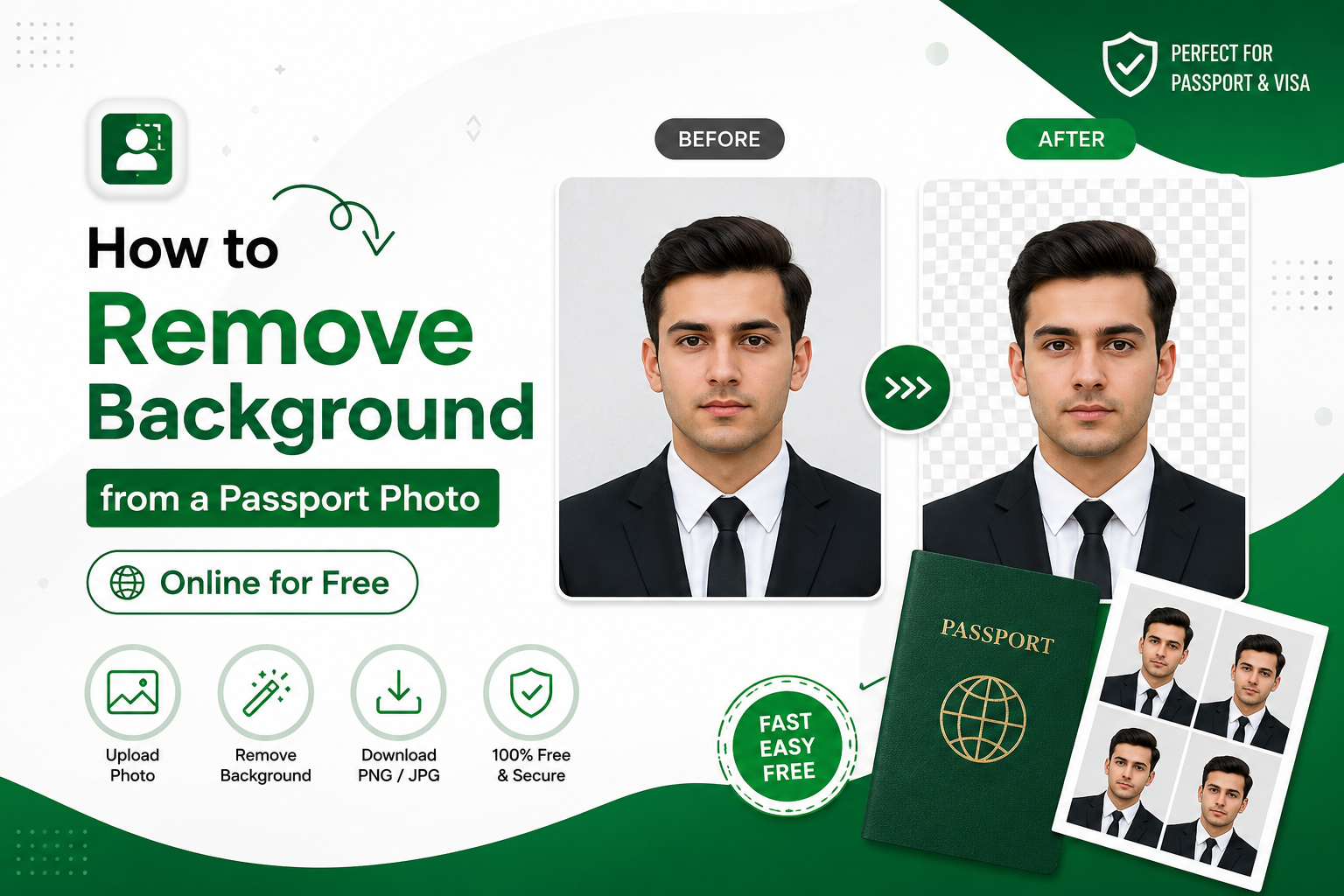
Yes. You can use an online background removal tool to separate the person from the original background without manually selecting the subject.
Modern background removal tools can detect the main subject and create a transparent cutout. You can then place that cutout over a plain background.
This is especially useful when your original photo is good but the wall or background behind you isn't suitable.
For example, you might have a clear portrait taken at home with a beige wall behind you. Instead of taking another photograph, you can remove the existing background and replace it with a plain background.
If you want to learn more about creating transparent images, see our guide on how to make an image background transparent online.
The important thing is that the original photograph itself is suitable. Background removal cannot fix every problem with a passport photo.
How to Remove Background from a Passport Photo
You can clean up a passport photo online in a few simple steps.
1. Choose a Clear Photo
Start with a recent photograph where your face is clearly visible.
Try to use an image with:
Good lighting
Sharp facial details
Your full head and shoulders visible
No heavy blur
No extreme filters
A natural facial expression
A better original image usually produces a better background-removal result.
2. Upload the Photo
Open an online background removal tool and upload your passport-style photograph.
You don't necessarily need to have taken the photo against a white wall. The tool can attempt to separate you from many different backgrounds.
3. Remove the Original Background
The background remover detects the main subject and separates it from the surrounding area.
The result should leave your face, hair, shoulders, and clothing while removing the wall and other objects behind you.
For a dedicated passport-photo workflow, you can also use our passport photo background remover.
4. Replace the Background With White
Once the original background has been removed, add a solid white background if white is required for your particular application.
Avoid adding gradients, patterns, scenery, or decorative backgrounds.
The goal is a simple, even background.
5. Check the Edges
Don't immediately download the image without checking it.
Zoom in around:
Hair
Ears
Glasses
Shoulders
Clothing
The sides of the face
Look for pieces of the old background that may still be visible. Also check whether parts of your hair or clothing have accidentally been removed.
6. Check the Entire Photo
Before submitting the image, check more than just the background.
Make sure your:
Face is clearly visible
Head is positioned correctly
Expression follows the application rules
Image is sharp
Lighting is even
Photo dimensions are correct
Background matches the official requirement
7. Download the Finished Image
Save the final image in the format required by your application.
JPEG is commonly used for online photo submissions, while some services may also accept PNG. The exact format and file-size requirements depend on the application.
How to Change a Passport Photo Background to White
If your original photo has a colored or distracting background, replacing it with white is usually straightforward.
The basic process is:
Original photo → Remove background → Add white background → Check the image → Resize if required → Download
A proper replacement background should look natural and consistent. You shouldn't see a visible outline, leftover wall, artificial shadow, or uneven color around the person.
It's also important not to confuse removing the background with fixing lighting on the face.
If your face has strong shadows, incorrect exposure, or unusual color caused by poor lighting, simply changing the background won't necessarily solve the problem.
What Color Should a Passport Photo Background Be?
There isn't one universal background color that applies to every passport and visa application.
Many authorities specify white, off-white, or a light neutral background, while exact requirements can vary.
Before editing your photograph, check the official instructions for the document you're applying for.
For example, don't assume that a white background is acceptable simply because it is commonly used. Some applications have specific requirements for background color, lighting, dimensions, and contrast.
The safest approach is to follow the current instructions published by the authority handling your application.
Common Passport Photo Background Problems
Here are some of the most common background problems you may need to fix.
Colored Walls
A blue, yellow, green, or other strongly colored wall may not meet the requirements for your application.
Shadows Behind the Head
Strong shadows can make the background look uneven. If the original shadow is part of the background, replacing the background may remove much of it.
Objects Behind You
Doors, curtains, shelves, furniture, pictures, and household objects can make a portrait unsuitable.
Other People
Another person appearing in the background can be a major problem for an identification photograph.
Patterns and Textures
Wallpaper, brick walls, fabric, and decorative backgrounds can make the photo look unsuitable for official documentation.
Uneven Lighting
A background that becomes noticeably darker toward one side can be a problem when a plain, evenly lit background is required.
Other Images You Can Clean Up With Background Removal
Background removal isn't only useful for passport photos.
You can also use it for business, documents, ecommerce, and personal images.
For example, if you're preparing a company logo, you can remove the background from a logo and create a transparent version for websites, documents, or marketing materials.
You can also clean up scanned signatures with our guide on how to remove the background from a signature.
These workflows use the same basic process: isolate the main subject and remove unwanted elements from behind it.
Mistakes to Avoid When Editing a Passport Photo
Background removal is useful, but over-editing a passport photo can create new problems.
Don't Retouch Your Face Too Much
Passport and visa photographs are intended to represent your actual appearance. Avoid excessive skin smoothing, face reshaping, or beauty filters.
Don't Change Your Facial Features
Do not use editing tools to make your face thinner, change your eyes, alter your nose, or otherwise change your appearance.
Don't Add Artificial Effects
A passport photo isn't the place for shadows, gradients, glow effects, color effects, or decorative backgrounds.
Don't Crop Without Checking the Requirements
Different countries and applications can require different dimensions and head positioning.
Don't Assume Every Government Uses the Same Rules
A photo that works for one country's passport may not meet another country's requirements.
Always check the official instructions before submitting your final image.
Can You Take a Passport Photo With a Phone?
In many situations, a modern smartphone can produce a sufficiently clear starting photograph.
For the best result, take the picture in good, even lighting and keep the camera approximately at eye level.
Try to:
Face the camera directly
Keep a neutral expression if required
Avoid strong shadows
Keep your face unobstructed
Use a sharp, high-resolution image
Avoid beauty filters
Keep the camera lens clean
A phone photo can then be processed with an online background remover if the original image is otherwise suitable.
If the image is slightly low-quality after editing, you can also use an image upscaler to improve the resolution before printing, provided that doing so is allowed for your particular application.
However, the fact that a photo looks good on your phone doesn't mean it automatically satisfies the requirements of your application.
How Free Background Remover AI Can Help
If your main problem is the background, Free Background Remover AI can be used to separate the subject from the original image without requiring Photoshop or complicated editing software.
The basic workflow is simple:
Upload your photograph.
Remove the existing background.
Create a clean background.
Inspect the result.
Download the image.
This can be useful when you already have a clear photograph but need to replace a distracting wall or background.
For the best results, start with a high-quality image and carefully inspect the edges after processing.
Is AI Background Removal Safe for Passport Photos?
AI background removal can be useful for changing the background, but it should not be treated as an official passport-photo certification service.
The tool can help with the editing process, but you are responsible for checking the final image against the current requirements of the relevant authority.
In particular, verify:
Required photo dimensions
Background color
Head size and positioning
Facial expression
Lighting
Image resolution
File format
Maximum file size
Whether digital editing is permitted
If the application has strict rules about photographs, follow those rules rather than relying only on an image editor.
Frequently Asked Questions
Can I remove a passport photo background for free?
Yes. Online background removal tools can remove the original background without requiring Photoshop. You can then replace it with a plain background if that matches your application's requirements.
Can I change my passport photo background to white?
Yes, you can replace the original background with white. However, confirm that your particular passport or visa application requires or accepts a white background.
Can I use a phone photo for a passport application?
A smartphone can be used to take a clear starting photograph, but the final image still needs to satisfy the requirements of the authority receiving the application.
Will removing the background guarantee passport photo acceptance?
No. Background removal only addresses the background. Your photo may also need to meet requirements for dimensions, facial expression, lighting, head position, image quality, and other factors.
Can AI remove shadows from a passport photo?
An AI background remover can remove shadows that belong to the background when it replaces the original background. However, shadows falling directly across your face are a different issue and may require a properly retaken photograph.
Should I edit my face in a passport photo?
Avoid unnecessary facial retouching or filters. Official identification photographs should accurately represent your appearance.
What image format should I use?
The required format depends on the application. JPEG is widely used, but some online systems may accept other formats. Check the instructions for your specific application before uploading the image.
What size should a passport photo be?
There is no single worldwide passport photo size. Requirements vary between countries and sometimes between different types of applications. Check the official specifications before resizing or printing your photograph.
Can I print the edited passport photo at home?
You may be able to print it yourself if the application allows printed photographs and you can produce the required dimensions and quality. Otherwise, a professional photo-printing service can be used.
Can I remove a passport photo background without Photoshop?
Yes. Browser-based background removal tools can perform the basic background separation automatically, which is much simpler than manually selecting the subject in Photoshop.
Final Thoughts
Removing the background from a passport photo doesn't have to be complicated. If your photograph is clear but the background is distracting, an online background remover can separate you from the original background and help you create a cleaner image.
The process is simple: upload the photo, remove the background, add the required plain background, check the result, and then resize or export it according to the application requirements.
Just remember that a clean background alone doesn't make a passport photo compliant. Always check the latest official requirements for your country, passport, visa, or other identification document before submitting the final image.
If you already have a good photograph and simply need to replace its background, try Free Background Remover AI to remove the background online without Photoshop or complicated editing software.
Share this guide with your team