Remove White Background from Images for Free | Best AI Photo Editor
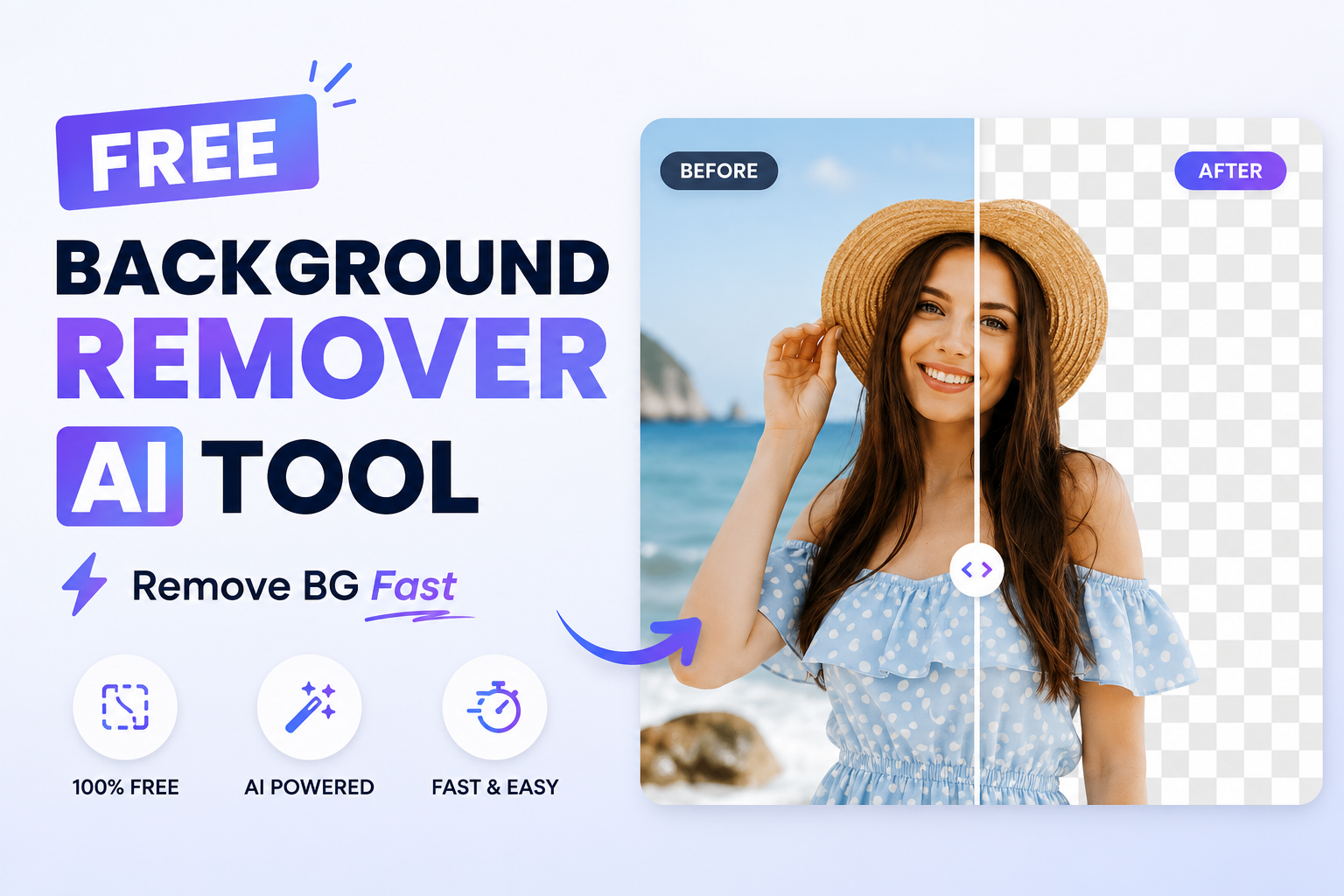
Quick Answer: To remove a white background from an image for free, upload your photo to an AI-powered tool like Free Background Remover AI, let the AI detect your subject automatically, and download a transparent PNG in seconds — no signup, no watermark, no Photoshop skills required.
If you've ever stared at a product photo, a logo, or a headshot with an ugly white backdrop and wished you could just... delete it, you're not alone. Removing a white background used to mean opening Photoshop, fumbling with the magic wand tool, zooming in pixel by pixel around fingers and hair strands, and still ending up with jagged edges. It was slow, frustrating, and honestly not something most people had time for.
That's changed. AI-powered background removal now does in about three seconds what used to take twenty minutes of manual masking. Whether you're an Amazon seller prepping product images, a student cleaning up a headshot for a resume, or a small business owner making a logo look sharp on a colored banner, a free AI tool can strip out that white background instantly and leave you with a clean, transparent PNG.
This guide walks through exactly what "removing a white background" means, why it matters, how the AI behind it actually works, and how to do it yourself in under a minute using Free Background Remover AI — completely free, with no watermark left on your image.
What Does "Remove White Background" Mean?
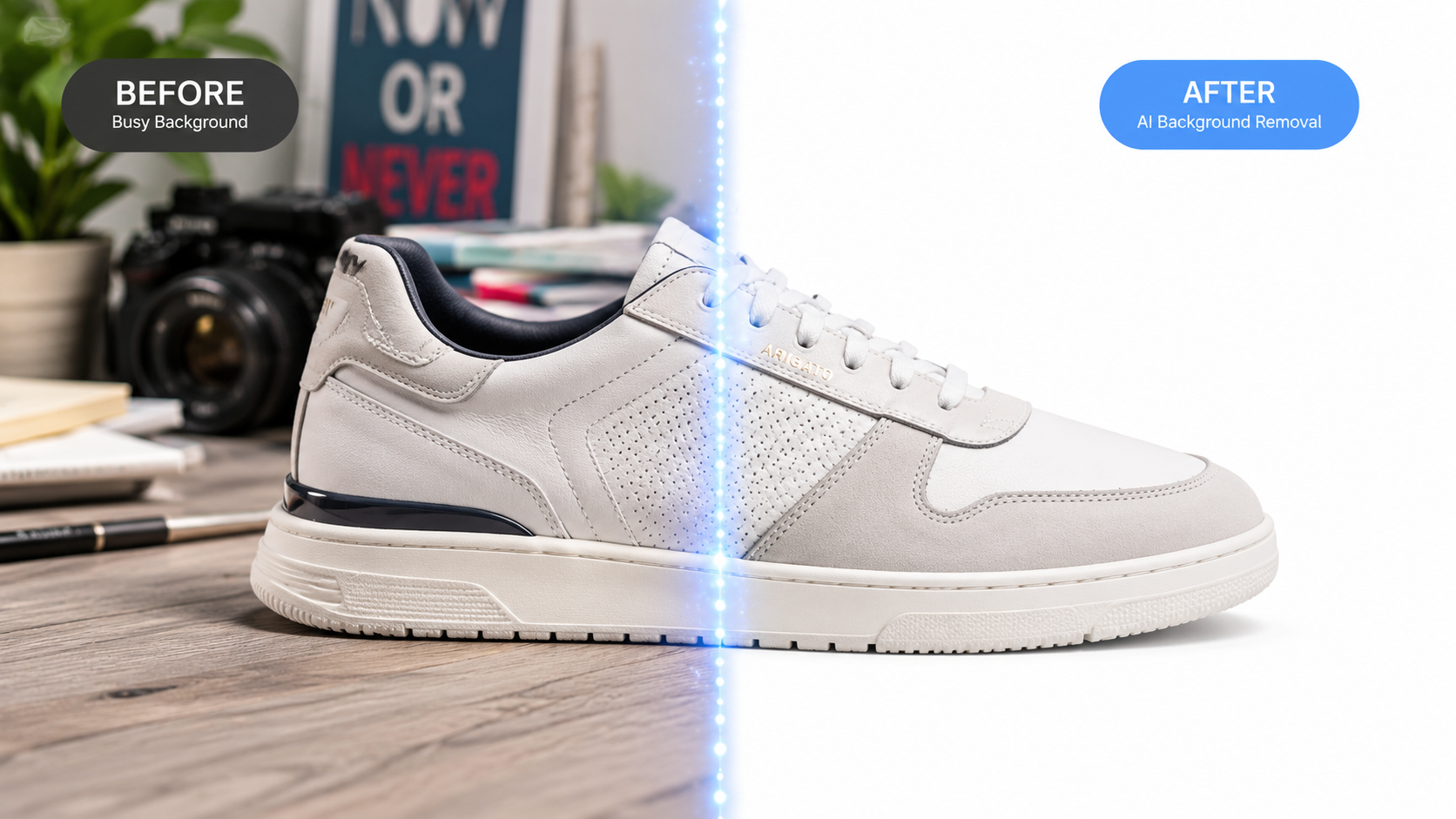
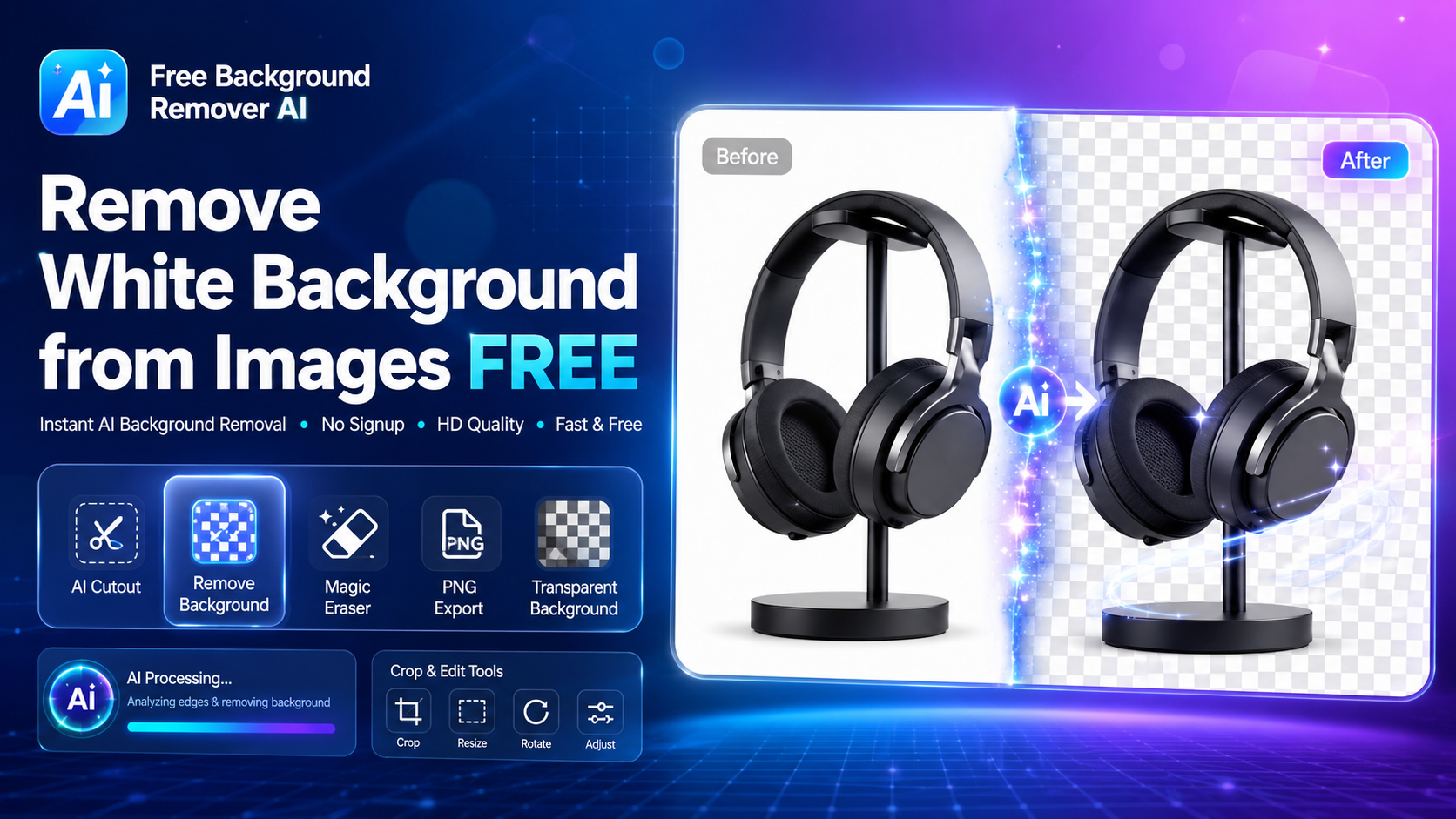
Quick Answer: Removing a white background means deleting the solid white area behind your main subject in a photo and replacing it with transparency, so the subject — a product, person, logo, or object — can be placed on any background without a visible box or edge around it.
Technically, this process is called background removal or image segmentation. An AI model analyzes the image, identifies which pixels belong to the foreground subject and which belong to the background, then makes the background pixels transparent by adjusting their alpha channel. The result is a .png file with a see-through background instead of a white one — ready to drop onto any color, photo, or design.
Why Remove White Backgrounds?
White backgrounds are everywhere in product photography and studio shots because they're easy to shoot and look clean. But a flat white background limits how you can use that image afterward. Once it's transparent, the same photo can go on a colored product page, a dark-mode app, a branded social post, or a printed flyer without looking like it was pasted in with scissors.
There's also a technical reason: many platforms — Amazon, Shopify, Etsy, print-on-demand sites — either require or strongly favor transparent product images because it lets their own templates and layouts control the final background consistently across a catalog.
Benefits of Transparent Background Images
Design flexibility — place the subject on any color, gradient, or photo background
Brand consistency — match product shots to your website's exact color scheme
Cleaner presentation — no visible seams, shadows, or box edges around the subject
Platform compliance — meets marketplace requirements for product listings
Faster workflows — reuse one cutout across dozens of designs instead of reshooting
Smaller, focused files — isolate just the subject for icons, stickers, or overlays
Common Use Cases
eCommerce. Product photos with transparent backgrounds are the standard for Amazon, Shopify, and Etsy listings, letting sellers drop items directly onto branded templates.
Logos. A logo with a white box around it looks unprofessional on a colored header or dark-mode site — transparency fixes that instantly.
Product Photography. Studio shots taken against a white backdrop can be lifted out and placed into lifestyle scenes or catalog layouts.
Marketing. Banners, ads, and email graphics often need a subject isolated from its original photo to fit a new layout.
Presentations. Slide decks look far more polished when images blend into the slide background instead of sitting in a white rectangle.
Social Media. Transparent PNGs make it possible to layer product shots or portraits over branded templates and Stories backgrounds.
Resume Photos. A clean, background-free headshot looks more professional than one with a random wall or white studio backdrop.
School Projects. Students frequently need isolated images for posters, presentations, and diagrams.
Graphic Design. Designers rely on transparent cutouts as raw material for composites, mockups, and collages.
How AI Removes White Backgrounds
Modern background removal tools use a type of deep learning model trained on millions of image pairs — the original photo and its correctly segmented version. When you upload an image, the model performs semantic segmentation: it scans the image and classifies every pixel as either "subject" or "background" based on patterns it learned during training, like edges, color contrast, and object shapes.
Unlike older tools that simply deleted every pixel matching a specific white color value (which fails badly on shadows, reflections, or off-white tones), AI segmentation understands the shape of the subject. That's why it can cleanly handle tricky areas like flyaway hair, semi-transparent glass, or fine jewelry chains that would break a simple color-based eraser tool.
Step-by-Step Guide: Removing a White Background with Free Background Remover AI
Upload your image. Go to Free Background Remover AI and drag your photo into the upload box, or select it from your device.
Let the AI detect your subject. The tool automatically analyzes the image and identifies the foreground subject in seconds — no manual selection needed.
Background removed automatically. The white backdrop is stripped out and replaced with a transparent layer.
Preview the result. Check the edges around hair, fingers, or fine details to confirm a clean cutout.
Download your transparent PNG. Save the final image to your device, ready to use anywhere — no watermark added.
Why Choose Free Background Remover AI
No signup required — no account, no email, no friction
No watermark — the free version doesn't stamp your image
Completely free — no hidden credits or paywalls for standard use
Fast processing — results in seconds, not minutes
High-quality edges — handles hair, fur, and fine detail well
AI-powered — uses trained segmentation models, not basic color keying
Mobile-friendly — works from a phone browser, no app install needed
Works on desktop — full functionality on any modern browser
Secure — images are processed for editing purposes only
Multiple format support — works with JPG, PNG, and WebP uploads
Best Tips for Better Results
Use well-lit, high-contrast photos so the AI can distinguish subject from background clearly
Avoid busy or patterned backgrounds if possible — plain backdrops segment more cleanly
Upload the highest resolution version of your image you have available
Double-check fine details like hair strands and jewelry after processing
For logos, make sure the original file has crisp, non-blurry edges
Best Image Types
AI background removal works well on product photos, portraits, logos, artwork, icons, and studio shots. It performs best on images where the subject is clearly distinguishable from the backdrop — high contrast between subject and background produces the cleanest results.
Supported File Formats
Free Background Remover AI accepts common formats including JPG, JPEG, PNG, and WebP for upload, and exports a transparent PNG file, since PNG is the standard format that supports transparency.
Common Mistakes to Avoid
Uploading low-resolution images — the AI has less detail to work with, leading to rougher edges
Ignoring the preview step — always check edges before downloading, especially around hair or thin objects
Using heavily compressed JPGs — compression artifacts can confuse edge detection near the subject's outline
Forgetting the file will have a transparent background — some programs display transparency as a white or checkered pattern, which can be mistaken for an error
Remove White Background for Specific Use Cases
Product Photos — isolate items for marketplace listings and catalogs. Logos — get a clean cutout for use on any colored background. Portraits — remove studio backdrops from headshots and profile photos. Documents — clean up scanned signatures or stamps for digital paperwork. Stickers — create die-cut-style graphics for print or messaging apps. Artwork — isolate illustrations or hand-drawn pieces from scanned backgrounds. Icons — prep simple graphics for use in apps, websites, or presentations.
Frequently Asked Questions
Can I remove a white background for free? Yes. Free Background Remover AI lets you remove white backgrounds at no cost, with no signup and no watermark on the final image.
Does the tool add a watermark? No. The downloaded PNG is clean, with no watermark or branding added to your image.
Can I remove backgrounds from logos? Yes. The AI works well on logos, especially those with crisp, well-defined edges.
Is PNG supported? Yes, both as an upload format and as the export format, since PNG supports the transparency needed after background removal.
Is the AI accurate? Yes, for most photos with clear subject-background contrast. Fine details like hair are handled well, though extremely complex images may need a manual touch-up.
Can I use it on mobile? Yes. The tool works directly in a mobile browser without needing an app.
Do I need Photoshop? No. The entire process happens in your browser — no software installation required.
Is my image secure? Images are uploaded solely for the purpose of processing your background removal request.
Can I edit multiple photos? Yes, you can upload and process images one after another with no limit on how many you edit.
What image formats work? JPG, JPEG, PNG, and WebP files can be uploaded; the result downloads as a transparent PNG.
Will the transparent background show correctly everywhere? Yes, PNG transparency is universally supported across browsers, design software, and most modern apps and platforms.
Can I remove a background that isn't white? Yes. While this guide focuses on white backgrounds, the same AI segmentation removes colored or patterned backgrounds too.
Does the tool work on complex images like group photos? It can, though results are best when there's a single, clearly defined subject rather than multiple overlapping elements.
Is there a file size limit? Very large files may take slightly longer to process, but standard photo sizes from phones and cameras work without issue.
Can I use the transparent PNG commercially? Yes — once downloaded, the image is yours to use for product listings, marketing, or any other purpose.
Key Takeaways
Removing a white background turns a flat product or portrait photo into a flexible, transparent PNG usable anywhere
AI segmentation is faster and generally more accurate on fine detail than manual masking in Photoshop
Free Background Remover AI does this in seconds, for free, with no signup and no watermark
Well-lit, high-contrast source photos produce the cleanest results
Always preview the edges before downloading, especially for hair, fur, or fine jewelry
Conclusion
A white background isn't wrong — it's just limiting. The moment you need that product photo, logo, or headshot to sit on a different color, a website banner, or a social post, that solid white block becomes a problem. AI background removal solves it in seconds instead of the twenty minutes manual masking used to demand.
If you've got an image sitting on your device right now with a white backdrop you want gone, try Free Background Remover AI — upload it, preview the cutout, and download a clean, watermark-free transparent PNG in seconds.
Share this guide with your team