AI Background Generator: Create Professional Image Backgrounds for Free
A good background can completely change how an image feels.
Take a simple product photo on a kitchen table. Replace the messy surroundings with a clean studio scene and suddenly the same product looks ready for an online store. Put a portrait against a simple office background and it can look much more suitable for LinkedIn. Change the background of a handmade product photo and it can fit the visual style of an entire Etsy shop.
You don't always need a camera studio or Photoshop to do this anymore.
An AI background generator can separate the main subject from an image and create a new background around it. You describe the scene you want, choose a suitable style, and the tool handles much of the editing automatically.
This guide explains how AI background generation works, what makes a generated background look realistic, how to write better prompts, and how you can create professional-looking images without spending hours editing them manually.
What Is an AI Background Generator?
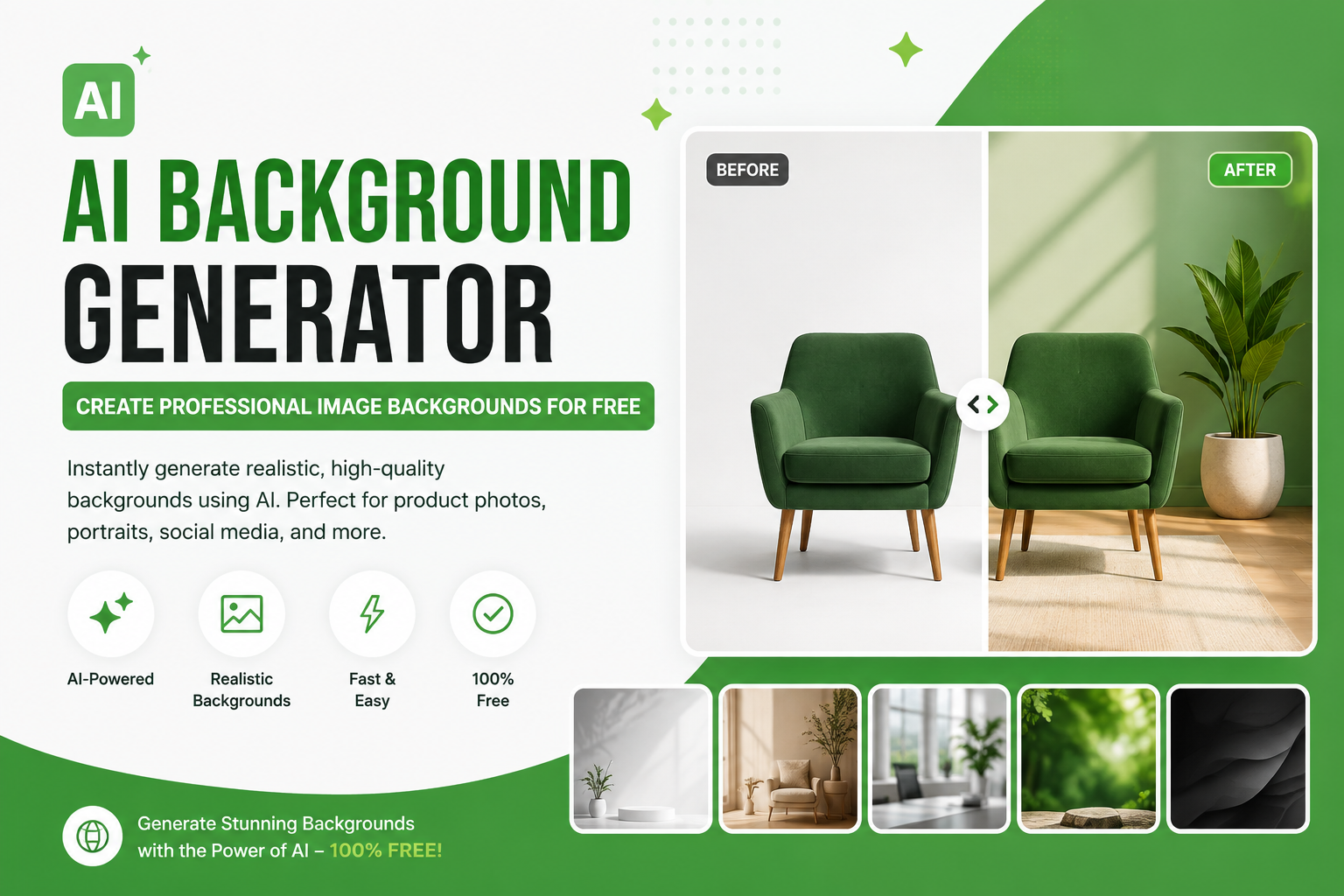
An AI background generator is an online image editing tool that lets you replace or create the background of a photo.
Instead of manually selecting the subject with a Photoshop pen tool, you can upload an image and let the software identify the main object or person. The original background can then be removed and replaced with a new scene.
For example, you could start with:
A product photographed on a messy table
A portrait taken in a bedroom
A pair of shoes photographed on the floor
A food photo taken in a normal kitchen
A piece of jewelry photographed against a plain surface
Then you could create a completely different setting:
White studio background
Marble countertop
Modern office
Luxury bedroom
Outdoor garden
Soft gradient
Minimal product studio
Seasonal or festive scene
The important part is that you don't have to photograph the subject again just to change the setting.
Why Are People Using AI to Change Image Backgrounds?
Traditional background editing can take a surprising amount of time.
If the subject has hair, fur, transparent objects, small details, or complicated edges, selecting everything manually can become frustrating. After that, you still need to find or create a suitable background and make sure the lighting and shadows don't look strange.
AI can reduce much of that work.
For an online seller, this is particularly useful because product photography is often repetitive. You may have 20, 50, or even hundreds of products that need consistent images.
Instead of creating a new photoshoot for every visual variation, you can start with the photos you already have and create different backgrounds digitally.
This can be useful for:
Ecommerce product images
Shopify stores
Amazon product photography
Etsy listings
Social media posts
Advertisements
Website banners
Blog images
Professional portraits
YouTube thumbnails
Restaurant menus
Real estate marketing
AI Background Generator vs Background Remover
These two tools are related, but they don't do exactly the same thing.
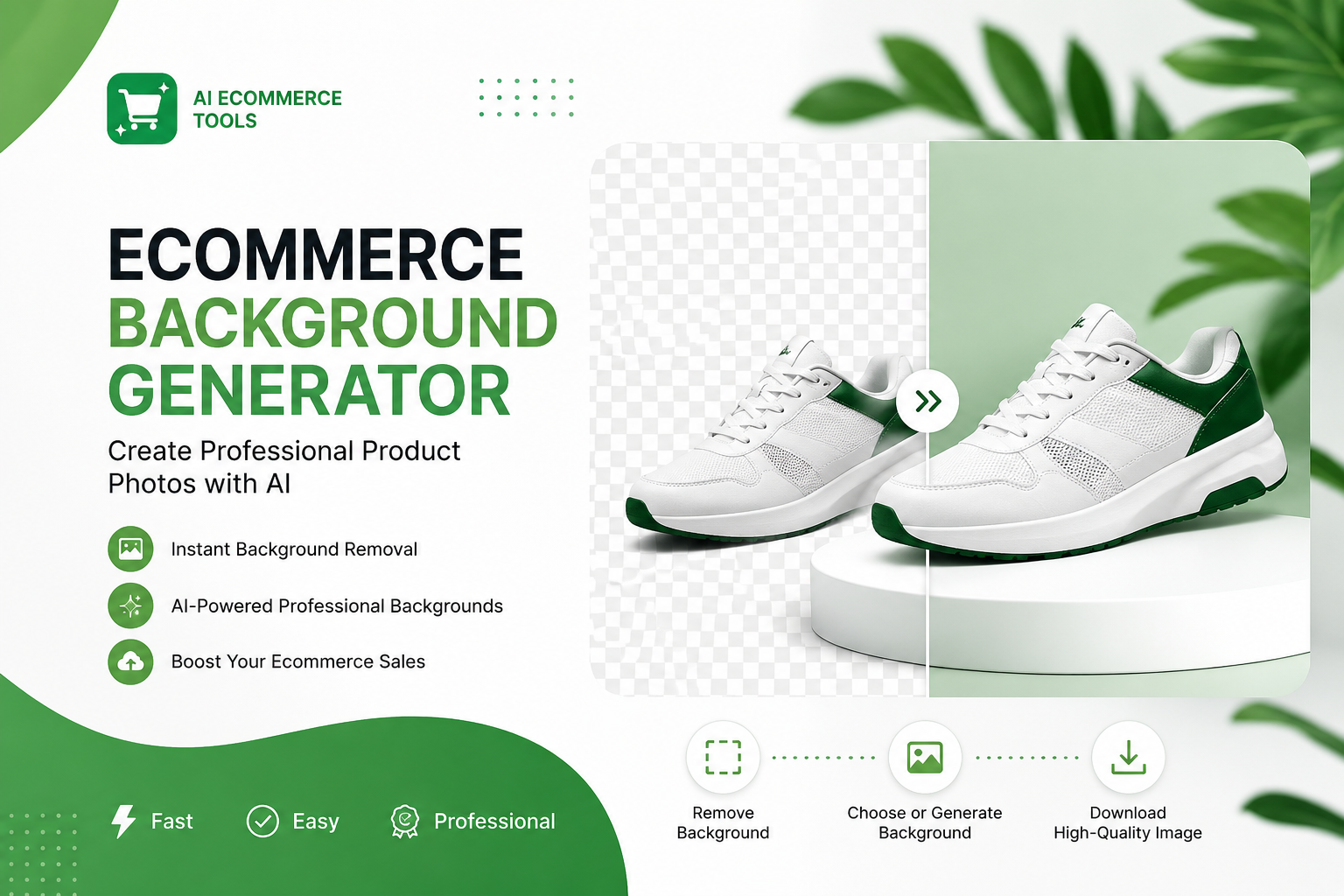
A background remover takes the existing background away and usually gives you a transparent PNG.
An AI background generator goes one step further. After separating the subject, it creates or places a new background behind it.
For example:
Original:
A handbag photographed on a bedroom floor.
Background remover:
The handbag with a transparent background.
AI background generator:
The same handbag placed on a clean luxury table with soft lighting.
This distinction matters because sometimes you only need transparency. Other times, you want the final image to look like a completely new photoshoot.
How to Generate a New Background for an Image
The process is much easier than traditional photo editing.
1. Start with a good source image
Upload the clearest image you have.
You don't need a professional camera, but try to use a photo where the subject is reasonably sharp and visible.
A blurry product photo can still be edited, but changing the background won't magically fix every problem in the original image.
2. Remove the original background
The subject needs to be separated from its surroundings before a new background can be added.
An AI background remover can automatically detect the main subject and create a clean cutout.
This is especially useful when you're working with:
People
Clothes
Shoes
Bags
Electronics
Furniture
Food
Animals
Logos
Product packaging
3. Describe the background you want
This is where the quality of your instructions starts to matter.
Instead of writing:
"Nice background"
give the generator useful information.
For example:
"Minimal white studio background with soft natural lighting and a subtle shadow underneath the product."
Or:
"Luxury marble countertop in a modern kitchen, warm natural light coming from the left, shallow depth of field."
The second prompt gives the system much more information about the scene.
4. Check the result carefully
Don't immediately publish the first version.
Look at the edges of the subject. Check the shadows. Look at the direction of the lighting.
Ask yourself:
Does the subject actually belong in this environment?
Is the perspective believable?
Does the shadow make sense?
Is the background distracting?
Are there strange edges around hair or clothing?
Does the color temperature match?
A few seconds of checking can make a big difference.
5. Download and use the finished image
Once the background looks right, export the image and use it for your website, store, advertisement, social media post, or other project.
If the final image needs to be larger, you can also use an image upscaler before publishing it.
How to Write Better AI Background Prompts
The prompt doesn't need to be complicated.
In fact, simple and specific instructions are often easier to work with.
A useful prompt normally describes four things:
Subject setting + environment + lighting + visual style
For example:
"Place the black handbag on a light beige stone table in a modern luxury room, with soft window lighting and a clean premium ecommerce style."
That's much more useful than:
"Make it beautiful."
Product photography prompt
"Clean white studio background, soft diffused lighting, subtle natural shadow under the product, professional ecommerce photography."
Fashion prompt
"Modern urban street background with neutral colors, soft afternoon light, realistic perspective, premium fashion photography."
Beauty product prompt
"Luxury marble bathroom counter, warm soft lighting, subtle reflections, minimal background, high-end skincare advertising style."
Food photography prompt
"Rustic wooden dining table with soft natural window light, warm neutral colors, subtle background blur, realistic restaurant photography."
Portrait prompt
"Clean modern office background with soft natural window light, neutral colors, realistic depth of field, professional headshot style."
Notice that none of these prompts needs dozens of descriptive words.
The goal is to give the generator enough information to understand the scene without making the instruction unnecessarily complicated.
7 Background Ideas You Can Try
If you aren't sure what to generate, start with one of these styles.
1. Clean white studio
This is one of the safest choices for ecommerce.
A plain white or light-gray background keeps attention on the product and gives your store a consistent appearance.
2. Luxury interior
Useful for products such as watches, perfume, jewelry, handbags, furniture, and premium accessories.
Try marble, wood, glass, warm lighting, and subtle decorative elements.
3. Natural outdoor scene
Good for fashion, shoes, travel products, sports equipment, and lifestyle photography.
For example, you could place a pair of sneakers on a clean outdoor path with soft daylight.
4. Minimal gradient
A simple gradient can work particularly well for advertisements and website graphics.
Choose colors that complement the product instead of competing with it.
5. Seasonal background
You can create different versions of the same product for:
Ramadan
Eid
Christmas
Valentine's Day
Black Friday
Summer campaigns
Winter campaigns
This means one product photo can be adapted for multiple marketing campaigns.
6. Soft lifestyle scene
Instead of a completely empty background, create a realistic environment around the product.
For example, a coffee cup could be placed on a wooden table beside a window with soft morning light.
7. Professional office
This works particularly well for portraits, consultants, agencies, freelancers, and business websites.
How to Make AI-Generated Backgrounds Look Real
The biggest problem with a generated background isn't usually the background itself.
It's the relationship between the subject and the background.
A beautiful room can still look fake if the product has a shadow going in one direction while the generated environment suggests light coming from another.
Match the lighting
If the original subject is brightly lit from the left, a background with strong lighting from the right can make the image look unnatural.
Try to describe the lighting direction in your prompt.
Keep the perspective consistent
A subject photographed from above shouldn't suddenly appear to be standing in a scene photographed from ground level.
The camera angle needs to make sense.
Don't make the background too busy
Your background should support the subject.
If someone is selling a pair of shoes, the viewer should notice the shoes first—not a giant decorative object behind them.
Check the edges
Zoom in around:
Hair
Fingers
Clothing
Product corners
Glass
Jewelry
Thin straps
Fur
These areas can reveal mistakes that aren't obvious when viewing the entire image.
Keep your brand style consistent
If you're creating images for an online store, don't use a completely different background style for every product.
Choose a visual direction and repeat it.
For example:
Light stone + soft shadows + neutral colors
can become the visual style for an entire product collection.
Consistency makes an ecommerce website look much more professional.
Using an AI Background Generator for Ecommerce
Ecommerce is one of the strongest use cases for background generation.
Imagine you sell 100 products.
You could photograph every item in roughly the same way and then create consistent backgrounds digitally.
For example:
Original product photo → remove background → generate studio scene → check lighting → export
You can use the resulting images for product pages, social media, advertisements, email campaigns, and promotional banners.
This is particularly useful for small businesses that don't have access to professional photography equipment.
But don't ignore marketplace rules
AI editing doesn't remove the need to follow the image requirements of the platform you're selling on.
Amazon, Shopify, Etsy, and other marketplaces can have different requirements for image dimensions, backgrounds, image quality, and product presentation.
Always check the requirements of the platform before publishing your final image.
Can You Use an AI Background Generator for Portraits?
Yes.
A portrait doesn't necessarily need to be photographed in a professional studio.
You can take a reasonably good photo at home and replace a distracting background with something cleaner.
For example, you could create:
Professional office
Neutral studio
Soft gray gradient
Modern workspace
Outdoor background
Simple corporate environment
This can be useful for LinkedIn profiles, team pages, portfolios, personal websites, and social media.
The important thing is to keep the new background believable. A professional headshot usually works better with a simple background than with an overly dramatic scene.
When You Shouldn't Use a Generated Background
AI background generation isn't the right answer for every image.
If you're creating a high-end advertising campaign where every detail must be controlled precisely, professional photography and manual retouching may still be the better choice.
You should also be careful with:
Highly reflective objects
Transparent glass
Very complicated hair
Intricate jewelry
Fine lace
Objects with extremely thin edges
Images with severe blur
In these situations, inspect the result closely before using it commercially.
AI is a useful editing tool, but it isn't a replacement for good photography and professional retouching in every situation.
Create AI Backgrounds with Free Background Remover AI
If you want to try this workflow without installing Photoshop or another desktop editor, Free Background Remover AI combines background removal with other image editing tools in one browser-based platform.
You can start by removing the original background from your photo, then create a new background around the isolated subject.
The platform also includes tools for image upscaling, enhancement, watermark removal, and background blur, which can be useful when you're preparing an image for publishing.
The basic workflow is simple:
Upload → Remove background → Generate a new background → Review → Upscale if needed → Export
That makes it practical for product photos, portraits, social media graphics, and other everyday image-editing tasks.
Frequently Asked Questions
What is the best AI background generator?
The best tool depends on what you're trying to create. For simple product photos, look for accurate subject separation, realistic shadows, good image quality, and easy background generation.
Is there a free AI background generator?
Yes. Free tools are available that can remove an existing background and generate a new one. Free Background Remover AI provides background editing tools that you can use directly in your browser.
Can I generate a background from a text prompt?
Yes. Many modern background-generation tools allow you to describe the scene you want using natural language.
For example, you can describe the environment, lighting, colors, perspective, and overall style.
Can I use an AI-generated background for product photos?
Yes. Product photography is one of the most practical applications. You can create clean studio backgrounds, lifestyle scenes, seasonal images, and advertising variations from an existing product photo.
Will an AI background generator remove the original background automatically?
Many tools can automatically detect the main subject and remove the existing background. However, complicated images can sometimes require additional checking or editing.
How do I make an AI background look realistic?
Pay attention to lighting, shadows, perspective, color, and scale. The new environment should look like it was photographed from the same viewpoint as the subject.
Can I use AI backgrounds for social media?
Yes. You can create different background styles for Instagram posts, Facebook ads, Pinterest graphics, YouTube thumbnails, and other social content.
What image should I use for the best result?
Start with a clear, reasonably sharp photo where the subject is easy to distinguish from the background. Better source images generally produce better final results.
Final Thoughts
Changing an image background used to be a job that required patience, editing software, and at least some knowledge of masking and compositing.
Today, an AI background generator can handle much of that process automatically.
The real advantage isn't simply being able to create a different background. It's being able to create multiple useful versions of the same image without arranging another photoshoot.
A single product photo can become a clean ecommerce image, a lifestyle advertisement, a seasonal promotion, and a social media graphic.
The best results still come from using good source photos and paying attention to the details—especially lighting, shadows, perspective, and edges.
If you have an image sitting on your computer that needs a better setting, try changing the background instead of taking the photo again. You may be surprised by how much difference the right background makes.
Share this guide with your team