AI Image Enhancer Improve Photo Quality Instantly with AI
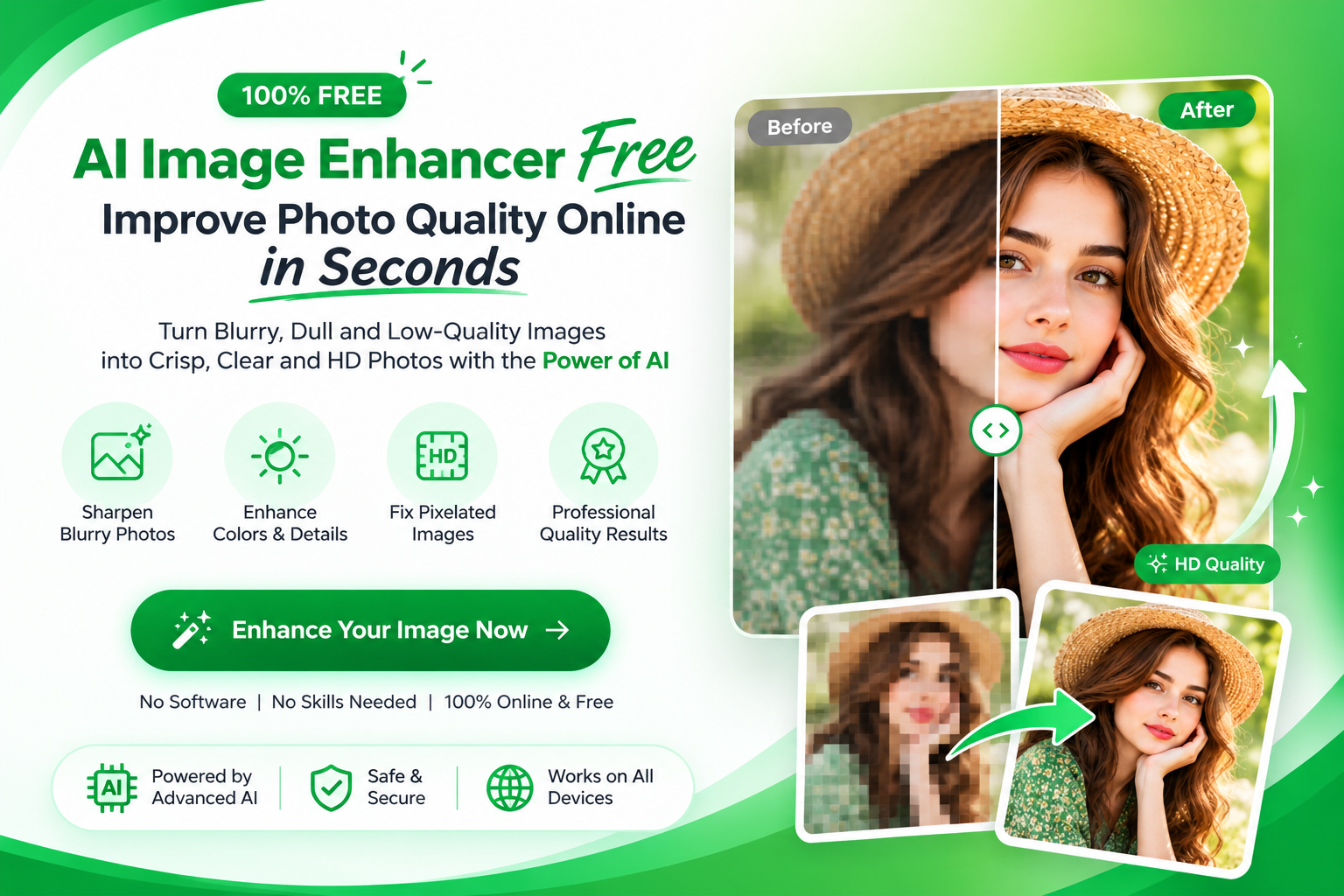
A blurry, pixelated, or low-resolution photo can make even great content look unprofessional. Whether you're preparing product images for an online store, improving a portrait, restoring an old photograph, or creating visuals for social media, image quality matters.
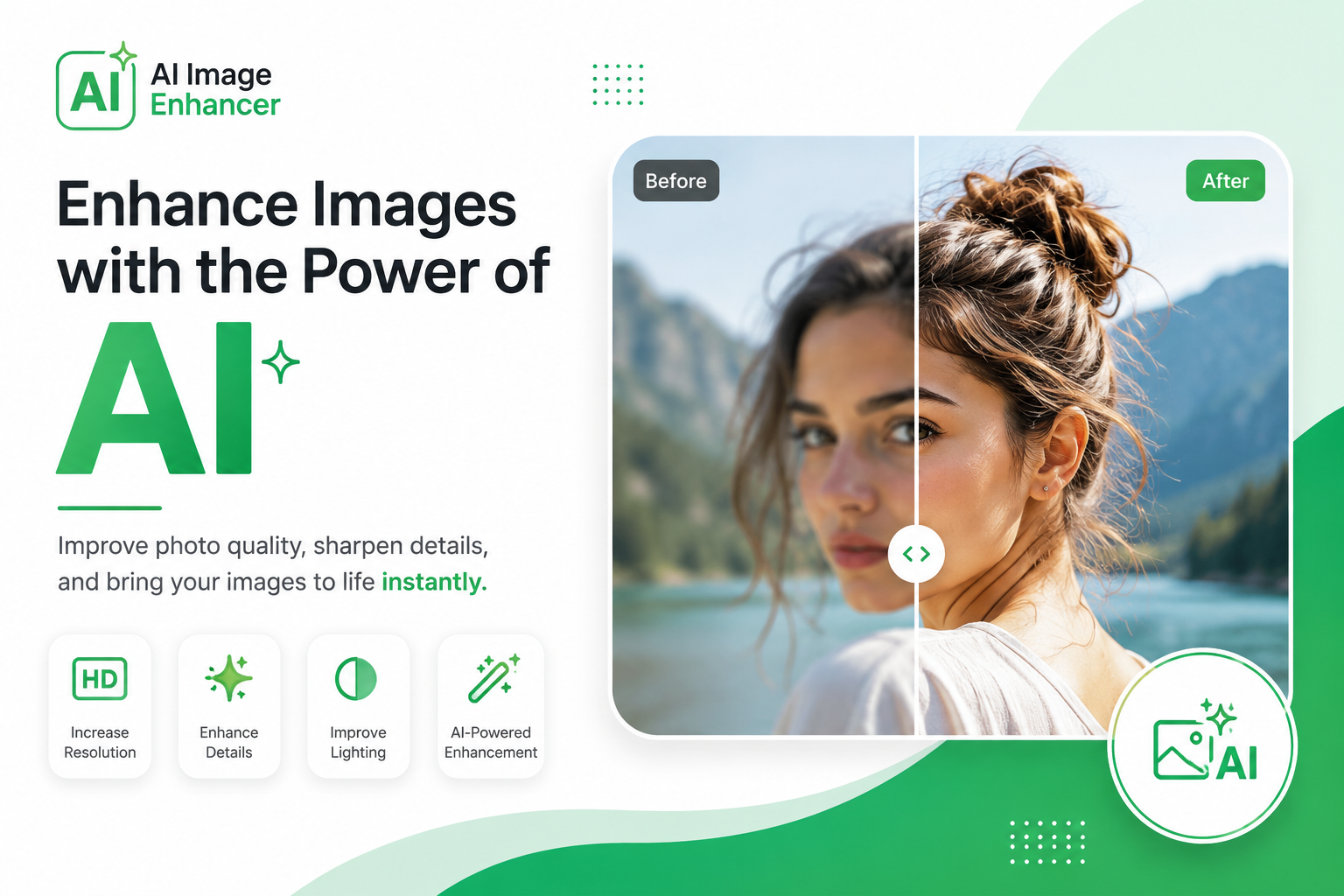
An AI image enhancer makes it possible to improve photo quality automatically. Instead of spending hours adjusting sharpness, contrast, noise, colors, and resolution manually, AI can analyze your image and make intelligent improvements in seconds.
With FreeBackgroundRemoverAI's AI Image Enhancer, you can enhance images online without installing complicated editing software. Upload your photo, let AI process it, preview the result, and download an improved version.
In this guide, you'll learn what an AI image enhancer is, how AI photo enhancement works, what problems it can fix, how to enhance an image online, and how to get the best possible results.
What Is an AI Image Enhancer?
An AI image enhancer is an online tool or software that uses artificial intelligence and machine learning to improve the quality of digital images.
Traditional photo editing usually requires you to manually adjust settings such as sharpness, brightness, contrast, color, and noise reduction. AI enhancement automates many of these tasks by analyzing the contents of an image and determining which areas need improvement.
Depending on the technology being used, an AI image enhancer can:
Increase image resolution
Improve image sharpness
Reduce digital noise
Restore lost details
Improve colors and contrast
Enhance facial details
Correct certain lighting problems
Reduce compression artifacts
Make low-quality images look clearer
Prepare images for larger displays
The goal isn't simply to make an image sharper. A good AI enhancement process attempts to create a more balanced image while preserving natural-looking details.
How Does AI Image Enhancement Work?
AI image enhancement relies on machine learning models trained to recognize patterns in images.
When you upload a photograph, the AI analyzes different elements such as edges, textures, colors, faces, lighting, and image noise. It then applies appropriate improvements based on what it detects.
1. Image Analysis
First, the AI examines the uploaded image to identify problems such as blur, noise, low resolution, poor contrast, or compression artifacts.
2. Detail Recognition
The model identifies important visual information such as facial features, hair, clothing, objects, edges, and textures.
3. Super-Resolution
AI-powered super resolution can increase the number of pixels in an image while attempting to reconstruct realistic looking details.
This is particularly useful when you need to enlarge a small image without making it appear excessively pixelated.
4. Noise Reduction
AI can identify unwanted grain and digital noise and reduce it while trying to preserve important textures.
5. Sharpness Enhancement
The system can improve the definition of edges and fine details, helping a soft photograph appear clearer.
6. Color and Lighting Correction
Depending on the tool, AI can also improve exposure, contrast, color balance, and overall visual appearance.
The result is an image that can look cleaner, sharper, and more suitable for professional use.
Why Is Image Quality Important?
High-quality images influence how people perceive your website, products, brand, and content.
A blurry image can make a professional website look unfinished. A low-quality product photo may make an expensive product appear cheap. A pixelated social media image can also reduce the visual impact of your content.
Better image quality is especially important for:
E-commerce stores
Business websites
Social media posts
Digital advertisements
Real estate listings
Photography portfolios
Blogs
YouTube thumbnails
Online marketplaces
Marketing campaigns
Presentations
Printed materials
If an image represents your business or product, improving its quality can make your visual content look significantly more polished.
What Problems Can an AI Image Enhancer Fix?
AI photo enhancement can help with many common image-quality problems.
Blurry Images
Slightly blurry photographs can sometimes be improved by enhancing edges and reconstructing visual details.
Low-Resolution Photos
Small images can be enlarged with AI upscaling while generating additional pixels to create a higher-resolution result.
Pixelated Images
AI enhancement can reduce the harsh appearance of pixelation when increasing the size of a small image.
Noisy Photos
Images captured in low-light conditions often contain digital noise. AI-based noise reduction can help create a cleaner result.
Compressed Images
Repeatedly saving and sharing JPEG images can introduce compression artifacts. Enhancement can sometimes reduce the visible effect of these artifacts.
Old Photographs
Old or scanned photographs may contain fading, noise, blur, and lost detail. AI enhancement can help improve their appearance.
Dull Colors
Some images look flat or faded because of poor lighting, camera settings, or aging. AI-based color enhancement can make them appear more vibrant.
Soft-Focus Images
Photographs that lack crisp detail may benefit from intelligent sharpening and detail enhancement.
However, AI enhancement has limits. It cannot perfectly recover information that was never captured in the original photograph.
Key Features of a Good AI Image Enhancer
When choosing an AI photo enhancer, look for features that match your workflow.
AI Image Upscaling
Upscaling increases an image's dimensions while attempting to preserve or reconstruct useful details.
This can be useful when a small product photo needs to be displayed at a larger size.
Image Sharpening
Sharpening improves the definition of edges and details, helping an image appear clearer.
Noise Removal
Noise reduction can clean up grain and unwanted artifacts, particularly in low-light photographs.
Face Enhancement
For portraits, AI can focus on facial areas and improve visible details while maintaining a natural appearance.
Detail Recovery
AI models can attempt to reconstruct details that have become difficult to see because of low resolution or compression.
Color Enhancement
Color processing can improve dull or faded photographs and create a more balanced visual appearance.
Automatic Correction
Automatic adjustments can simplify common corrections involving brightness, contrast, exposure, and color.
Easy Online Processing
A browser-based tool means you don't need to install complicated editing software just to improve one photograph.
High-Quality Export
The final image should be available at a resolution and file format suitable for your intended use.
How to Enhance an Image Online With AI
You can enhance a photo online with FreeBackgroundRemoverAI in a few simple steps.
Step 1: Upload Your Photo
Open the AI Image Enhancer and upload the image you want to improve.
You can start with a portrait, product image, old photograph, social media image, or another supported photo.
Step 2: Let AI Analyze the Image
The AI examines the image and identifies areas that may benefit from enhancement.
Step 3: Enhance the Photo
The system processes the image and applies improvements such as sharpening, noise reduction, detail enhancement, and resolution improvement.
Step 4: Preview the Result
Compare the original image with the enhanced version.
Pay particular attention to faces, text, product details, hair, edges, and fine textures.
Step 5: Download the Enhanced Image
If you're happy with the result, download the improved image and use it on your website, store, social media account, advertisement, or other project.
Benefits of Using an AI Image Enhancer
There are several reasons people use AI-powered image enhancement instead of editing every photograph manually.
Save Time
AI can automate multiple image adjustments, reducing the amount of manual editing required.
Easy for Beginners
You don't need advanced Photoshop skills to improve an image with an automated AI tool.
Improve Visual Quality
AI enhancement can make suitable images look sharper, cleaner, and more detailed.
Useful for E-Commerce
Better product photography can make online listings more visually appealing and easier for customers to inspect.
Improve Social Media Content
Starting with a high-quality image gives you a better source file before social platforms apply their own compression.
Restore Older Images
AI enhancement can make old, scanned, or low-quality family photographs more usable.
Prepare Images for Websites
Higher-quality images can improve the visual presentation of landing pages, product pages, blog posts, and portfolios.
Best Uses for AI Photo Enhancement
AI image enhancement can be useful in many industries and everyday situations.
E-Commerce Product Photos
Online shoppers cannot physically inspect products, so photography plays an important role.
Enhancing product images can help make details easier to see and create a more consistent store appearance.
After enhancing a product image, you can also use an AI background remover to create a cleaner product presentation.
Portrait Photography
Portraits can benefit from improvements to facial details, sharpness, lighting, and noise.
Old Family Photos
Scanned or older photographs can sometimes be improved by reducing noise, increasing clarity, and enhancing faded details.
Real Estate Photography
Property images need to communicate spaces clearly. Improving image quality can make interiors and exteriors look cleaner and more professional.
Automotive Photos
Car dealers and vehicle sellers can improve listing photographs before publishing them online. You can also combine enhancement with an AI car background remover for cleaner automotive marketing images.
Social Media Content
Creators can enhance photos before publishing them to Instagram, Facebook, TikTok, Pinterest, or other platforms.
Blog Images
Clearer images can improve the overall visual quality of blog posts and content pages.
YouTube Thumbnails
A sharper and cleaner image can help create more professional-looking thumbnails.
AI Image Enhancement for E-Commerce
E-commerce is one of the strongest use cases for AI image enhancement.
Customers rely heavily on product images when deciding whether to purchase something online. Poor-quality photography can make products difficult to understand.
An AI image enhancer can help sellers:
Improve product sharpness
Clean up image noise
Improve colors
Increase resolution
Make product details easier to inspect
Create more consistent catalog images
Prepare images for marketplaces
Improve visuals before removing backgrounds
A useful workflow is:
Enhance → Remove Background → Add New Background → Export
For example, you can enhance the original product photograph first, remove its background using the background removal tool, and then create a professional scene using the AI background generator.
AI Image Enhancer for Old Photos
Old photographs often suffer from fading, scratches, blur, low resolution, and poor scanning quality.
AI enhancement cannot magically recreate an exact historical photograph, but it can make many old images cleaner and easier to view.
It can be especially useful for:
Family photographs
Scanned prints
Historical images
Old portraits
Damaged digital copies
Low-quality archived images
For severely damaged photographs, you may need a combination of restoration and manual editing rather than enhancement alone.
AI Image Enhancer for Social Media
Social media platforms commonly resize and compress uploaded images.
Starting with a clean, high-quality source image gives you a stronger foundation for publishing.
Before uploading a photo, consider:
Enhancing the original image.
Checking sharpness at 100% zoom.
Cropping to the correct aspect ratio.
Exporting using a suitable format.
Checking the final image on mobile.
Avoiding excessive sharpening.
This workflow helps maintain a cleaner visual appearance after uploading.
How to Get the Best Results From an AI Image Enhancer
The quality of your original image still matters.
1. Start With the Best Original
Always use the highest-quality original file available instead of repeatedly downloaded or compressed copies.
2. Avoid Extremely Blurry Images
AI can improve moderate blur, but extreme motion blur or completely missing detail may be difficult to reconstruct accurately.
3. Don't Over-Enhance
Too much sharpening can create unnatural edges and halos.
4. Check Faces Carefully
When enhancing portraits, inspect eyes, skin, hair, and facial features to make sure the result remains natural.
5. Preserve Color Accuracy
For product photography, enhanced colors should still accurately represent the real product.
6. Use the Correct Output Size
Don't upscale an image unnecessarily. Choose an output resolution that matches where the image will be used.
7. Keep Your Original
Always keep a copy of the original photograph before processing it.
8. Preview Before Downloading
A before-and-after comparison can reveal unwanted artifacts that aren't obvious at first glance.
9. Choose the Right File Format
JPEG, PNG, and WebP can be useful in different situations. Choose the format appropriate for your website, design, or platform.
10. Combine Tools Carefully
For complex workflows, use multiple tools in a logical order rather than repeatedly processing the same image.
Common AI Image Enhancement Mistakes
AI makes image editing easier, but there are still mistakes you should avoid.
Expecting AI to Restore Every Detail
AI can estimate missing information, but it cannot guarantee an exact reconstruction of details that were never present.
Using an Extremely Small Source Image
Upscaling a tiny image too aggressively can produce artificial-looking details.
Applying Too Much Sharpening
Excessive sharpening can make edges look harsh and unnatural.
Ignoring Color Accuracy
This is particularly important for e-commerce. An enhanced product should still look like the real product.
Processing an Image Multiple Times
Repeated enhancement can introduce artifacts. Whenever possible, work from the original and perform a controlled enhancement.
Forgetting the Intended Use
A photo intended for a website may need different dimensions and compression from an image intended for printing.
AI Image Enhancer and Background Removal: What's the Difference?
Image enhancement and background removal solve different problems.
AI image enhancement improves the quality of the image itself.
AI background removal separates the main subject from its background.
For example, suppose you have a low-quality product photograph.
You can first use the AI Image Enhancer to improve the product's clarity. Then use the background remover to remove the existing background.
After that, you can create a new visual environment using the AI background generator.
This combination can turn a basic product photograph into a much more polished marketing asset.
Other FreeBackgroundRemoverAI Tools You Can Use
FreeBackgroundRemoverAI offers more than image enhancement. You can combine several AI-powered tools depending on what your project requires.
AI Image Upscaler
If your main goal is increasing image dimensions, use the AI Image Upscaler.
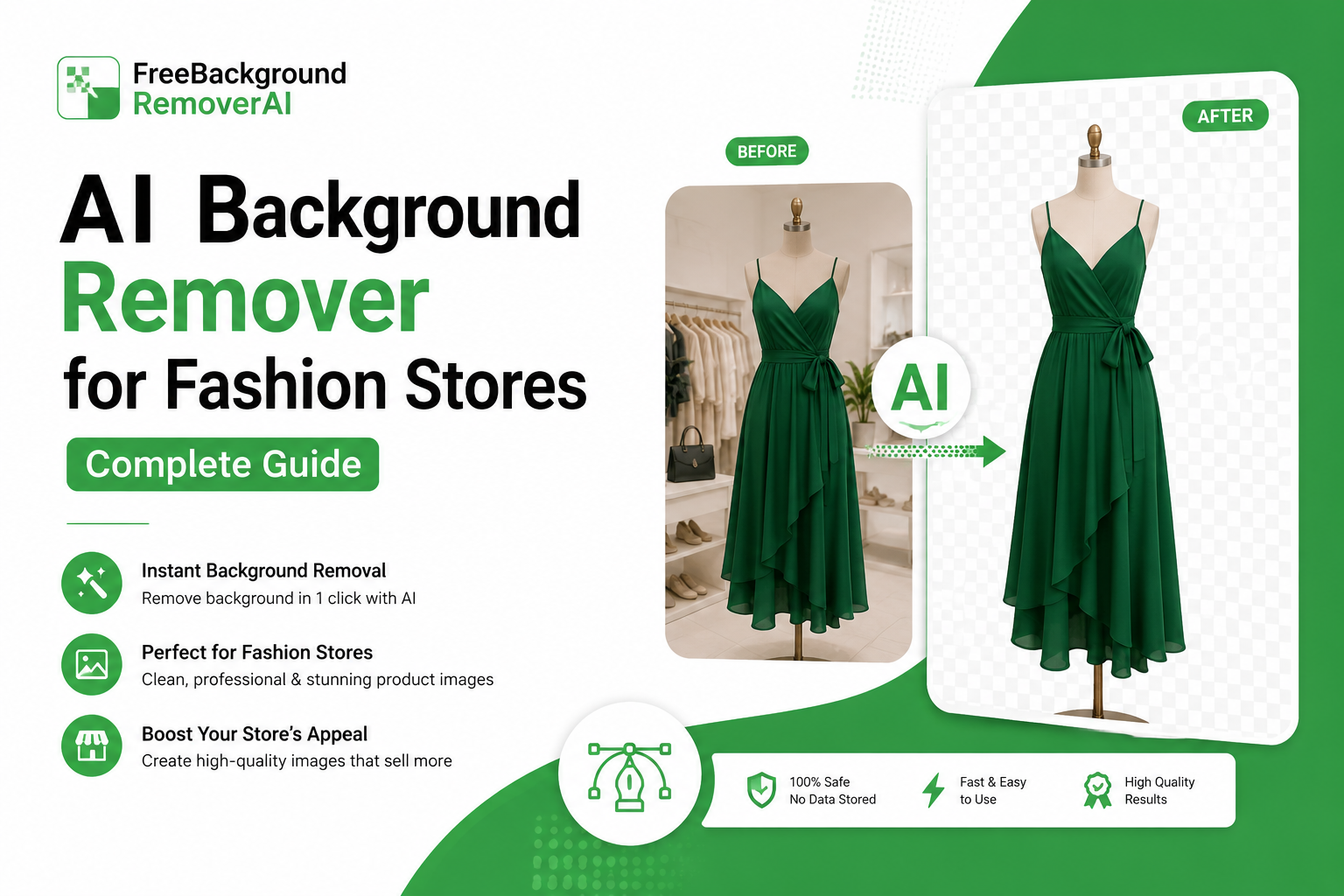
Background Remover
Remove unwanted backgrounds with the AI Background Remover.
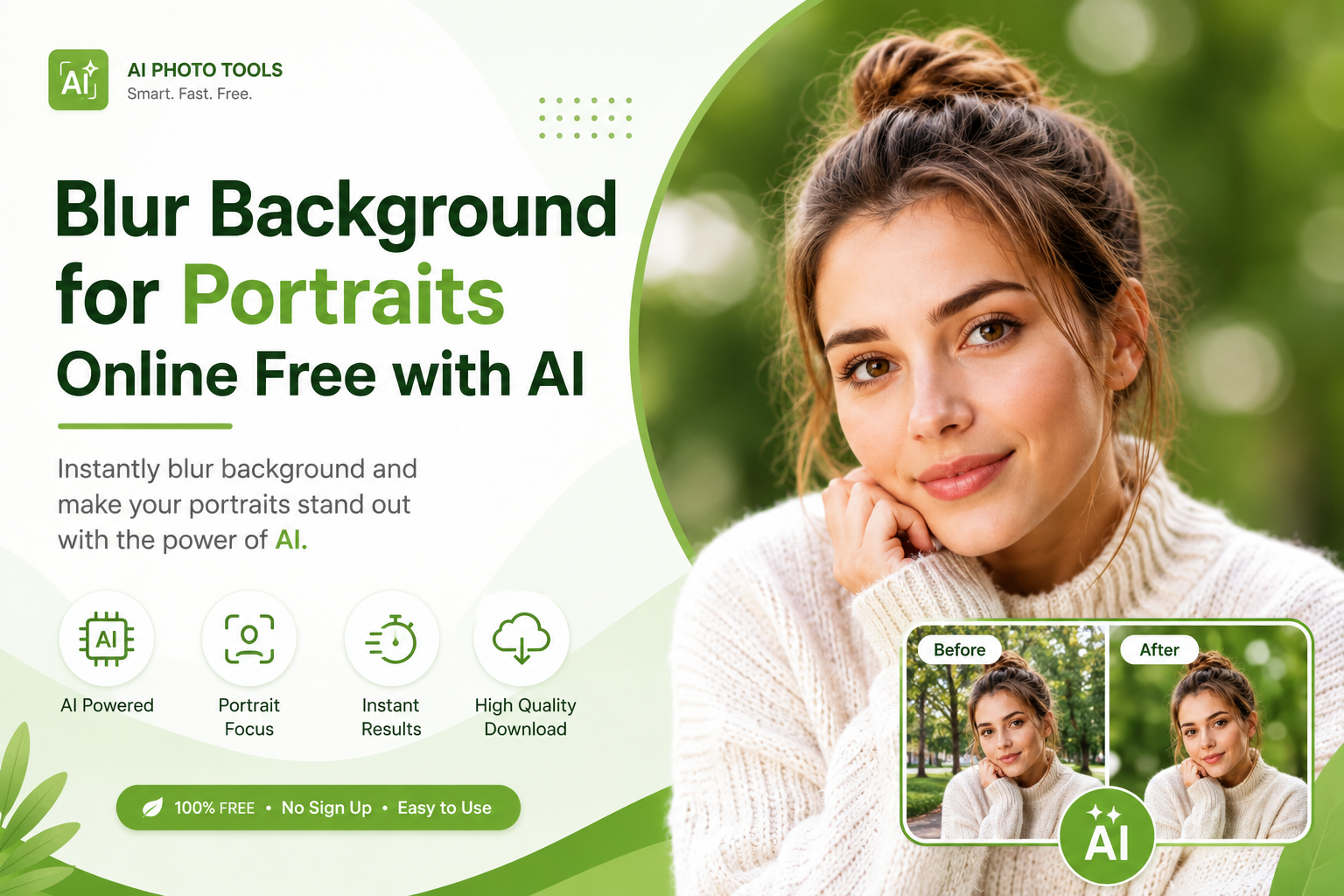
Background Blur
Create a depth-of-field style effect with the Background Blur tool.
AI Background Generator
Create a new environment for your subject using the AI Background Generator.
Watermark Remover
If you own the image or have permission to edit it, you can use the Watermark Remover to remove unwanted watermarks.
Why Use FreeBackgroundRemoverAI's AI Image Enhancer?
FreeBackgroundRemoverAI is designed to make everyday image editing simpler without requiring advanced design skills.
With the AI Image Enhancer, you can improve suitable photos directly from your browser.
Key advantages include:
AI-powered photo enhancement
Simple online workflow
No complicated editing software required
Fast processing
Beginner-friendly interface
Useful for product photography
Useful for portraits and personal photos
Useful for websites and social media
Works alongside other AI image tools
Designed for convenient online editing
Instead of switching between multiple applications for every small image adjustment, you can combine enhancement with other image editing tools in one workflow.
Frequently Asked Questions About AI Image Enhancers
What is an AI image enhancer?
An AI image enhancer is a tool that uses artificial intelligence to improve the visual quality of a photograph. Depending on the technology, it can improve sharpness, reduce noise, enhance colors, increase resolution, and reconstruct certain missing details.
Can AI enhance a blurry image?
Yes, AI can improve some blurry images by analyzing edges and attempting to reconstruct sharper details. However, severely blurred images may still contain information that cannot be accurately recovered.
Can AI increase image resolution?
Yes. AI-powered super-resolution can increase the pixel dimensions of an image while attempting to reconstruct additional visual detail.
Can I enhance an image online for free?
Yes. FreeBackgroundRemoverAI provides an online AI Image Enhancer that lets users improve suitable images without installing traditional photo-editing software.
Can AI improve low-resolution photos?
AI can improve many low-resolution photos by increasing their resolution and enhancing visible details. The final quality depends heavily on the quality and size of the original image.
Can AI enhance old photographs?
Yes. AI enhancement can help improve old photographs by reducing noise, increasing clarity, improving contrast, and making some faded details easier to see.
Is AI enhancement good for product photos?
Yes. Product photography is one of the most useful applications for AI enhancement. Improving sharpness, resolution, and clarity can make product details easier for online shoppers to inspect.
Should I enhance an image before removing its background?
In many workflows, enhancing the original image first can be useful because the subject may have more visible detail before background removal. However, the ideal order can vary depending on the image and the tools being used.
Can AI make a completely pixelated image perfect?
No. AI can estimate and reconstruct details, but it cannot guarantee perfect recovery of information that was completely lost.
Does AI enhancement work on portraits?
Yes. AI enhancement can be particularly useful for portraits because AI models can focus on areas such as faces, eyes, hair, and skin details. Always check the result to ensure it still looks natural.
What is the difference between an AI image enhancer and an AI image upscaler?
An image upscaler primarily focuses on increasing image dimensions and resolution. An AI image enhancer can include upscaling but may also improve sharpness, noise, color, contrast, and other visual characteristics.
Final Thoughts
A low-quality photograph doesn't always need to be discarded.
With an AI image enhancer, you can improve suitable photos by increasing clarity, reducing noise, improving sharpness, enhancing colors, and increasing resolution.
The key is to start with the best original image available, avoid excessive processing, and always check the final result before publishing.
If you're looking for a simple way to enhance images online, try the FreeBackgroundRemoverAI Image Enhancer and see how AI can improve your photos in just a few steps.
For more advanced image editing, combine image enhancement with background removal, AI image upscaling, background blur, and the AI background generator to create complete, professional-looking visuals.
Share this guide with your team