How to Upscale Images Without Losing Quality
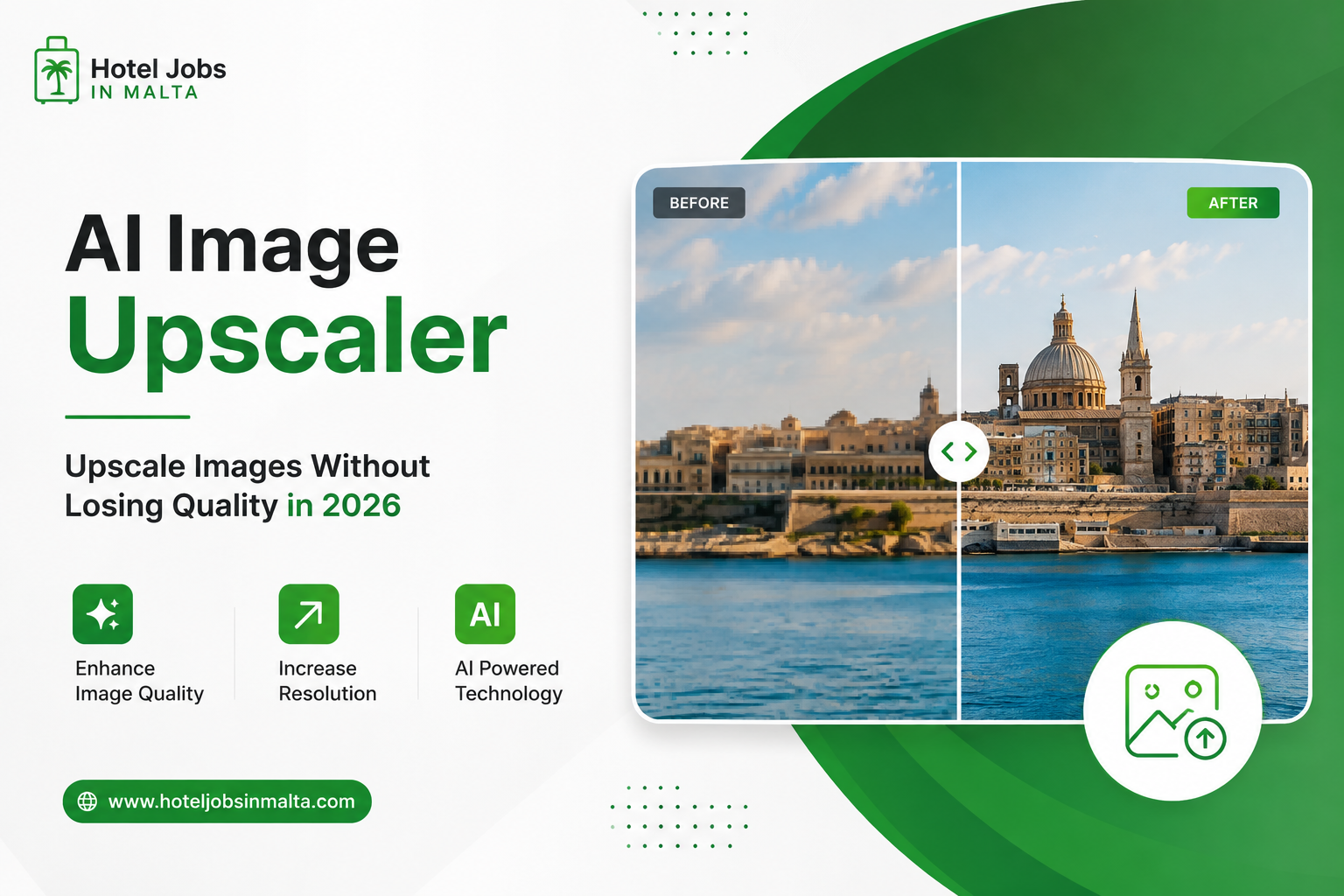
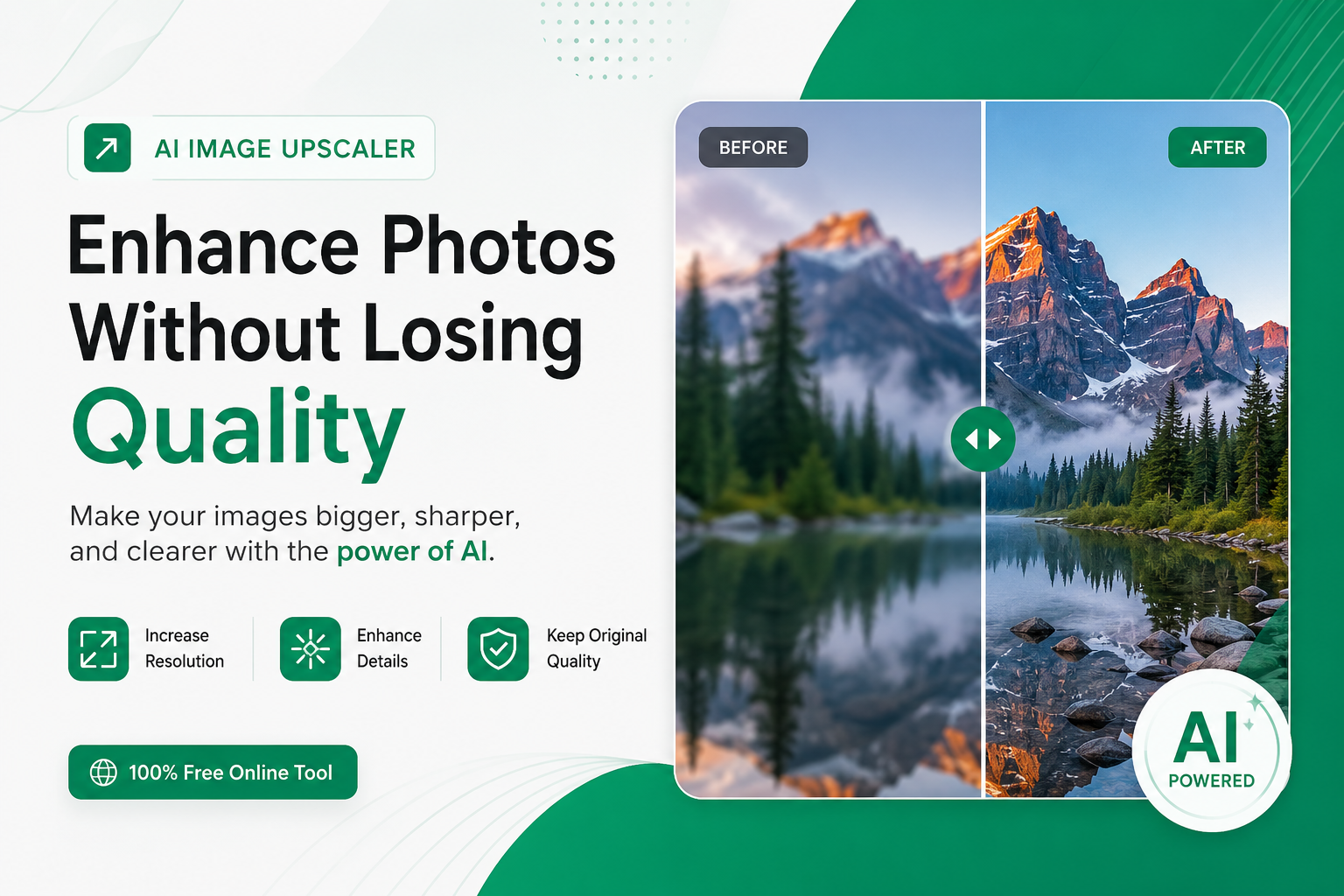
A small or blurry image can become a real problem when you need to use it on a website, online store, social media post, presentation, or printed design. Enlarging a low-resolution photo often makes the problem worse: edges become soft, details disappear, and visible pixels can make the image look unprofessional.
Fortunately, you don't always need expensive editing software to improve a low-resolution image. Modern image upscaling tools can increase the dimensions of a photo while improving sharpness and preserving important details.
In this guide, you'll learn how to upscale images without losing quality, why images become blurry when enlarged, how AI image upscaling works, which methods you can use, and how to get better results from an online image upscaler.
What Is Image Upscaling?
Image upscaling means increasing the width and height of an image by adding more pixels.
For example, imagine you have an image that is 800 × 600 pixels. If you enlarge it to 1600 × 1200 pixels, the new image contains four times as many pixels.
The problem is that the original image only contained information for 800 × 600 pixels. The software therefore needs to estimate what the additional pixels should look like.
This is where different resizing technologies make a major difference.
Resolution
Resolution describes the number of pixels contained in an image. A larger resolution generally provides more room for visible detail.
For example:
640 × 480 pixels = low resolution
1280 × 720 pixels = HD
1920 × 1080 pixels = Full HD
3840 × 2160 pixels = 4K
However, resolution alone doesn't guarantee quality. The original image, compression, sharpness, lighting, and level of detail also affect the final result.
Pixels
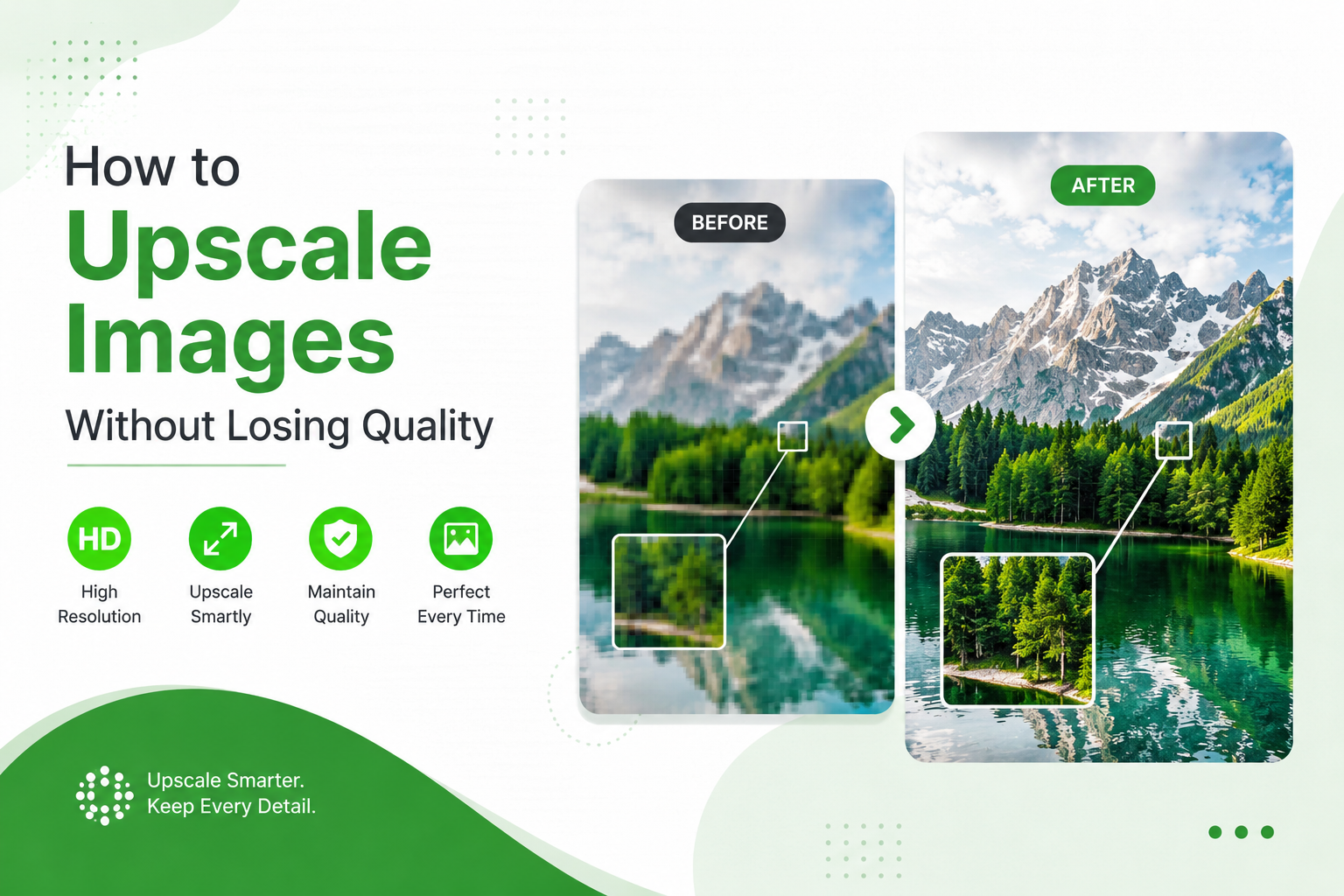
Pixels are the tiny individual points that form a digital image. When there aren't enough pixels to represent fine details, enlarging the image can reveal softness and pixelation.
PPI and DPI
PPI means pixels per inch and is mainly associated with digital image resolution and printing workflows.
DPI means dots per inch and technically refers to printer output.
These terms are often used interchangeably, but they describe different things.
Interpolation
Traditional image resizing uses interpolation to estimate new pixels from the pixels surrounding them.
Common interpolation methods include nearest-neighbor, bilinear, and bicubic resizing.
AI upscaling takes a different approach by using learned patterns to estimate missing visual information.
Why Do Images Become Blurry When Enlarged?
The biggest problem with enlarging an image is that you can't simply create genuine original detail from nowhere.
Suppose you have a small photo of a person's face. The original image may contain only a few pixels representing the eyes, nose, and skin texture.
When you enlarge that image, the software has to create additional pixels.
If the resizing method only averages neighboring pixels, the result can look smooth but blurry.
Several problems can appear after enlargement.
1. Pixelation
Pixelation happens when individual pixels become visible because the image has been enlarged beyond its original resolution.
2. Soft Edges
Fine edges around objects, text, hair, and clothing can become less defined after traditional resizing.
3. Compression Artifacts
A heavily compressed JPEG may already contain blocks, noise, and other artifacts. Enlarging the image can make these imperfections more noticeable.
4. Lost Texture
Fine details such as hair, fabric, leaves, skin texture, and small product features may disappear when an image is enlarged.
5. Noise
Increasing the size of a low-quality image can make digital noise and grain more obvious.
This is why simply increasing the dimensions of an image doesn't necessarily make it look better.
How Does AI Image Upscaling Work?
An AI image upscaler uses machine-learning models to analyze an image and estimate additional visual information.
Instead of simply stretching the existing pixels, the model looks for patterns such as edges, shapes, textures, and objects.
The process generally involves several stages.
Image Analysis
The system first examines the original image to identify important structures and visual patterns.
Detail Reconstruction
The model estimates missing details based on patterns it learned during training.
Edge Enhancement
Edges around objects can be refined so they appear clearer after enlargement.
Noise and Artifact Reduction
Some upscaling systems can reduce visible noise and compression artifacts while processing the image.
Super-Resolution
Super-resolution is a technique designed to reconstruct a higher-resolution image from a lower-resolution source.
The goal isn't simply to make the image bigger. The goal is to produce a larger image that still looks natural and detailed.
However, there is an important limitation: AI upscaling cannot perfectly recover information that was never captured in the original image.
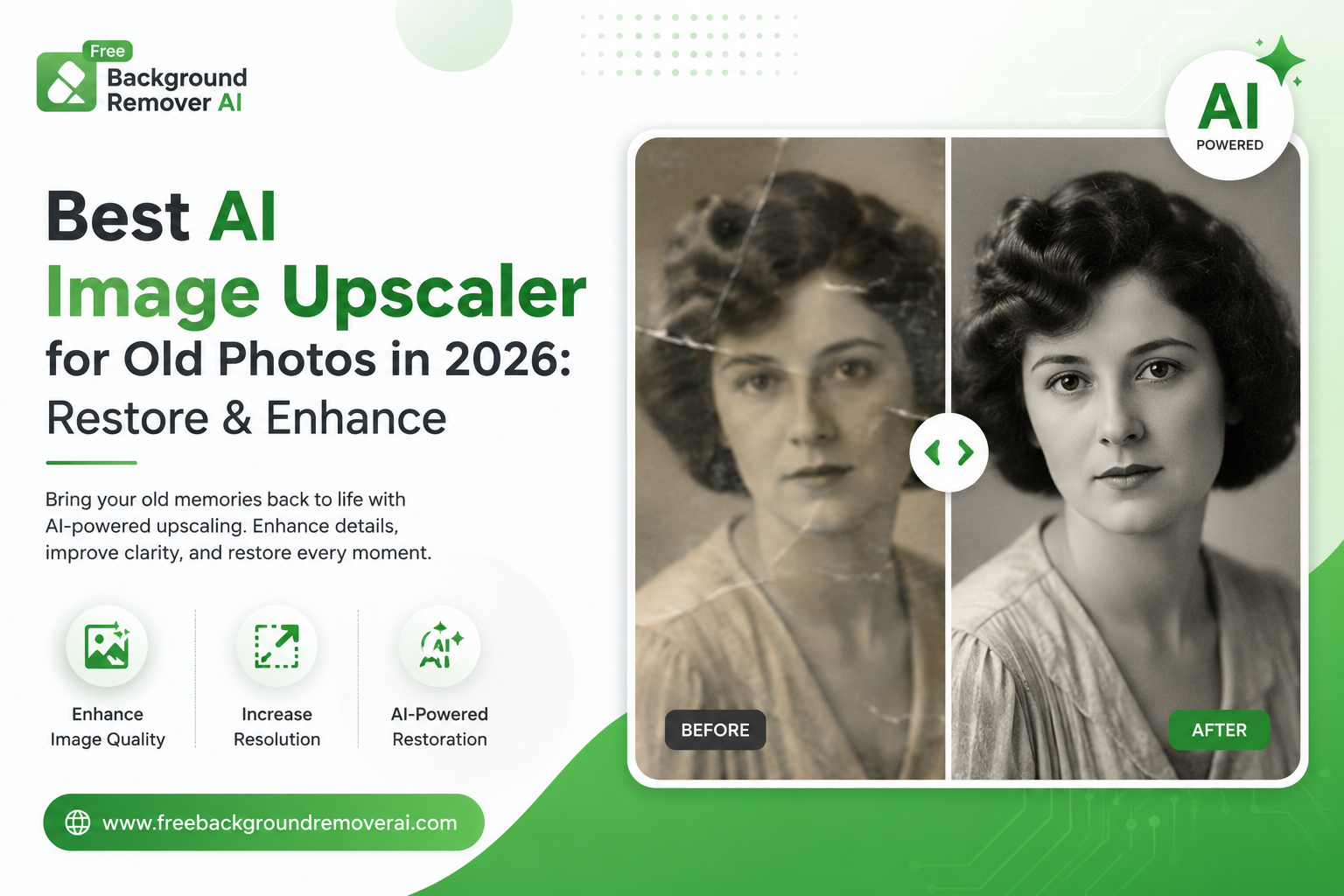
An extremely blurry or heavily damaged photo may improve significantly, but it won't necessarily become identical to a photograph originally captured at high resolution.
What Is the Best Way to Upscale an Image?
The best method depends on what you're trying to accomplish.
For quick online work, an AI image upscaler is usually the easiest option because you don't need to install professional editing software.
For advanced editing workflows, desktop applications such as Photoshop or dedicated image-enhancement software may provide additional controls.
Here are some common options.
1. Online AI Image Upscaler
An online upscaler lets you upload an image through your browser and process it without installing software.
This can be useful when you need to:
Enlarge product photos
Improve social media images
Prepare images for a website
Increase the size of a small photograph
Improve images before using them in a design
For users who want a simple workflow, an online tool can save considerable time.
2. Adobe Photoshop
Photoshop provides advanced image-editing features and AI-powered enlargement capabilities.
It is particularly useful for designers who already use Photoshop and need precise control over their entire editing workflow.
The main disadvantage is that Photoshop is a professional application with a subscription cost and a steeper learning curve.
3. Lightroom
Lightroom is designed primarily for photographers and provides image enhancement features within Adobe's photography workflow.
It can be a good choice if you're already organizing and editing photographs in Lightroom.
4. Topaz Photo AI
Dedicated enhancement software can provide advanced controls for enlarging and improving photographs.
These tools can be useful for photographers and professionals who need more control than a basic browser-based tool provides.
5. Canva
Canva is convenient for people who already create social media posts, presentations, advertisements, and other designs there.
Its image tools are useful for general design workflows, although dedicated upscaling software may be more appropriate when image enlargement is the primary goal.
How to Upscale an Image Online
If you don't want to install complicated software, you can use an online image upscaler.
With Free Background Remover AI, the process is straightforward.
Step 1: Open the Image Upscaler
Visit the image upscaling tool:
Step 2: Upload Your Image
Select the image you want to enlarge from your computer or mobile device.
For the best possible result, start with the highest-quality version of the image you have.
Step 3: Process the Image
The tool analyzes the uploaded image and processes it to increase its resolution and improve visible details.
Processing time can depend on the image size and the service's current workload.
Step 4: Check the Result
Compare the enlarged version with the original.
Pay particular attention to:
Faces
Hair
Text
Product edges
Small objects
Background details
Fine textures
Step 5: Download the Enlarged Image
Once you're satisfied with the result, download the processed image and use it for your website, store, social media content, presentation, or other project.
How Much Can You Upscale an Image?
There isn't one enlargement percentage that works perfectly for every image.
A high-quality photograph can often tolerate more enlargement than a tiny, heavily compressed image.
Many upscaling tools provide options such as 2× or 4× enlargement.
For example:
Original: 500 × 500 pixels
2×: 1000 × 1000 pixels
4×: 2000 × 2000 pixels
The larger you go, the more the final result depends on the quality of the original image and the upscaling model.
If you only need a slightly larger image, moderate enlargement is often a safer choice.
How to Get the Best Results When Upscaling Images
The quality of your final image depends heavily on the source file.
Use these practices before and after upscaling.
Start With the Best Original Available
If you have several versions of the same photograph, use the largest and least-compressed version.
Avoid downloading an image from a messaging application and then enlarging it if the original file is available.
Avoid Repeated Resizing
Don't repeatedly enlarge and save the same image.
Each resizing and compression step can introduce additional quality loss.
Instead, start with the original and perform the enlargement once.
Use a Suitable File Format
PNG is useful for graphics, logos, screenshots, and images where lossless quality or transparency matters.
JPEG is commonly used for photographs because it offers smaller file sizes.
WebP and AVIF can be useful for websites because they provide efficient compression.
TIFF is commonly used when high-quality image storage or professional printing is important.
Don't Over-Sharpen
Too much sharpening can produce unnatural outlines around objects.
A good enlargement should look clearer without making edges look artificially harsh.
Check the Image at 100%
An image may look excellent when zoomed out but reveal problems when viewed at its actual pixel size.
Always inspect important details before publishing or printing.
Image Upscaling for Different Uses
Upscaling can be useful in many situations.
Product Photos
Online stores depend heavily on clear product images. A sharper image can make product details easier to inspect.
This is especially useful for:
Shopify stores
Amazon listings
Etsy shops
Independent eCommerce websites
Product catalogs
Website Images
If an important image is too small for its intended display size, upscaling can help you obtain a larger source.
However, remember that increasing resolution also increases file size. Optimize the final image for web performance before uploading it.
Social Media
Social media images are frequently displayed on high-resolution screens.
A clean, sharp image can look more professional across platforms such as Instagram, Facebook, LinkedIn, and Pinterest.
YouTube Thumbnails
A thumbnail needs to remain clear when displayed across different screen sizes.
Upscaling can help when the original source image is too small for your design.
Posters and Printed Materials
Large prints require substantially more image data than small web graphics.
AI upscaling can be useful when the original image isn't large enough for the intended print size, although the required resolution should always be considered before printing.
Presentations
Images used in presentations can look soft when projected on a large screen.
Starting with an appropriately sized image helps maintain clarity.
Can You Upscale a Low-Resolution Image to HD?
Yes, an AI image upscaler can increase the pixel dimensions of a low-resolution image and improve its appearance.
For example, a small image can potentially be enlarged to an HD-sized image.
However, the final quality depends on the original.
An image with reasonable detail usually produces a better result than one that is extremely blurry, compressed, or damaged.
Think of AI upscaling as reconstructing and enhancing visual information, not magically recovering every original detail.
Can You Upscale JPEG Images?
Yes.
JPEG images can be enlarged with AI upscaling tools.
However, JPEG uses lossy compression, so heavily compressed images may contain artifacts before you even begin upscaling.
If you have access to an original PNG, TIFF, or less-compressed version, use that instead.
PNG vs JPEG for Upscaling
Neither format is universally better.
Choose PNG when:
You need transparency
You're working with graphics
You want lossless compression
You're editing logos or screenshots
Choose JPEG when:
You're working with photographs
File size matters
Transparency isn't required
For websites, WebP or AVIF may also be suitable when supported by your workflow.
Common Image Upscaling Mistakes
Even a good upscaler cannot completely compensate for a poor workflow.
Avoid these common mistakes.
Enlarging Too Far
Don't automatically choose the largest available enlargement.
A moderate increase can sometimes look more natural than an extreme enlargement.
Using a Poor Source
If the original is already severely blurred or compressed, the final result may remain imperfect.
Saving With Heavy Compression
You can undo some of the improvement by exporting the final image with extremely aggressive JPEG compression.
Ignoring File Size
A high-resolution image can become unnecessarily large.
For websites, balance image quality with loading performance.
Upscaling the Wrong Image
If a logo is available as an SVG or another vector file, use the vector version instead of trying to enlarge a tiny raster image.
Why Use Free Background Remover AI for Image Upscaling?
If you need a straightforward browser-based solution, Free Background Remover AI provides an online image upscaling workflow without requiring desktop editing software.
You can upload an image, process it, review the result, and download the enlarged version.
The platform also provides other image-editing tools, including background removal and background generation.
You can start here:
The main advantage of an online workflow is convenience. You don't need to spend time installing a large desktop application just to enlarge an occasional image.
Frequently Asked Questions
Can I upscale an image without losing quality?
You can significantly reduce quality loss by using an AI image upscaler and starting with the highest-quality original available. However, no method can guarantee perfect recovery of information that was never present in the source image.
What is the best way to enlarge an image?
For a quick and simple workflow, an online AI image upscaler is a convenient choice. Professional users may prefer desktop software when they need advanced controls.
Does upscaling improve image quality?
It can. AI upscaling can increase resolution while reconstructing edges, textures, and other visual details. The improvement depends on the original image.
Can I upscale an image for free?
Yes. Some online image upscaling services provide free processing directly in a web browser.
Can I upscale a photo on my phone?
Yes. Browser-based image upscalers can generally be accessed from a mobile browser, so you don't necessarily need a desktop application.
Can AI make a blurry photo clear?
AI can reduce some types of blur and improve perceived sharpness, but severely blurred images have limitations. The result depends on how much useful information remains in the original.
Can I upscale an image for printing?
Yes. Image upscaling can help prepare a small image for a larger print. Before printing, check the final dimensions and required print resolution for the project.
Is 2× or 4× upscaling better?
It depends on the original image and your final use. If you only need a moderate size increase, 2× may be sufficient. A 4× enlargement provides more pixels but places greater demands on the original image and processing model.
Does upscaling create new pixels?
Yes. The output image contains new pixel data. AI-based methods estimate this information using patterns learned by the model rather than simply duplicating existing pixels.
Can I upscale product images?
Yes. Product photos are a common use case because larger, clearer images can make product details easier for customers to see.
People Also Ask
How do I enlarge a picture without making it blurry?
Use an AI-based image upscaler instead of relying only on basic resizing. Start with the highest-quality original and avoid excessive enlargement.
Why does my image look pixelated when I make it bigger?
The original image doesn't contain enough pixels for the new dimensions. Traditional resizing has to estimate the missing pixels, which can result in visible blocks or soft details.
Can a low-resolution image become high resolution?
An upscaler can increase the image's pixel dimensions and improve its appearance. AI methods can reconstruct additional detail, but the result still depends on the original image.
What is the best free image upscaler?
The best tool depends on your image and requirements. For users who want a simple browser-based workflow, a free online AI image upscaler can be a convenient option.
How can I make a small image bigger?
Upload the image to an image upscaling tool, choose the desired enlargement, process it, review the result, and download the larger version.
What resolution is good for printing?
The appropriate resolution depends on the physical print size and viewing distance. For many professional print projects, 300 PPI is a commonly used target, but larger-format prints may have different requirements.
Final Thoughts
Learning how to upscale images without losing quality can save time when you have a small image that needs to be used at a larger size.
Traditional resizing can make images soft because it mainly estimates new pixels from existing ones. AI-powered upscaling takes a more advanced approach by analyzing visual patterns and reconstructing additional detail.
The most important factor is still the original image. Start with the highest-quality source you can find, avoid repeated resizing, don't enlarge an image more than necessary, and choose an appropriate output format.
For a quick browser-based solution, you can try the Free Background Remover AI Image Upscaler. Upload your image, process it, check the result, and download the enlarged version without installing complicated desktop software.
Whether you're improving product photos, preparing social media graphics, creating website content, or getting an image ready for printing, the right upscaling method can make a noticeable difference.
Share this guide with your team