How Do I Remove a White Background? (Complete Beginner's Guide)
If you've ever tried to drop a product photo onto a colored banner, use a logo on a dark website, or make a headshot look more professional, you've probably run into the same problem: that stubborn white square sitting behind your subject. So how do I remove a white background? The short answer is that you upload your image to an AI background remover, let the tool detect the subject, and download a transparent PNG in seconds. No design degree required.
In this guide, we'll walk through exactly how to remove a white background from logos, product photos, portraits, signatures, and illustrations. We'll also cover what to do after the background is gone, common mistakes to avoid, and how AI tools compare to old-school editors like Photoshop. Whether you're an online seller polishing product shots for Amazon, a designer prepping a logo, or someone who just wants a clean profile picture, this article has you covered.
What Does Removing a White Background Mean?
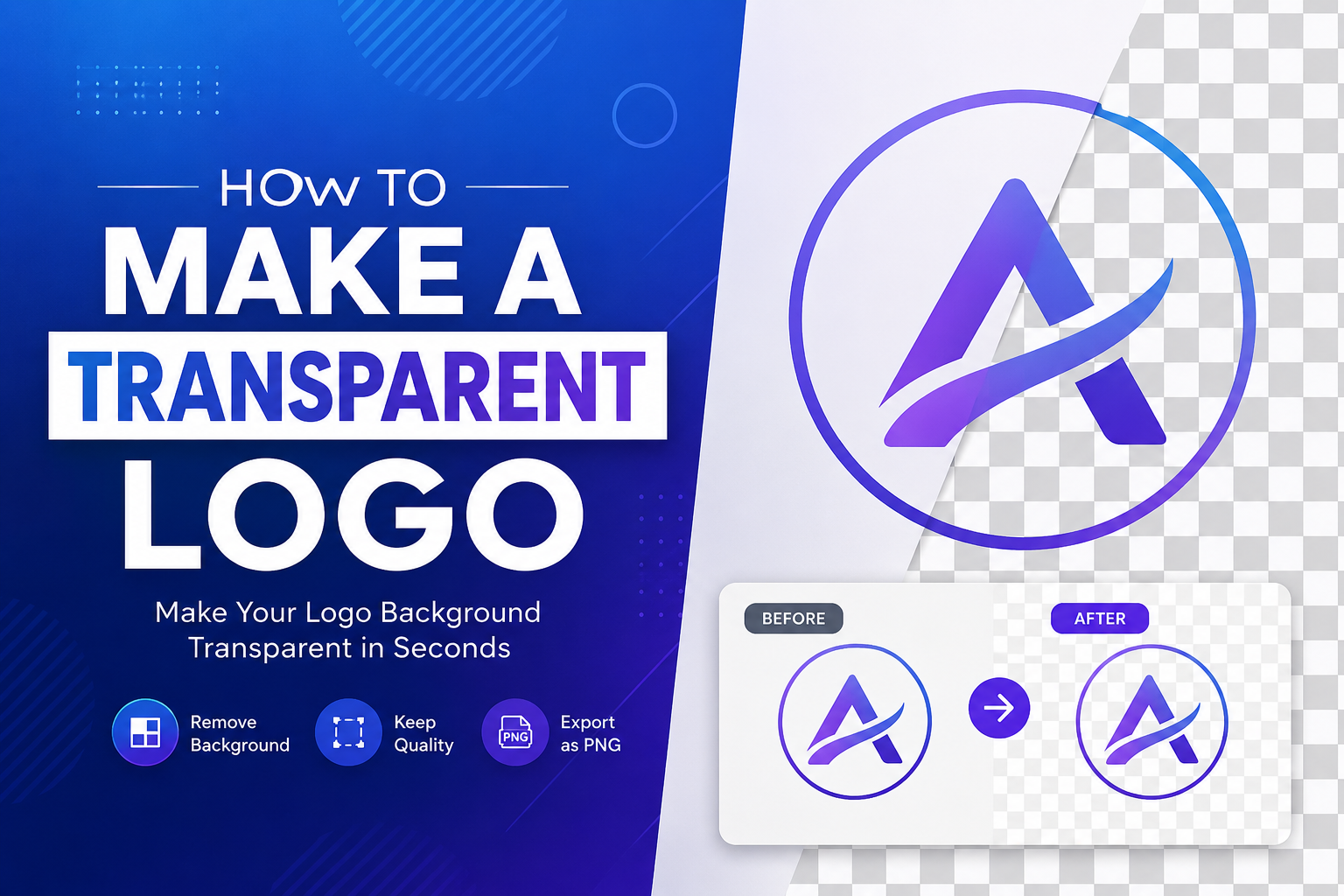
When people talk about "removing a white background," they usually mean turning the solid white area behind a subject into a transparent background. Instead of a flat white square, the space around your subject becomes see-through, so it blends into whatever you place it on next — a website, a slide, or another photo.
This is where PNG transparency comes in. Unlike a JPG, which can't support see-through pixels, a PNG file uses something called an alpha channel. Think of the alpha channel as a dial that controls how visible each pixel is. Turn it all the way down, and that pixel disappears, letting whatever is behind it show through. That's the magic behind a transparent PNG.
For everyday image editing and graphic design work, this matters a lot. A transparent logo can sit on any color background without an awkward white box around it. A transparent product photo can be placed on a lifestyle background for marketing. It's a small technical detail with a big visual payoff.
Why Remove a White Background?
Removing a white background isn't just a nice-to-have — for a lot of people, it's a daily necessity. Here's why it matters across different situations:
Logos — A logo with a white box behind it looks unfinished on anything but a white page. A transparent logo works everywhere: dark headers, colored buttons, merchandise, and email signatures.
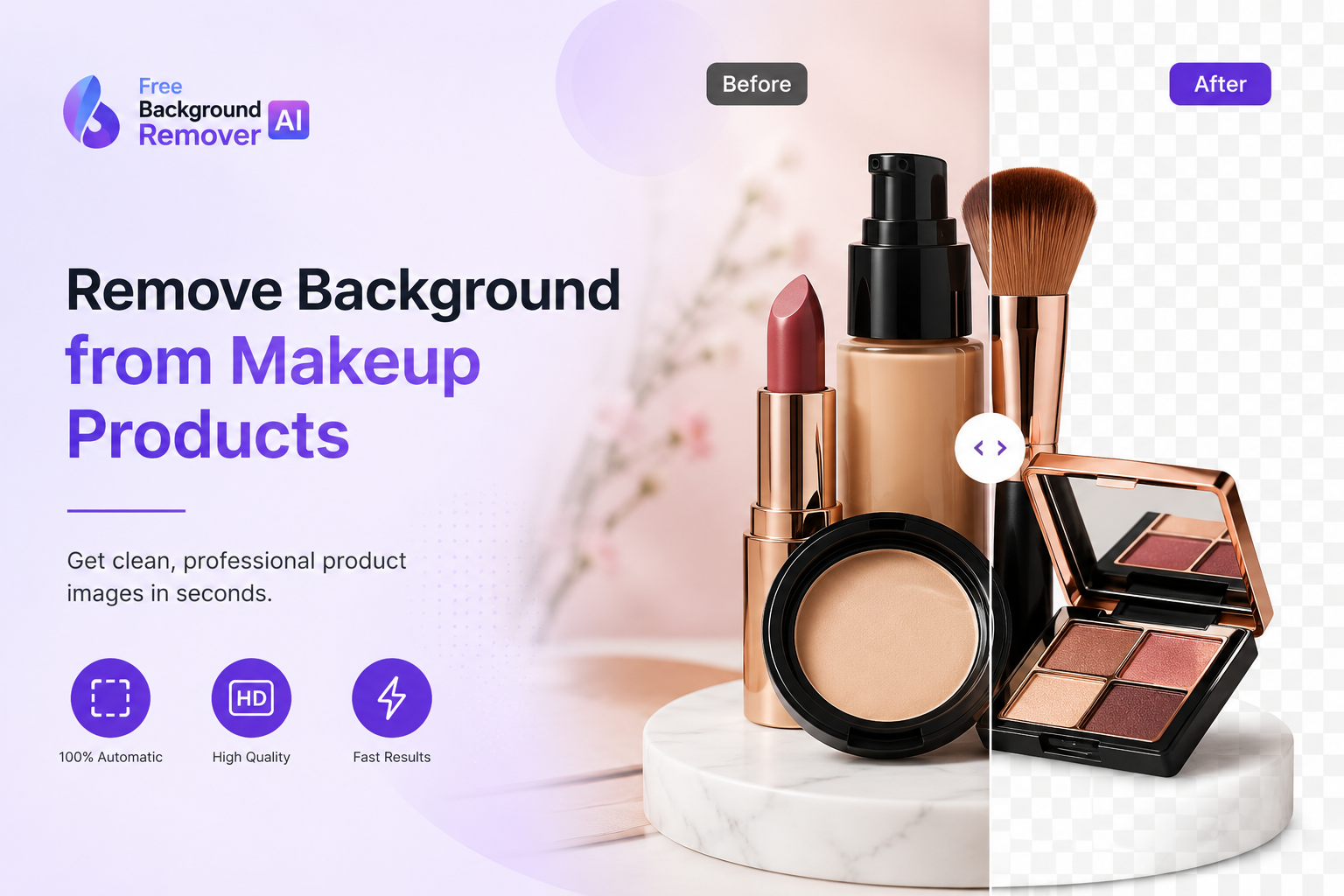
Product photography — Clean, background-free product shots are the standard for professional eCommerce photos.
eCommerce — Marketplaces often expect specific background rules, and transparent files give you the flexibility to meet them.
Shopify — Store owners use transparent product images to keep every listing visually consistent.
Amazon — Amazon product photos are frequently expected to sit on a pure white or transparent base with no extra clutter.
Etsy — Handmade and print-on-demand sellers rely on transparent PNGs for mockups and listing photos.
Graphic design — Designers layer transparent elements constantly when building posters, ads, and packaging.
Social media graphics — Transparent images make quote cards, promo graphics, and social media graphics look polished instead of pasted-on.
Marketing — Brand-consistent digital marketing materials often need logos and product cutouts without a background.
Presentations — A transparent icon or headshot looks far more professional in presentation design than one with a white halo around it.
Print materials — Business cards, flyers, and packaging mockups often require background-free artwork.
In short, if your image needs to sit on top of something else, a white background gets in the way.
How Do I Remove a White Background? (Step-by-Step)
Here's the part you actually came for. Using Free Background Remover AI, the whole process takes less than a minute.
Step 1: Upload your image Head to the background remover tool and upload your photo, logo, or graphic. JPG and PNG files both work fine.
Step 2: Let the AI detect the background Once uploaded, the AI scans the image and automatically identifies the subject versus the white backdrop. This happens almost instantly, and you don't need to draw any selection lines by hand.
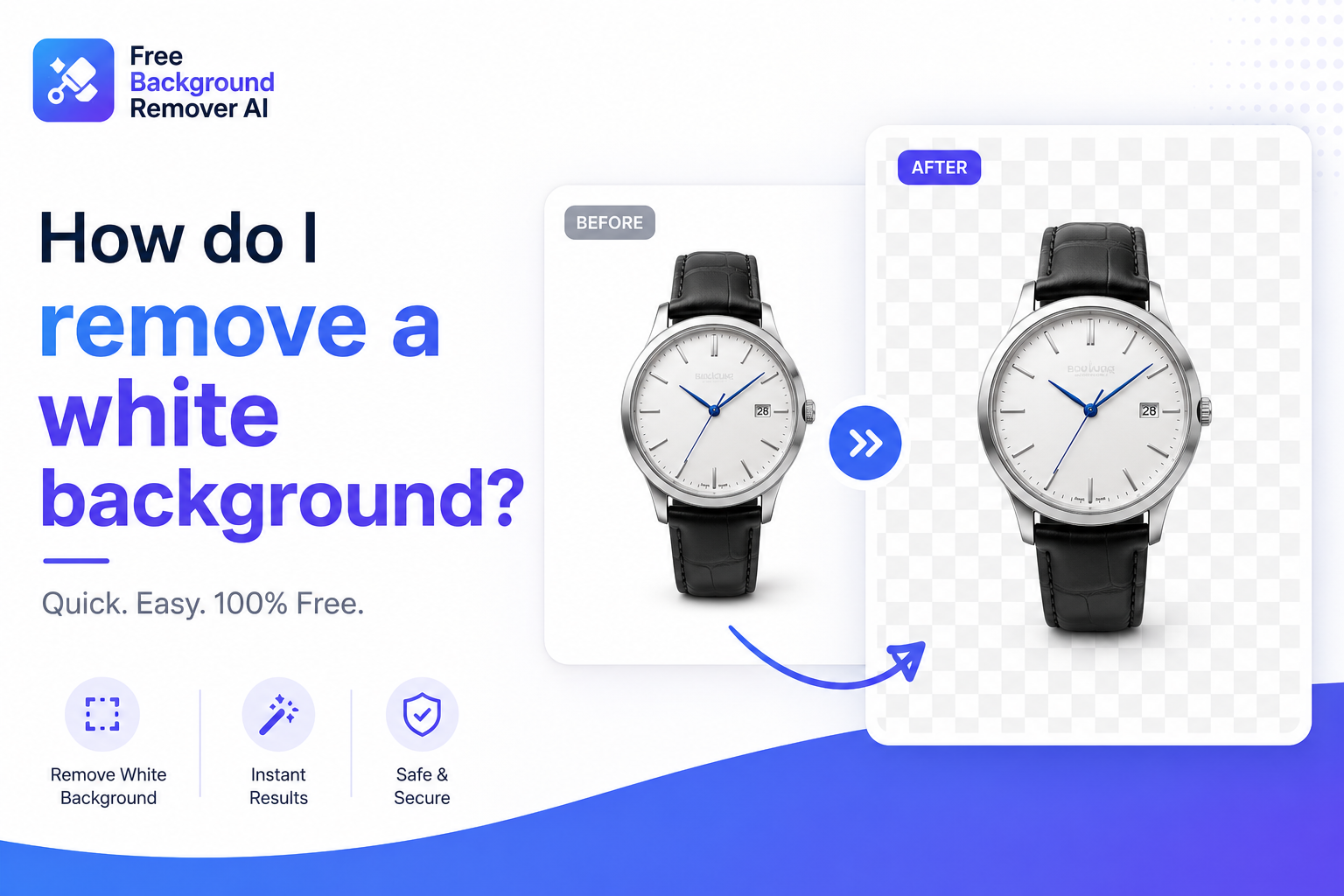
Step 3: Remove the white background With one click, the tool strips away the white area and replaces it with a transparent layer. You'll see a checkered pattern where the background used to be — that's the standard way editing software shows transparency.
Step 4: Preview the result Zoom in around the edges of your subject, especially fine details like hair, jewelry, or logo text. This is the moment to catch anything the AI might have missed.
Step 5: Download your transparent PNG Once you're happy with the result, download the finished file. Because it's saved as a PNG, the transparency is preserved wherever you use it next.
That's the entire workflow. No brushes, no layer masks, no tutorials to watch first.
Can I Remove a White Background Without Photoshop?
Yes, and honestly, for most people it's the better option. Photoshop is a powerful tool, but it comes with a learning curve: layer masks, the pen tool, magic wand tolerance settings, and a subscription price tag. For a single background removal, that's a lot of overhead.
AI-powered tools skip all of that. Instead of manually tracing a subject or fiddling with selection tools, the AI model does the detection work for you. That means:
No software to install
No steep learning curve
No monthly subscription required for basic use
Works directly in your browser, even on a phone
If you're a beginner, an online seller processing dozens of product photos, or someone who just needs a quick transparent PNG, an AI image editor gets you there faster than Photoshop ever will.
How to Remove White Background from Different Image Types
Not every image is the same, and it helps to know what to expect from each type.
Logo Logos usually have clean edges and solid colors, which makes them one of the easiest images for AI to process. A logo background remover typically produces near-perfect results, especially with simple, high-contrast designs. This is also how to make a logo transparent for use across different brand colors and platforms.
Product Image Product photos taken on a white backdrop are exactly what these tools are built for. Whether it's a shoe, a bottle, or a piece of jewelry, the AI is trained to isolate the object cleanly from a plain background.
Portrait Portraits and headshots involve trickier edges — hair strands, glasses, and soft shadows. Modern AI models handle this reasonably well, but it's worth zooming in on the hairline during your preview step.
Signature Scanned signatures often have a slightly off-white or textured background instead of pure white. AI background removal still works here, giving you a transparent signature you can drop onto contracts, certificates, or email footers.
Illustration Digital illustrations and hand-drawn art scanned from paper can also be processed, though results vary depending on line thickness and color contrast.
PNG If your source file is already a PNG, the tool reads the existing pixels and removes the white areas, replacing them with true transparency.
JPG and JPEG JPGs don't support transparency natively, but that's fine — you upload the JPG, the AI removes the background, and the tool exports a brand-new transparent PNG file for you.
How to Change the Background After Removing White Background
Sometimes transparency isn't the end goal — you actually want a different background color. Once you've removed the white background, head over to the change background tool to swap in something new.
You can typically choose from:
White — for a classic, clean eCommerce look
Black — for bold, high-contrast product shots
Transparent — to keep the flexibility of PNG transparency
Blue — common for professional headshots and ID-style photos
Custom colours — to match brand guidelines exactly
Gradient — for a more dynamic, modern background style
This two-step process — remove, then replace — gives you far more creative control than trying to get everything right in one pass.
Improve Image Quality After Background Removal
Background removal can sometimes reveal flaws that were hiding in plain sight, like soft focus or dull lighting. That's where the photo enhancer comes in. Running your image through an enhancer after removing the background can sharpen details, balance color, and make the final result look more polished — especially important if the image is heading straight to a product listing or ad campaign.
Upscale Your Transparent Image
If you're planning to print your image, use it in a large banner, or just want crisper detail, resolution matters. The image upscaler increases pixel dimensions while preserving image quality, which is especially useful for:
Print materials and packaging
Large marketing banners
High-resolution branding assets
Zoomed-in product galleries on eCommerce sites
A transparent PNG that's also high resolution gives you the flexibility to use one file across dozens of formats without quality loss.
Blur Background Instead of Removing It
Not every situation calls for full removal. Sometimes a softly blurred background looks more natural, especially for portraits or lifestyle photography. The background blur tool keeps the original setting in place but softens it, drawing the eye toward your subject. This works well for:
Social media profile photos
Team headshots that need a subtle, professional touch
Lifestyle product shots where you want context without distraction
Remove Watermarks Before Editing (If You Own the Image)
If your image has an old watermark from a previous edit or a stock photo you have full rights to use, the watermark remover can clean that up before you move on to background removal. A quick note on responsibility here: only remove watermarks from images you own or have explicit permission and rights to edit. Respecting copyright keeps you on the right side of image usage rules.
Common Mistakes When Removing White Backgrounds
Even with AI doing the heavy lifting, a few common mistakes can hurt your results:
Leaving white edges — A thin white outline (sometimes called a "halo") can remain around the subject if the original image had soft shadows or low contrast.
Using low-resolution images — Blurry or pixelated source photos give the AI less information to work with, leading to rougher edges.
Saving as JPG — Since JPG doesn't support transparency, saving in this format flattens your transparent background back to solid white.
Removing parts of the subject — Fine details like hair strands or thin jewelry chains can occasionally get clipped during automatic detection.
Poor lighting — Uneven lighting or heavy shadows in the original photo can confuse the edge detection.
Not checking the transparent preview — Skipping the preview step means you might not catch small errors before downloading.
Best Practices
To get the cleanest results every time, keep these best practices in mind:
Use high-quality images with good lighting and clear contrast between subject and background
Always download as PNG to preserve transparency
Preview edges closely, especially around hair, fur, or fine text
Run the image through an enhancer afterward for extra polish
Upscale before printing or using in large formats
Keep branding consistent across all your transparent assets
Frequently Asked Questions
How do I remove a white background for free? Upload your photo to a free AI background remover, let it automatically detect the white area, and download the transparent PNG. No account or payment is required for basic use.
Can I make a white background transparent? Yes. Uploading your image to an AI tool converts the white areas into a transparent alpha channel, and the result is saved as a PNG file that supports transparency.
Does removing a white background reduce quality? Not when done correctly. AI background removers preserve the original resolution of your subject; only the background area is affected, and running the image through an enhancer afterward can improve quality even further.
Can I remove a white background from a logo? Absolutely. Logos are among the easiest images to process because of their clean lines and solid colors, making a logo background remover especially accurate.
Can I remove white backgrounds on mobile? Yes. Since these tools run in your browser, you can upload and edit photos directly from your phone without installing any app.
Can I remove backgrounds without Photoshop? Yes, and it's often faster. AI tools handle the detection automatically, so you skip the learning curve that comes with manual editing software.
What format should I save? Always save as PNG if you want to keep transparency. JPG files don't support see-through pixels.
Why should I save as PNG? PNG files use an alpha channel that stores transparency information. Saving in this format is the only way to preserve a see-through background.
How do I change the background colour? After removing the white background, use a change background tool to add a new solid color, custom brand color, or gradient behind your subject.
Is Free Background Remover AI free? Yes, core background removal is free to use, with additional tools available for enhancing, upscaling, blurring, and changing backgrounds.
How long does background removal take? Typically just a few seconds per image, since the AI processes the detection automatically without manual input.
Will the AI remove parts of my subject by mistake? It's rare with clear, well-lit images, but always preview the result before downloading, especially around fine details like hair or thin objects.
Can I use transparent PNGs on Shopify or Amazon listings? Yes. Transparent PNGs give you the flexibility to meet different marketplace background requirements, including pure white or fully transparent listings.
Do I need design experience to use an AI background remover? No. The entire process is automated, so anyone can produce a clean transparent image without prior editing experience.
What's the difference between removing and blurring a background? Removing a background fully isolates your subject on a transparent layer, while blurring keeps the original scene but softens it for a more natural look.
Conclusion
So, how do I remove a white background? With the right AI tool, it takes a few clicks and less than a minute — no Photoshop, no design skills, and no steep learning curve. Whether you're prepping product photos for Shopify, cleaning up a logo, or polishing a headshot for a presentation, Free Background Remover AI handles the heavy lifting for you.
Once your white background is gone, don't stop there. Use the background remover to get your transparent PNG, then explore the change background tool to add a new color, the photo enhancer to sharpen the details, the image upscaler for print-ready resolution, the background blur tool for a softer look, and the watermark remover to clean up any old marks first. Everything you need to go from cluttered photo to polished, professional image is in one place.
Share this guide with your team