
Remove Background from Pets: The Complete Free AI Guide
If you've ever tried to take the "perfect" photo of your dog, cat, or bird, you already know the problem. Your pet looks amazing, but the background doesn't. There's a laundry basket in the corner, a stranger walking by in the park, a couch that clashes with every filter you try, or a random cardboard box that somehow always ends up in frame. Indoor shots pick up cluttered furniture and shadows. Outdoor shots pick up other people, cars, and busy scenery that steals attention from your pet.
This is exactly why so many pet owners, photographers, and online sellers search for a way to remove the background from pet photos. A clean, distraction-free background instantly makes your pet the star of the image. It's the difference between a snapshot and a portrait, between a listing that gets scrolled past and one that gets a click.
The good news is that you no longer need Photoshop, a graphic designer, or hours of patience to get this result. AI-powered tools like Free Background Remover AI can isolate your pet from any background in seconds, even when fur, whiskers, and fine hair make the job tricky. This guide walks through everything you need to know: what background removal actually means, why it matters, how the technology works, and how to get flawless results every time.
What Does "Remove Background from Pets" Mean?
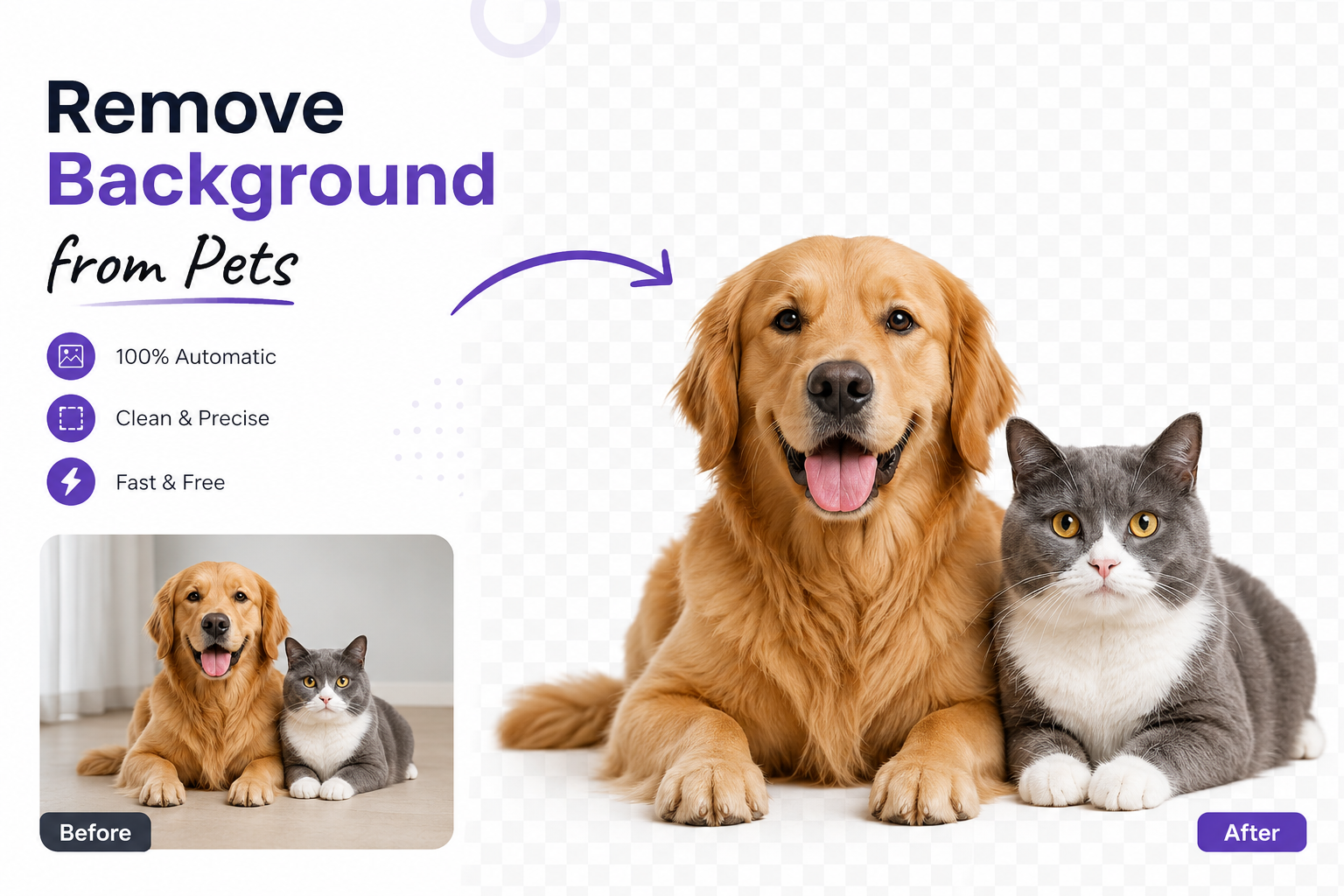
Removing the background from a pet photo means using software to separate your pet from everything behind it, leaving either a transparent PNG or a new background of your choice. In the past, this required a skilled editor manually tracing around every strand of fur with a pen tool. Today, AI does the heavy lifting.
Modern background removers use a process called image segmentation. The AI scans the photo, identifies which pixels belong to the "subject" (your pet) and which belong to the "background," then draws an intelligent boundary between the two. What makes pet photos uniquely difficult is fur. Unlike a product photo with clean, hard edges, a dog's coat has thousands of individual hairs, wispy edges around the ears, and soft transitions along the tail. Advanced AI models are trained specifically to detect these fine details, so whiskers, individual fur strands, and fluffy tails stay intact instead of getting cut off in a blocky outline.
The result is a transparent PNG: an image where the background is completely removed and replaced with transparency, so you can drop your pet onto literally any background you want, or use the image as-is for logos, stickers, or product mockups.
Why Remove Background from Pet Photos?
A clean background does more than just look nice. It changes how the entire image functions.
Professional portraits: A plain or styled background turns a casual phone photo into something that looks studio-shot.
Adoption listings: Shelters and rescues get more engagement when the animal is the clear focus, not a messy kennel background.
Online stores: Pet product brands, Etsy sellers, and print-on-demand businesses need consistent, distraction-free images for listings.
Memorial photos: Pet owners creating keepsakes or memorial art want a clean subject they can place on a meaningful background.
Holiday cards: Swapping in a festive background (snow, string lights, autumn leaves) is only possible once the original background is gone.
Social media: Instagram and TikTok posts with isolated subjects tend to look sharper and more scroll-stopping.
Stickers and merchandise: Custom stickers, mugs, and apparel need a subject with no background at all.
Marketing and branding: Pet brands rely on consistent product and mascot imagery across ads, packaging, and websites.
In short, background removal isn't a cosmetic extra. It's often the single edit that makes a pet photo usable for a real purpose.
Common Problems When Removing Pet Backgrounds
Not every photo is easy for software (or a human editor) to work with. Here are the challenges that trip up most tools, and how modern AI handles them.
Long or curly fur: Wavy, layered coats like those on Golden Retrievers or Poodles create soft, irregular edges. AI segmentation models trained on fur textures can trace these edges strand by strand instead of flattening them into a smooth line.
White pets on light backgrounds: When a white cat sits on a white couch, contrast is nearly zero. AI tools compensate using shape recognition and depth cues rather than relying on color contrast alone.
Black pets in low light: Dark fur can blend into shadows. Good AI models use edge detection and shape prediction to separate the animal even when lighting is poor.
Transparent or wispy edges: Ear tips, whiskers, and fine tail hair often get lost with basic tools. Advanced models specifically preserve semi-transparent edge pixels instead of hard-cutting them.
Small animals: Hamsters, birds, and lizards take up a small portion of the frame, which can confuse less precise tools. AI trained on varied pet sizes adjusts detection sensitivity accordingly.
Multiple pets in one photo: Two dogs or a cat-and-dog duo require the AI to recognize multiple subjects and keep both intact.
Motion blur: A pet mid-jump or mid-shake blurs the edges. AI can't fully "unblur" the image, but stronger models still produce a usable, natural-looking edge.
Poor lighting: Dim indoor photos are common with pets. AI segmentation still works, though starting with a well-lit photo always produces the cleanest result.
How AI Removes Pet Backgrounds
The process behind the scenes looks complex, but from your side, it takes just a few seconds:
Upload the image – You drop in a photo from your phone, camera, or computer.
AI detects the animal – The model identifies the pet as the main subject, regardless of breed, color, or pose.
Fur and edge detection – The AI maps fine detail around ears, whiskers, paws, and tails.
Background removal – Every pixel outside the detected subject is removed.
Transparent PNG creation – The final image is generated with a transparent background, ready to use or replace.
Instant download – You get the finished file in seconds, no manual masking required.
Step-by-Step Tutorial: How to Remove a Pet's Background
Here's exactly how to do it using Free Background Remover AI:
Step 1 — Upload your pet photo. Choose a clear photo where your pet is the main subject. JPG and PNG both work well.
Step 2 — Wait a few seconds. The AI processes the image automatically. There's no manual selection or brush work needed.
Step 3 — Preview the result. Check the edges around the fur, ears, and paws to make sure everything looks clean.
Step 4 — Replace the background (optional). Add a solid color, seasonal scene, or custom photo using the background generator if you want a styled result instead of transparency.
Step 5 — Download your HD PNG. Save the final image in high resolution, ready for printing, posting, or listing.
If your original photo needs a bit more polish before or after background removal, you can also enhance the image quality, upscale it for printing, soften a distracting background with blur background, or clean up a stray watermark with remove watermark.
Best Photos for Perfect Results
AI can work with almost any photo, but you'll get noticeably better results if you start with:
Good, even lighting (natural daylight works best)
High resolution images, not blurry screenshots
A clear outline of your pet against the background
Minimal motion blur
Visible legs and paws, not cropped out of frame
Full-body or clear portrait framing
A side profile or forward-facing pose that shows the pet's shape clearly
A sharp, well-lit photo gives the AI more information to work with, which means cleaner edges and more accurate fur detail.
Best Background Ideas for Pet Photos
Once your pet's background is removed, the creative options are wide open:
Clean white studio background
Fully transparent PNG for design work
Garden or floral backdrop
Beach or ocean scene
Christmas or holiday themes
Birthday party backgrounds
Nature and forest settings
Luxury interior room
Halloween-themed scenes
Autumn leaves
Snowy winter backdrop
Solid, bold colors for a modern look
Minimalist, neutral tones for a timeless portrait
Creative Uses for Background-Free Pet Photos
Custom pet portraits for printing or gifting
Instagram and TikTok content
Facebook posts and marketplace listings
Etsy and Amazon product listings
Greeting cards and calendars
Digital wallpapers
Memorial keepsakes and tribute art
Pet clothing and accessory mockups
Pet food and treat branding
Veterinary clinic marketing materials
Adoption and rescue campaigns
Pet Types Supported
AI background removal isn't just for dogs and cats. It works across a wide range of animals, including:
Dogs, cats, rabbits, birds, horses, hamsters, guinea pigs, fish, turtles, snakes, lizards, ferrets, chickens, and other exotic pets.
Because the AI is trained on general subject and edge detection rather than one specific animal shape, it adapts to feathers, scales, fur, and fins alike.
Mistakes to Avoid When Removing Pet Backgrounds
Using low-resolution or heavily compressed photos
Photos with heavy shadows across the pet's body
Blurry or out-of-focus images
Cropping off ears, paws, or tails before uploading
Extremely busy or cluttered original backgrounds
Over-editing the final image with too many filters
Saving in the wrong file format (always keep PNG for transparency)
Pro Tips for Flawless Pet Background Removal
Shoot in natural daylight whenever possible.
Use a plain wall or floor as your original backdrop for the cleanest edges.
Keep your pet still, or capture multiple shots to pick the sharpest one.
Get down to your pet's eye level for a more natural portrait angle.
Avoid flash, which creates harsh shadows and red-eye.
Use a higher resolution camera setting if your phone allows it.
Wipe your camera lens before shooting.
Photograph against a contrasting color to help the AI define edges.
Take a few extra shots from different angles.
Zoom with your feet, not the camera, to avoid blur.
Avoid photographing pets mid-motion unless you want an action shot.
Groom your pet beforehand so the fur outline is clean and defined.
Use portrait mode if your camera has it, for extra subject separation.
Always preview the transparent PNG before downloading.
Save a backup of the original photo before editing.
Batch-edit similar photos together to keep a consistent style.
Why Choose Free Background Remover AI
Free Background Remover AI is built specifically to handle the tricky parts of pet photography that trip up generic tools:
Completely free to use
Fast, AI-powered processing in seconds
High-definition downloads
Fully automatic, no manual masking
Beginner-friendly, no design skills needed
No Photoshop or software installation required
Works directly in your browser
Compatible with desktop and mobile
Secure image processing
Excellent fur, whisker, and edge detection accuracy
Whether you're preparing a single portrait or editing product photos in bulk, it's built to give pet photos the clean, professional finish they deserve.
Frequently Asked Questions
Can AI remove backgrounds from furry pets? Yes. AI models are specifically trained to detect fur texture and fine edges, so furry pets like dogs, cats, and rabbits get clean, natural-looking results.
Does it work for dogs? Yes, it works for all dog breeds, including long-haired and curly-coated breeds.
Can I remove cat backgrounds? Yes. Cat fur, whiskers, and ear edges are detected accurately, even on white or black cats.
Is it free? Yes, Free Background Remover AI is free to use for standard background removal.
Can I make transparent PNGs? Yes, every processed image is available as a transparent PNG by default.
Does it work on mobile? Yes, it works directly in your mobile browser with no app download required.
Can I change the background after removing it? Yes, you can add a solid color, seasonal scene, or custom photo using the background generator tool.
Does AI keep fur details intact? Yes, advanced edge detection preserves individual fur strands, whiskers, and soft edges.
Can I edit photos with multiple pets? Yes, the AI can detect and preserve multiple animals in a single photo.
Which image format is best to upload? JPG or PNG both work well. Higher resolution images produce better results.
Can I use the images commercially? Yes, processed images can be used for products, listings, and marketing.
Is registration required to use the tool? No account is required for basic background removal.
Does it work with birds? Yes, feathers are detected using the same fine-edge segmentation used for fur.
Can I create pet stickers with this? Yes, a transparent PNG is ideal for creating custom pet stickers.
How long does processing take? Most images process in just a few seconds.
Will it work on a photo with a busy background? Yes, though a simpler original background always produces the cleanest edges.
Can I upscale the image afterward for printing? Yes, you can upscale the final image for high-resolution printing.
Does it work for exotic pets like lizards or turtles? Yes, the AI adapts to different textures, including scales and shells.
Can I remove a watermark from an old pet photo first? Yes, a watermark remover tool can clean up the image before background removal.
Is there a limit to how many photos I can edit? You can process multiple images, making it practical for bulk editing of pet product photos or portraits.
Conclusion
A messy background can quietly ruin an otherwise great photo of your pet. Fortunately, you don't need editing experience or expensive software to fix it anymore. AI background removal handles the hardest part, fur, whiskers, and fine edges, automatically and in seconds, giving you a clean, professional, transparent PNG every time.
Whether you're building an adoption listing, creating a memorial keepsake, designing pet merchandise, or just want a better photo for social media, removing the background is the fastest way to make your pet the clear focus of the image.
Try Free Background Remover AI today and turn your favorite pet photo into a polished, ready-to-use image in seconds.
Share this guide with your team