Remove Background from Stickers: The Complete AI Guide
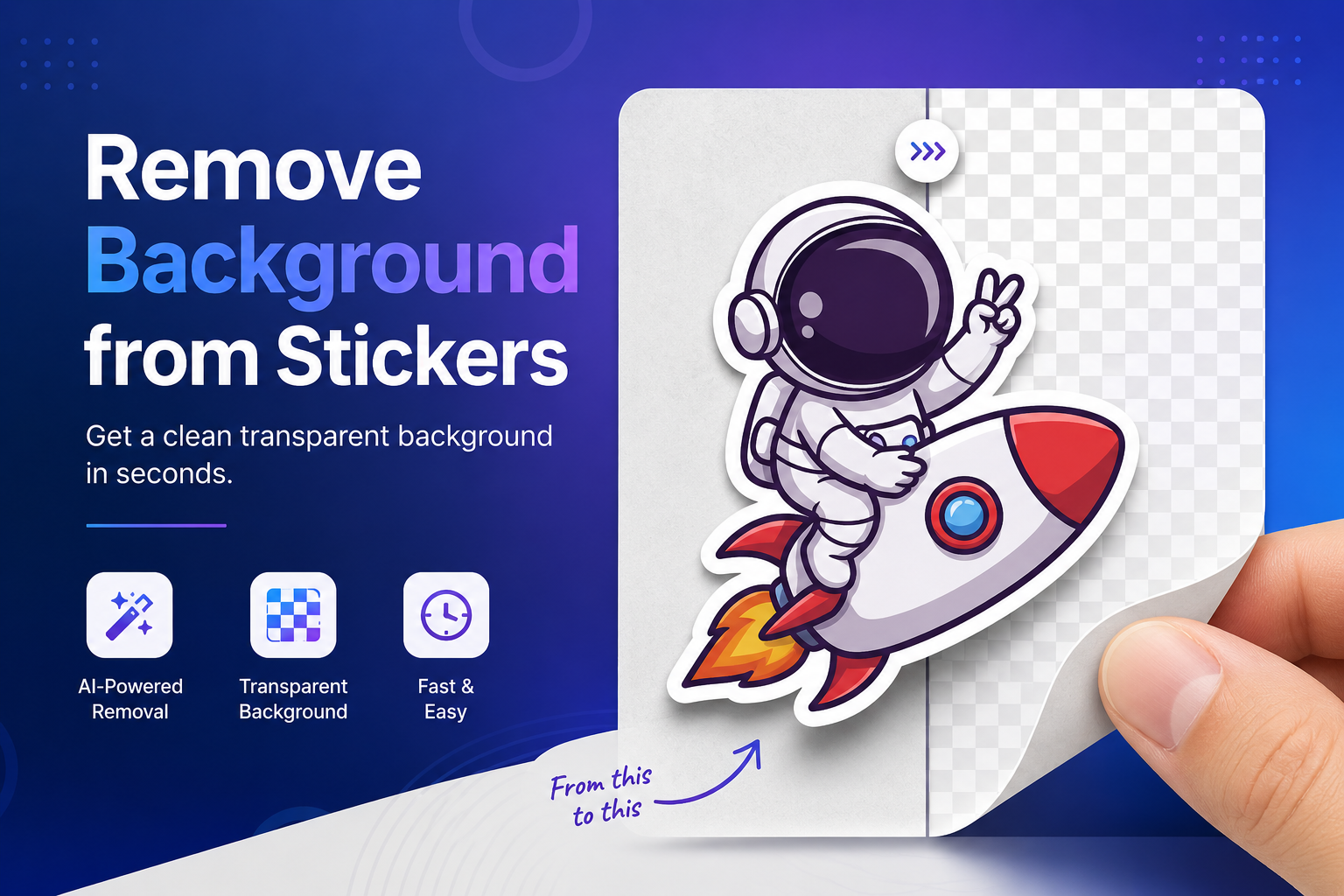
A sticker with a messy white box around it looks amateur. A sticker with a clean, transparent background looks like it belongs on a store shelf. That's the difference background removal makes, and it's why so many designers, sellers, and hobbyists are learning how to remove background from stickers before they print or publish anything.
The good news is that you don't need Photoshop or design experience to do this anymore. AI tools can strip a background from a sticker in seconds, leaving you with a crisp, transparent PNG ready for printing, packaging, or social media. This guide walks through exactly how it works, which tools are worth using, and how to avoid the common mistakes that ruin sticker quality.
What Does "Remove Background from Stickers" Mean?
Frequently Asked Questions
Final Thoughts
Removing a sticker's background means deleting everything around the main design — the white box, the busy photo backdrop, or the solid color fill — so only the sticker shape remains. What's left is a transparent PNG sticker, meaning the space around the design has no color at all. When you place it on a webpage, product mockup, or T-shirt, it blends in naturally instead of sitting inside an ugly rectangle.
There are two sticker formats worth knowing:
Raster stickers (JPG, PNG) are made of pixels. They're easy to edit with AI tools but can lose quality if resized too much.
Vector stickers (SVG, AI, EPS) are made of paths and scale infinitely without quality loss, which is why cutting machines like Cricut prefer them.
Most background removal tools, including AI-powered ones, work with raster images and export a transparent PNG — the standard format for printable and digital stickers.
Why Remove Sticker Backgrounds?
A transparent background isn't just cosmetic. It affects how professional, usable, and sellable your sticker actually is.
Cleaner appearance — no white box, no shadow lines, no distracting edges
Professional branding — logos and labels look intentional, not slapped together
Custom sticker printing — printers need a clean silhouette to cut around
Cricut and Silhouette cutting — cutting machines rely on a clear edge to trace
Etsy sticker shops — listings with transparent mockups convert better
Shopify and Amazon listings — product stickers need to sit cleanly on white or colored backgrounds
Social media posts — transparent stickers layer naturally over photos and reels
WhatsApp, Telegram, and Discord stickers — these platforms require transparent PNGs to display correctly
If your sticker still has its original background attached, it will look out of place in almost every one of these situations.
How to Remove Background from Stickers Using FreeBackgroundRemoverAI
Here's the fastest way to get a transparent sticker PNG without opening Photoshop or creating an account:
Upload your sticker image — any JPG or PNG works
AI detects the subject — the tool automatically identifies the sticker design versus the background
Background is removed automatically — no manual selection needed
Preview the result — check the edges before downloading
Download the transparent PNG — saved instantly in high quality
Use it anywhere — packaging, print, social media, or product mockups
The entire process takes seconds. There's no Photoshop, no sign-up, and no cost — just upload and download. For designers processing multiple stickers a day, that speed adds up fast.
Features of FreeBackgroundRemoverAI
What makes an AI background remover worth using comes down to a handful of practical features:
AI precision that detects fine edges like fur, hair, or thin sticker outlines
Transparent PNG output ready for print or web use
HD quality with no visible pixelation
Fast processing, typically under 10 seconds per image
One-click editing with no manual selection required
Free usage with no hidden paywall
Browser-based, so nothing to install
Secure uploads that aren't stored or shared
Support for multiple images, useful for batch sticker projects
If you're also cleaning up related assets, tools like an AI Background Generator, AI Image Upscaler, or AI Watermark Remover cover the rest of the editing workflow.
Best Sticker Types for Background Removal
Background removal works differently depending on what kind of sticker you're editing:
Logo stickers — need sharp, clean edges for brand consistency
Product labels — must isolate cleanly for packaging mockups
Vinyl stickers — benefit from crisp silhouettes for outdoor durability
Die-cut stickers — require a precise outline since the cut follows the design edge
Kiss-cut stickers — need a clean backing shape even though the sticker sits on a liner
Planner stickers — small, detailed designs that need careful edge detection
Emoji stickers — simple shapes that process quickly and cleanly
WhatsApp and Telegram stickers — must be transparent PNGs to meet platform requirements
Printable decals — need print-ready transparency with no leftover pixels
Laptop stickers — benefit from bold, clean edges that hold up at small sizes
Tips for Better Sticker Results
A few habits make a noticeable difference in output quality:
Start with a high-resolution image — low-res uploads produce blurry edges
Avoid shadows in the original photo, which can confuse edge detection
Always export as PNG to preserve transparency
Check for crisp edges around fine details like text or thin lines
Confirm the transparent export doesn't have a faint white halo
Optimize for print quality by using at least 300 DPI source images
Keep consistent dimensions across a batch of stickers for uniform printing
Sticker Printing Tips
If your stickers are headed to a printer, a few technical details matter more than design itself:
Use 300 DPI or higher for print-ready sharpness
Work in CMYK, not RGB, since most printers use CMYK color profiles
Add bleed margins so nothing gets cut off at the edge
Export as a print-ready PNG with true transparency, not a white fill
Confirm the transparent background carries through to the final print file
For vinyl printing, use higher-resolution files to avoid pixelation at larger sizes
Choose between glossy and matte finishes based on how the sticker will be used — glossy for vibrant colors, matte for a subtler, scratch-resistant look
Best Use Cases
Transparent sticker PNGs show up across a wide range of platforms and projects:
Etsy sticker shops
Shopify product listings
Amazon Handmade
Redbubble
Printify and Printful
Personal craft projects
Brand and logo materials
School projects
Product packaging
Business labels
Social media graphics
Marketing campaigns
Frequently Asked Questions
How do I remove the background from stickers? Upload the sticker image to an AI background remover, let it automatically detect the design, and download the transparent PNG. No manual editing is required for most images.
Can I make stickers transparent? Yes. Any sticker can be converted to a transparent PNG using an AI background remover, which deletes the surrounding background and keeps only the design.
Is PNG best for stickers? Yes, PNG is the standard format for stickers because it supports true transparency and maintains sharp quality across web, social, and print use.
Can AI remove sticker backgrounds? Yes. AI tools detect the sticker's edges automatically and remove the background in seconds, without requiring manual selection tools like the Pen tool in Photoshop.
Is FreeBackgroundRemoverAI free? Yes, it's free to use, requires no sign-up, and processes images instantly in the browser.
Can I print transparent stickers? Yes. A transparent PNG is exactly what most sticker printers require to produce a clean, cut-ready design without a visible background box.
How do I remove white borders? An AI background remover will detect and delete the white border along with the rest of the background, leaving only the sticker's actual shape.
Which format is best for Cricut? SVG is preferred for Cricut and Silhouette machines since it's a vector format that scales without losing quality, though transparent PNGs also work for many projects.
Can I edit sticker colors afterward? Yes. Once the background is removed, you can adjust colors in any basic photo or design editor without affecting the transparency.
Will quality decrease after background removal? No, as long as you start with a high-resolution image. AI tools preserve the original detail and only remove the surrounding background.
Can I use stickers for commercial purposes? Yes, as long as you have the rights to the original artwork or photo. Background removal itself doesn't affect licensing.
What resolution is best for printing? At least 300 DPI is recommended for sharp, print-ready sticker output, especially for larger vinyl or die-cut stickers.
Do I need Photoshop to remove a sticker background? No. AI background removers handle the entire process automatically in the browser, with no software installation needed.
Can I remove backgrounds from multiple stickers at once? Some AI tools support batch processing, which saves significant time for shop owners handling large sticker catalogs.
What's the difference between kiss-cut and die-cut stickers for background removal? Both need a clean transparent PNG, but die-cut stickers require a more precise outline since the printer cuts directly along the design edge.
Final Thoughts
A transparent background turns an ordinary image into a print-ready, professional sticker. Whether you're building an Etsy shop, designing packaging, or creating custom Discord stickers, the process comes down to the same core step: remove background from stickers cleanly, then export as a high-quality PNG.
AI tools have made this step nearly instant. There's no need to learn Photoshop's Pen tool or spend hours on manual selections — just upload, let the AI detect the subject, and download a transparent PNG ready for anything you're building. If you want to try it yourself, FreeBackgroundRemoverAI handles the whole process for free, right in your browser
Share this guide with your team