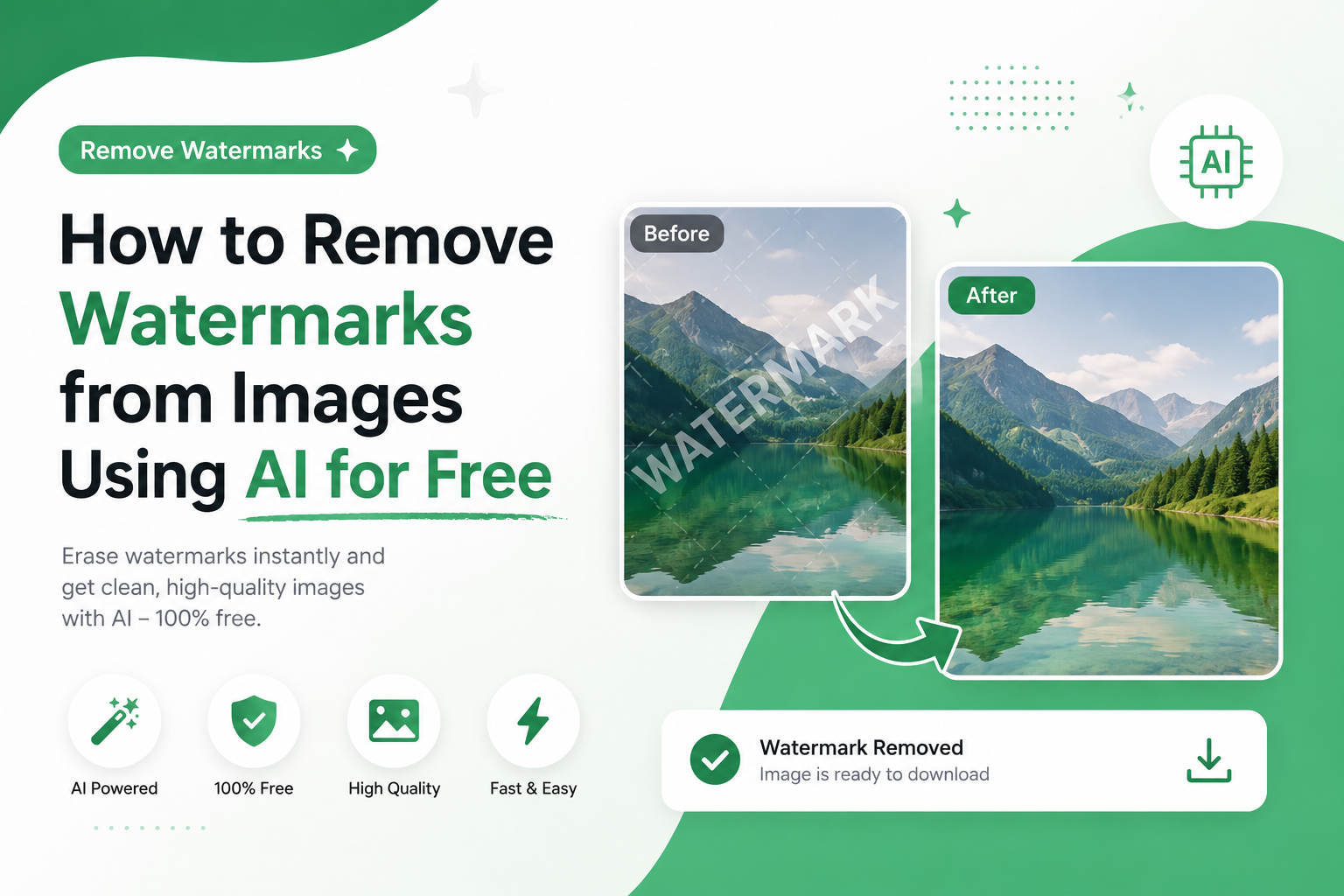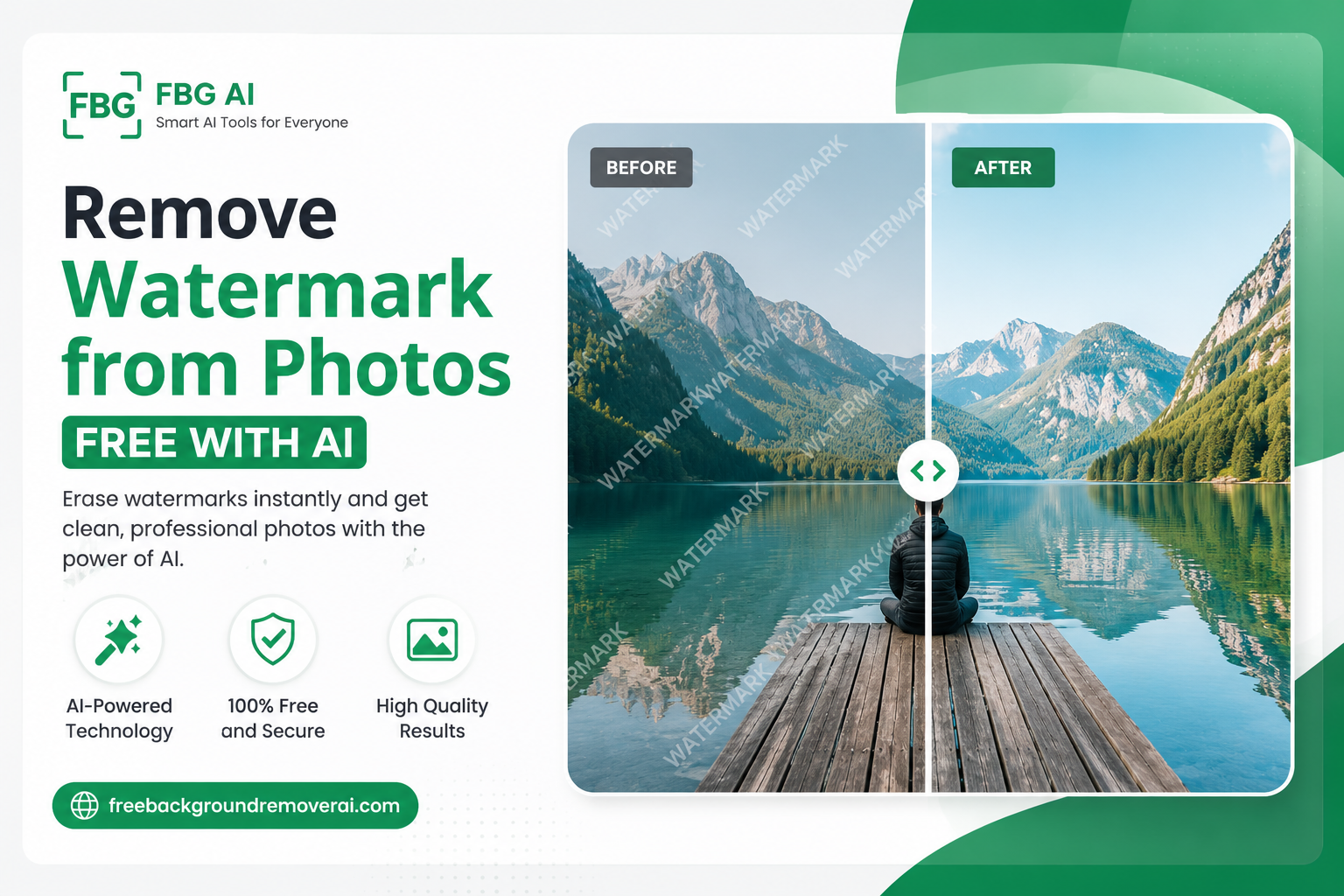
How to Remove a Watermark From a Photo Safe AI Methods & Free Online Guide (2026)
Have you ever found a watermark covering a photo you own and wished you could get a clean version back?
Whether it's an old family photograph, your own social media image, a business product photo, or a design you created yourself, removing an unwanted watermark can make an image much more useful.
Today, AI watermark removers make this process considerably easier than traditional photo-editing software. Instead of spending minutes carefully cloning pixels in Photoshop, an AI tool can analyze the marked area and reconstruct the surrounding image automatically.
However, there is one important rule: only remove a watermark from an image you own or have permission to edit.
In this guide, you'll learn how to remove a watermark from a photo using AI, how watermark removal works, when it is legal to do, which mistakes to avoid, and how to get the cleanest possible result.
If the image belongs to you or you have permission to edit it, you can try the AI watermark remover directly.
What Is a Watermark?
A watermark is a visible or invisible mark added to an image to identify ownership, protect creative work, or indicate licensing information.
A visible watermark can be:
A photographer's name
A company logo
Copyright text
A semi-transparent brand mark
A website name
A date or timestamp
A stock-photo preview mark
For example, photographers may place their name across a preview image before a customer purchases a licensed copy.
Watermarks can also be invisible. These may be embedded into metadata or the image's pixel structure and can be used to help identify where an image originated.
Common types of image watermarks
Copyright watermark: Used to identify the owner of a photograph, illustration, or other creative work.
Brand watermark: A company logo or business name added to marketing images.
Personal watermark: A photographer, designer, or creator's name placed on their own work.
Licensing watermark: A temporary mark placed over stock images until the correct license is purchased.
Understanding why a watermark exists is important before attempting to remove it.
Can You Legally Remove a Watermark From a Photo?
The answer depends on who owns the image and whether you have permission to edit it.
If you took the photograph yourself, created the design, own the business asset, or received permission from the copyright holder, removing a watermark from that file can be a legitimate editing task.
For example, it may be appropriate to remove a watermark from:
Your own photographs
Your own artwork
Your own product images
Your own business graphics
Images you have permission to edit
Public-domain content where applicable
Licensed files that specifically allow the type of editing you're performing
The situation is completely different when you find a copyrighted image online that belongs to someone else.
Don't remove watermarks from unlicensed stock images
Stock photo websites use watermarks on preview images to indicate that the image has not yet been licensed.
Removing that watermark does not give you permission to use the photograph.
If you need a stock image, the appropriate solution is to purchase or obtain the required license and download the authorized version.
The same principle applies to photographs, illustrations, designs, and other copyrighted material created by someone else.
A good rule: If you don't own the image or have permission to edit it, don't remove the watermark.
When Is It Safe to Remove a Watermark?
There are many legitimate situations where removing a watermark makes sense.
1. Your own photographs
If you photographed an image yourself and added a watermark for social media or portfolio protection, you can remove your own watermark when you need a clean version.
2. Old family photographs
You may have scanned an old photograph that contains a studio stamp or mark and have permission or ownership rights to the image.
Cleaning the unwanted mark can help restore the photograph for personal use.
3. Your own designs
Graphic designers often add temporary watermarks to draft designs before sending them to clients.
Once the final version is approved, the designer can remove their own draft watermark.
4. Business product photos
A business may add a temporary logo or internal watermark to product photographs during its editing workflow.
The original owner can remove that mark before publishing the final image.
5. Images you have permission to edit
If the copyright owner has given you permission, watermark removal may be part of the agreed editing work.
For freelance and agency projects, keeping written confirmation can help avoid confusion about ownership and usage rights.
How Does an AI Watermark Remover Work?
Traditional watermark removal often involves manually using tools such as the Clone Stamp, Healing Brush, or Content Aware Fill.
AI watermark removal takes a different approach.
Modern AI image-editing systems can analyze the area you identify and use information from surrounding pixels to reconstruct the covered section.
The basic process looks like this:
Step 1: Identify the watermark
The system needs to know which part of the image should be edited.
Some AI tools automatically detect unwanted elements, while others allow you to manually mark the area.
Step 2: Analyze the surrounding image
The AI examines nearby colors, textures, edges, shapes, lighting, and patterns.
This helps it understand what the covered area should look like.
Step 3: Reconstruct the selected area
Using an AI inpainting process, the system generates replacement pixels that blend with the surrounding image.
For example, if a small watermark covers part of a blue sky, the AI can reconstruct the area using the surrounding sky texture.
Step 4: Blend the result
The reconstructed area is blended into the original image so that the transition looks as natural as possible.
Step 5: Review the image
AI is powerful, but it isn't perfect.
Always zoom into the edited area and check faces, text, edges, patterns, and detailed textures before downloading the final image.
How to Remove a Watermark From a Photo With AI
If you're working with an image you own or have permission to edit, the process is straightforward.
1. Open an online AI watermark remover
You can use the Free AI Watermark Remover from FBG AI.
The tool is designed for cleaning watermarks, stamps, logos, and similar overlays from images that you have rights to edit.
2. Upload your image
Upload your JPG, PNG, or WEBP image.
The current FBG AI watermark-removal workflow supports files up to 15MB and doesn't require an account to begin.
3. Mark the watermark
Instead of automatically editing the entire image, mark the watermark or unwanted overlay you want to remove.
This helps keep the editing area focused on the part of the image that needs reconstruction.
4. Run the AI removal
The AI processes the selected area and reconstructs the covered pixels using information from the surrounding image.
5. Inspect the result
Don't immediately download the first result.
Zoom in and check:
Faces
Hair
Fine textures
Straight lines
Patterns
Product edges
Textured backgrounds
Shadows and highlights
If something looks unnatural, try making the selection more precise.
6. Download the cleaned image
Once you're happy with the result, download your edited image.
FBG AI's current watermark tool states that uploads are automatically deleted within one hour.
Remove Watermark From Photos Online Without Photoshop
Photoshop can remove unwanted elements using tools such as Clone Stamp, Healing Brush, and Content-Aware Fill.
The downside is that these methods can require manual editing experience.
For simple watermark cleanup, an online AI tool can be much faster.
With an AI workflow, you generally:
Upload → Mark → Remove → Review → Download
There is no need to manually clone surrounding pixels across the entire watermark.
This makes AI watermark removal particularly useful for beginners, content creators, photographers, online sellers, and business owners who need quick image cleanup.
If you're looking for other AI editing tools, you can also explore the watermark removal which combines background removal, image enhancement, upscaling, background generation, blur, and watermark cleanup in one platform.
How to Get Better Watermark Removal Results
AI tools work best when you give them good source material.
Here are several ways to improve the final result.
Use the highest-quality original
A high-resolution image gives the AI more information to work with.
Avoid uploading an image that has already been compressed multiple times.
Mark the watermark accurately
If the tool requires you to paint or mark the watermark, don't select a huge area unnecessarily.
A more precise selection can help preserve surrounding details.
Avoid removing large complicated overlays
A large watermark covering a person's face, detailed clothing, complicated architecture, or text can be difficult to reconstruct naturally.
When the original file is available, using the original clean version is usually better.
Check the result at 100% zoom
An image may look perfect when viewed as a small thumbnail but reveal artifacts when enlarged.
Always inspect the edited area closely.
Keep your original image
Never overwrite your original file.
Save the untouched version separately so you can return to it if you need to make another edit.
What Types of Watermarks Can AI Remove?
AI inpainting can be useful for many types of unwanted overlays on images you have permission to edit.
Examples include:
Small logos
Draft stamps
Text overlays
Date stamps
Personal watermarks
Simple semi-transparent marks
Small unwanted objects
Some screenshot annotations
Results depend heavily on the size and complexity of the area being reconstructed.
A small watermark against a relatively simple background is generally easier to reconstruct than a large watermark covering detailed textures.
Can AI Remove Text From an Image?
Yes.
The same general inpainting technology used for watermark removal can also reconstruct areas covered by unwanted text.
For example, you might need to clean up:
A date stamp on your own photograph
A text overlay on your own graphic
An old annotation
A draft label
A temporary caption
The important distinction is ownership.
Removing text from an image you own is an editing task. Removing copyright information from somebody else's work without permission is a completely different situation.
Can AI Remove a Logo From a Photo?
AI can sometimes remove logos or branded overlays from images you own or are authorized to edit.
For example, a company may have an internal product image containing a temporary logo overlay that needs to be removed before final publication.
For best results, use a high-quality original and select only the area that needs editing.
If the logo belongs to another creator or company, don't remove it simply to reuse the image without authorization.
Common Watermark Removal Mistakes
Even the best AI watermark remover can't fix every problem.
Avoid these mistakes.
Removing copyrighted watermarks without permission
The biggest mistake is treating watermark removal as permission to use somebody else's image.
It isn't.
A watermark is often there because the creator wants to protect their work.
Using low-resolution screenshots
Screenshots and heavily compressed images contain less visual information, making reconstruction harder.
Whenever possible, start with the original file.
Selecting too much of the image
If you mark a large area around the watermark unnecessarily, the AI has to reconstruct more pixels.
Keep the selection as focused as possible.
Not checking the result
AI-generated reconstruction can occasionally produce strange textures, repeated patterns, or distorted details.
Always review the final image.
Uploading sensitive images to unknown websites
Before uploading a private image, check the service's privacy and data-retention policies.
FBG AI states that uploaded images are automatically deleted within one hour on its watermark-removal tool.
Is a Free AI Watermark Remover Worth Using?
For simple personal or business image-cleanup tasks, a free AI watermark remover can be a convenient alternative to manual editing software.
The important things to evaluate are:
Output quality
Supported image formats
File-size limits
Processing speed
Privacy practices
Whether signup is required
Whether downloads contain additional watermarks
Whether the tool is suitable for your intended use
FBG AI currently provides a no-signup watermark-removal workflow and allows users to mark the area before processing.
Frequently Asked Questions
Is it legal to remove a watermark from a photo?
It depends on your rights to the image. Removing a watermark from your own image or an image you are authorized to edit can be legitimate. Removing a copyright or licensing watermark from someone else's protected work without permission can violate copyright or licensing terms.
Can AI remove watermarks from photos?
Yes. AI image inpainting can analyze a selected watermark area and reconstruct replacement pixels using surrounding visual information.
Can I remove a watermark online for free?
Some online AI tools offer free watermark-removal workflows or free usage. Always check the site's current limits, privacy policy, and terms before uploading an image.
Does removing a watermark reduce image quality?
It can, depending on the size and location of the watermark and the quality of the original image. A small watermark on a simple background is generally easier to reconstruct than a large watermark covering detailed content.
Can I remove a watermark from my own photo?
Yes. If you own the photograph and added the watermark yourself, removing it is simply an image-editing task.
Can AI remove a logo from an image?
AI inpainting can remove some logos and overlays from images you own or have permission to edit. Complex or large logos may be harder to reconstruct cleanly.
Can AI remove text from an image?
Yes. AI inpainting can reconstruct areas covered by text, captions, timestamps, or other overlays when the image is yours or you have permission to edit it.
Is online watermark removal safe?
It depends on the service. Look for clear privacy policies, transparent data retention practices, secure processing, and information about what happens to uploaded images.
How long are images stored by FBG AI?
The current FBG AI watermark-removal page states that uploaded files are automatically deleted within one hour.
What image formats can I upload?
The current FBG AI watermark-removal tool supports JPG, PNG, and WEBP files, with a maximum file size of 15MB.
Can I remove a watermark from a Shutterstock or Getty Images preview?
You should not remove a licensing watermark from a stock preview to use the image without purchasing the appropriate license. Instead, obtain the properly licensed version from the rights holder or stock provider.
What if the watermark covers a face?
Large or detailed watermarks covering faces can be difficult for AI to reconstruct naturally. If possible, use the original clean photograph rather than relying on reconstruction.
Final Thoughts
Learning how to remove a watermark from a photo is easier than ever because AI can automate much of the difficult image-reconstruction work.
For images you own or have permission to edit, an AI watermark remover can help clean up logos, stamps, text overlays, and other unwanted marks without requiring advanced Photoshop skills.
The key is to use the technology responsibly.
Always verify that you have the right to edit the image, keep your original file, use a high-quality source, mark the unwanted area carefully, and inspect the result before downloading.
If you're ready to clean up an image you own, try the FBG AI watermark remover and follow the simple upload, mark, remove, and download workflow.
For more practical AI image-editing tutorials, visit the FreeBackgroundRemoverAI blog for additional guides and workflows.
Share this guide with your team